Showing posts with label h264. Show all posts

Wednesday, May 25, 2016

impressive CPU offload and FPS boost from NVidia "nvenc" codec

As I just purchased an NVidia GeForce GTX 970, I installed the FFmpeg "nvenc" codec to see if I would gain any benefits from the hardware encoding acceleration on the card.  From the results, I think I did!

H264 encode
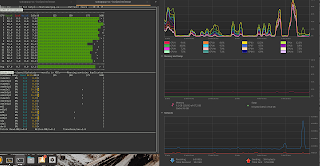
In the picture below, you can see that the H264 maxes out my CPU at 92% while I transcode a 2.7K GoPro video.  Also, final FPS of the encode is 23:

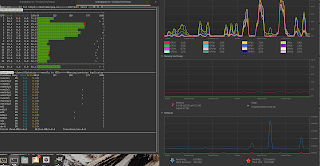
Now here is the encode using the Maxwell class CPU on the GTX 970.  CPU utilization is down to 15% and my FPS goes from 20 to 38!  Impressive!

Encoding Parameters
The params are be a bit different between the two, but I think they might be good enough for a comparison.

H264
ffmpeg -i GOPR0099.MP4 -profile:v high -preset medium -vcodec libx264 -acodec copy output2.mp4

NVenc
ffmpeg -i GOPR0099.MP4 -c:v nvenc -acodec copy nvenc.mp4

Update 12/14/22
Compare these parameters:
FFMPEG_PRESET="-c:v libx264 -f mp4 -pix_fmt yuv420p -profile:v baseline -preset slow "
FFMPEG_PRESET="-c:v h264_nvenc -f mp4 -pix_fmt yuv420p -preset p2 -tune hq -b:v 5M -bufsize 5M -maxrate 10M -qmin 0 -g 250 -bf 3 -b_ref_mode middle -temporal-aq 1 -rc-lookahead 20 -i_qfactor 0.75 -b_qfactor 1.1"

H264 encode is roughly 133 fps and takes twice as long. Notice the two tall CPU spikes.

Nvenc encode is roughly 327 fps and half the time of H264. The small CPU spikes on the right that are 1/2 the length of the tall ones.
Actual timing boost is impressive, from 44s to 14s
Regular libx264

real    0m44.101s
user    9m51.905s
sys    0m5.016s

H264_nvenc
frame= 5898 fps=417 q=22.0 size=  126976kB time=00:03:18.14 bitrate=5249.7kbits/s dup=1 drop=0 speed=  14x No more output streams to write to, finishing.

real    0m14.730s
user    1m27.067s
sys    0m1.804s

Of course, scaling functions need special tweaks to command line that I haven't figured out and interpolate commands are still extremely slow.

 Custom command used:
reset;/home/sodo/scripts/reviewCut/renderEdit.sh 20221105.ts 1 200 2 5 "Blump" E

Sunday, December 08, 2013

lossless encoding from H264 to MPEGTS

For editing purposes, I needed a good way to losslessly encode video from my Canon 5D Mark II's H264 source to a format that allows me to concatenate multiple video files into one large one.  Only a few video formats have the ability to concatenate multiple files together: mainly mpg and mpegts.  FFmpeg is always getting better (thank you, guys!), and has a nice formula for doing this here:
https://trac.ffmpeg.org/wiki/How%20to%20concatenate%20(join,%20merge)%20media%20files

The formula relies on a specification from the H264 standard known as AnnexB.  Here are a couple articles about Annex B, though both are above my head:
http://aviadr1.blogspot.com/2010/05/h264-extradata-partially-explained-for.html
http://wiki.multimedia.cx/index.php?title=H.264

The H.264 spec itself:
http://www.itu.int/rec/T-REC-H.264-201304-I

My goal was to losslessly extract the video and audio from the individual videos I shot using the Canon and concatenate them all into one long-length video.

Here's what the Canon video file container looked like to FFprobe:
ffprobe $VIDEO 2>&1 | grep Stream
    Stream #0:0(eng): Video: h264 (Constrained Baseline) (avc1 / 0x31637661), yuvj420p(pc, smpte170m), 1920x1080, 45694 kb/s, 29.97 fps, 29.97 tbr, 30k tbn, 60k tbc (default)
    Stream #0:1(eng): Audio: pcm_s16le (sowt / 0x74776F73), 48000 Hz, stereo, s16, 1536 kb/s (default)

Note the video stream is H264 and the audio stream is waveform PCM.

Extract the Video
I did this with an FFmpeg command line:
ffmpeg -i $VIDEO -c copy -bsf:v h264_mp4toannexb -f mpegts $NEWVIDEO

Note that you'll need the latest and greatest FFmpeg.  Using an older version of FFmpeg from RPM Fusion's repo )FFmpeg 1.0.8), I got a bunch of these errors when I tried to concatenate individual MPEGTS files.
[aac @ 0x6727e0] channel element 1.10 is not allocated
[aac @ 0x6727e0] More than one AAC RDB per ADTS frame is not implemented. Update your FFmpeg version to the newest one from Git. If the problem still occurs, it means that your file has a feature which has not been implemented.
[aac @ 0x6727e0] channel element 3.15 is not allocated
[aac @ 0x6727e0] Error decoding AAC frame header.
[aac @ 0x6727e0] Reserved bit set.
[aac @ 0x6727e0] channel element 1.8 is not allocated
[aac @ 0x6727e0] channel element 2.0 is not allocated
[aac @ 0x6727e0] Sample rate index in program config element does not match the sample rate index configured by the container.
[aac @ 0x6727e0] Reserved bit set.
    Last message repeated 1 times
[aac @ 0x6727e0] Number of bands (4) exceeds limit (2).
[aac @ 0x6727e0] SSR not implemented. Update your FFmpeg version to the newest one from Git. If the problem still occurs, it means that your file has a feature which has not been implemented.
[mpegts @ 0x676640] decoding for stream 1 failed
[mpegts @ 0x676640] Could not find codec parameters for stream 1 (Audio: aac ([6][0][0][0] / 0x0006), 8 channels (FL+FR+FC+LFE+BL+BR+FLC+FRC), s16, 548 kb/s): unspecified sample rate
Consider increasing the value for the 'analyzeduration' and 'probesize' options
Input #0, mpegts, from 'concat:test.ts|test2.ts':
  Duration: 00:03:14.17, start: 1.400000, bitrate: 131495 kb/s
  Program 1 
    Metadata:
      service_name    : Service01
      service_provider: FFmpeg
    Stream #0:0[0x100]: Video: h264 (Constrained Baseline) ([27][0][0][0] / 0x001B), yuvj420p, 1920x1088, 29.97 tbr, 90k tbn, 180k tbc
    Stream #0:1[0x101](eng): Audio: aac ([6][0][0][0] / 0x0006), 8 channels (FL+FR+FC+LFE+BL+BR+FLC+FRC), s16, 548 kb/s
[mpegts @ 0x672c20] sample rate not set

Once I downloaded the latest FFmpeg from FFmpeg's git repo

the errors disappeared.  Hooray for updated code!

Extract the Audio
My second task was to yank the PCM audio track from the Canon and save that off to a file for concatenation later on.  I did so using this command to extract only the audio stream (-c:a) from the source video file the Canon outputs:
ffmpeg -i $VIDEO -c:a copy $NEWAUDIO

Concatenate the Individual Video Files
Next, I combined the extracted video streams that were saved to MPEGTS format into one large file.  That command looked like this:
ffmpeg -i "concat:file1.ts|file2.ts|file3.ts" -c copy $FINAL.ts

Concatenate the Individual Audio Files
I did the same for the audio:
ffmpeg -i "concat:file1.wav|file2.wav|file3.wav" -c copy $FINAL.wav

Edit to Taste
Knowing my goal was to have as close as lossless video and audio, I did some audio sweetening in Audacity and reencoded the $FINAL.wav as an MP2 audio file.  This is lossy, but
1) the MPEGTS container prefers MPEG audio codecs.
2) FFmpeg doesn't yet have an encoder for MPEG-4 ALS lossless just yet.

Combine the Long-length Video and Audio Streams
Lastly, I combined both lossless video and lossy audio streams using this command into a:
ffmpeg -i $FINAL.mp2 -i $FINAL.ts -c:a copy -c:v copy -map 0:0 -map 0:1 $COMBINED.ts

The -map feature in FFmpeg is the best thing since sliced bread:
http://ffmpeg.org/ffmpeg.html#Advanced-options

You can take an audio or video stream from one file and combine it with an audio or video stream from another file to save into a new file.  This assumes the container format supports those codecs.  Sweet!

Sync Issue Averted
I noticed that if I combined the individual audio and video streams into files that were greater than an hour and a half long, FFmpeg would introduce audio-visual sync issues towards the end of that long duration video.  My solution was to combine the audio and video streams into smaller transport stream files first and then combine those smaller, complete files into one big file.  This way, I had no a/v sync issue.

Anyway, that's my latest adventure into the world of lossless video editing using my Canon and FFmpeg.

Enjoy.
CM

Saturday, April 20, 2013

a simple way to render H264 content directly from Cinelerra

Use presets!
The FFmpeg encoding guide has excellent information on using presets:
http://ffmpeg.org/trac/ffmpeg/wiki/x264EncodingGuide

At the time of this writing, by running:
ffmpeg -i input -c:v libx264 -preset -tune dummy.mp4

I see that the available presets are:
ultrafast
superfast
veryfast
faster
fast
medium
slow
slower
veryslow
placebo

So really, all you need to do is translate that simple one liner into the Cinelerra YUV4MPEG Stream:
 ffmpeg -y -i - -threads 12 -c:v libx264 -preset medium %

Like so:


WahLah!  Easy-peasy conversion to H264.
CM

Reference:
FFmpeg x264 Encoding Guide

Friday, July 16, 2010

Green Beret parachutes in to help Cinelerra

Unbelievably, just in the past week, the Cinelerra CV community (http://cvs.cinelerra.org/) has had a heavyweight developer parachute in and start fixing stuff all over the place. The guy is Chris "Monty" Montgomery who developed the Ogg multimedia container and Vorbis audio formats (http://en.wikipedia.org/wiki/Chris_Montgomery). He is a developer currently working for Red Hat.

Monty, You're The Man!
His primary effort has been to yank out the kludgy and incompatible file loader in Cinelerra and replace it using good old FFmpeg. FFmpeg has problems of its own, but a helluva lot less problems than the Cinelerra loader. This is a task that the original developer of Cinelerra, Heroine Warrior (http://www.heroinewarrior.com/), has wisely done with the 4.1 version of Cinelerra. Much props to Father HV, for without him, this blog and Open Source video editing would be very different, if exist at all.

Monty is patching the version of FFmpeg that comes with the Cinelerra CV source code (http://cinelerra.org/getting_cinelerra.php). In Cinelerra CV's source code tree, FFmpeg is found under quicktime/ffmpeg. This means that once you compile Cinelerra from source code and add Monty's code fixes, files like the Canon 5D/7D H264 AVC files (the 1080P files spat out of the Canons') will load natively in Cinelerra.

AVC, oh AVC, Why Are You So Stubborn?
Problem here is that you can't really edit with AVC files because the decoding of them is so bloody CPU intensive. AVC playback in Cinelerra on my dual, quad core Dell SC1430 with 10GB RAM is 3-4fps. This is unacceptable for previewing edits. There is a workaround to this such that if you really wanted to edit AVC, you'd need to have background rendering enabled, make your edits and then wait for the background render to finish. But that bg render takes a long time too. You could speed this up to by creating a ramdisk (http://www.techanswerguy.com/2009/02/creating-ramdisk-in-linux.html) and setting the background render to use that ramdisk. But that's a whole other task.

Transcoding Canon 5D/7D Files, as usual
Thus, we're still left with the task of transcoding Canon 5D/7D files into a more compatible format. There are two solutions:
1) get my varied MPEG-TS conversion magic to work for you (http://crazedmuleproductions.blogspot.com/2009/02/dark-of-winter-has-me-in-its-grasp.html)
2) convert the 5D/7D files using FFmpeg into another format that works since FFmpeg is now Cinelerra's loader (with Monty's additions)

Both require research/work, but I did a quick conversion that I tested in Cinelerra with Monty's code additions:
ffmpeg -i [inputFileFromCanon] -acodec mp2 -ar 48000 -ab 384k -ac 2 -vcodec mpeg2video -qscale 1 [outputFile]

The audio format is mpeg, layer II and the video format is mpeg2video. This loads in Cinelerra and is fast to edit with. Once edited, render out from Cinelerra as usual.

How to Compile Cinelerra for Ubuntu and Fedora users
So Monty's additions require compiling from source. I'll provide some quick links here. For Ubuntu folks, Raffaella Traniello has put a nice post together on how to compile Cinelerra in Ubuntu:
http://www.g-raffa.eu/Cinelerra/HOWTO/compilation.html

For Fedora users, I have a post here:
http://crazedmuleproductions.blogspot.com/2010/02/fedora-12-x86-64-cinelerra-install.html

Get Monty's Additions Working
Once you get the source code compiled, install it (make install) and just test that Cinelerra works at a basic level. Once you've tested that your compile has worked, move onto apply Monty's code additions:
- remove your installed Cinelerra (make uninstall)
- download Monty's additions at http://people.xiph.org/~xiphmont/cinelerra/patches/
- apply each of them to the Cinelerra source code tree one at a time (git apply [patch name])
or join in Monty's git branch:
1) git remote add xiphmont git://git.xiph.org/users/xiphmont/cinelerraCV.git
2) git remote update
- compile Cinelerra, this time with all Monty's additions (make clean;make;make install)

After starting CinCV with Monty's additions, you should see the startup info change:
[mule@ogre my_cinelerra]$ cinelerra
Cinelerra 2.1CVxiphmont
GIT::8c01c13bbb21d30aff2733454a49fbfe641e51ca
(C) 2006 Heroine Virtual Ltd.
(C) 2006-2010 The CinelerraCV Community
Internal ffmpeg 0.6+fixes
Compiled on Fri Jul 16 20:40:38 EDT 2010


As well, you should see that FFmpeg becomes the default loader for videos in you goto the Resources window, right-click on a video and click "Info". You should see FFMPEG there under File Format:


A Few Git Notes..
While I'm at it..

View current git branches
[mule@ogre my_cinelerra]$ git branch
* master

Add Monty's remote branch
[mule@ogre my_cinelerra]$ git remote add xiphmont git://git.xiph.org/users/xiphmont/cinelerraCV.git

Update the local copy of Monty's remote branch
[mule@ogre my_cinelerra]$ git remote update
Fetching origin
Fetching xiphmont
remote: Counting objects: 2754, done.
remote: Compressing objects: 100% (1904/1904), done.
remote: Total 1981 (delta 997), reused 0 (delta 0)
Receiving objects: 100% (1981/1981), 2.77 MiB 1.07 MiB/s, done.
Resolving deltas: 100% (997/997), completed with 711 local objects.
From git://git.xiph.org/users/xiphmont/cinelerraCV
* [new branch] master -> xiphmont/master


Check that Monty's branch has been added
[mule@ogre my_cinelerra]$ git branch
* master
xiphmont

I then was able to switch branches
[mule@ogre my_cinelerra]$ git checkout -b xiphmont xiphmont/master
Branch xiphmont set up to track remote branch master from xiphmont.
Switched to a new branch 'xiphmont'


"git branch" shows that I have switched to Monty's branch
[mule@ogre my_cinelerra]$ git branch
master
* xiphmont

Now I can switch easily between branches (Monty's and CinelerraCV)
[mule@ogre my_cinelerra]$ git checkout master
Switched to branch 'master'


Switching to Monty's branch
[mule@ogre my_cinelerra]$ git checkout xiphmont
Switched to branch 'xiphmont'


Show the current status of the git code repositories
[sfrase@ogre my_cinelerra]$ git status | head -6
# On branch xiphmont
# Untracked files:
# (use "git add ..." to include in what will be committed)
#
# cinelerra-cvs-current.spec
# cinelerra/.deps/
>


View the latest change log
[mule@ogre my_cinelerra]$ git log xiphmont/master | head -6
commit 8c01c13bbb21d30aff2733454a49fbfe641e51ca
Author: Monty
Date: Fri Jul 16 07:30:10 2010 -0400

iAlter/extend versioning to avoid any confusion between this temporarily
forked version and the main CinelerraCV repo

Pull in the latest code updates:
[mule@ogre my_cinelerra]$ git pull


Troubleshooting
I tried to switch branches and got this error
[mule@ogre my_cinelerra]$ git checkout -b xiphmont xiphmont/master
error: You have local changes to 'po/de.po'; cannot switch branches.

I did a hard reset to clear the above error
[mule@ogre my_cinelerra]$ git reset --hard HEAD
HEAD is now at d95887f Pass --libdir given to configure on to ffmpeg configure.

Last resort for repos not working, a destructive clean:
[mule@ogre my_cinelerra]$ git clean -dfx


Update 2010/07/16
Looks like the YUV4MPEG render stream is broken..this simple render pipe outputs a file unreadable in FF
ffmpeg -f yuv4mpegpipe -i - -y -target dvd -f mpeg2video %

I talked to Monty and he will fix..something about colorspace converter.
*** end update ***

Note that you have to compile Cinelerra and do a full reinstall, as the Cinelerra "make" process hard links the installation directory into the cinelerra executable.

So I hope Monty stays with us as long as possible. Thanks man! Hope springs eternal!
the mule

References
http://www.itworld.com/open-source/115063/breaking-open-video-frontier-despite-mpeg-la

Friday, January 30, 2009

high quality h264 output

For the last few years, I've been working with 720P content. With the recent purchase of a Canon 5D, I'm now working with 1080P video. Both formats are in 16:9 aspect ratio. 

- 720P video implies a horizontal resolution of 1280 pixels, 1280x720 frame resolution with a total of 921,600 pixels. 

- 1080P video implies a horizontal resolution of 1920 pixels, 1920x1080 frame resolution with a total of 2,073,600 pixels. 

Though this is a blog on Linux video editing, I heartily welcome good information on the often confusing subject of video compression. Here is an article on Apple's site that conveys the basic information you'll need to understand about encoding H264 videos: http://www.apple.com/quicktime/tutorials/h264.html 

As I work to produce higher quality video, one of the things I've thought about is the possibility of getting my material aired on cable TV. So the Broadcast Standards discussion in the above Wikipedia article was very interesting. Also, it occurred to me that I've never properly understood the differences between fields and frames, in the context of telecine, or how film is transferred to video. The Wiki article above clarified it for me and is highly recommended. 

Fields and frames are also useful in the context of how Cinelerra processes video.  

Rendering High Quality H264 video 

It is important to understand aspect ratio in the context of rendering high quality video. Lately, I've been encoding H264 video; specifically, I've been reducing the size of my videos to load onto an iPhone/iTouch. For this task, one of the easiest ways to assure best output quality is to make sure that both the height and width of the rendered output are divisible by 16. 

Without going into the highly technical details of the H.264/MPEG-4 AVC standard or how video compression works, here is a somewhat simplistic analysis: "..it's slightly better to have dimensions divisible by 16, but only because H.264 divides up a picture into 16x16 blocks and if you have a partial block it still has to expend time and bandwidth on it. A size that is an exact multiple of 16 H & V will compress a tiny bit more efficiently, or look slightly better at the same bitrate." -extracted from this conversation that no longer exists.

To make sure the dimensions of my videos are always divisible by 16, you can do the calculations yourself, or take a look at a couple nice charts from Andrew Armstrong's site to help you choose dimensions where the height and width are both divisible by 16. 

To make it easy for you, there are only a few choices: 1536x864 1280x720 768x432 512x288 256x144 This will avoid the dread "width or height not divisible by 16, compression will suffer" error you would see in many H264 encoders.  

Robert Swain's blog (again, no longer exists) was very helpful in determining x264 parameters that yield great looking video. Especially the page regarding ffmpeg presets, though I haven't yet determined what preset is best for my content. The presets listed on Robert's page need to be put into a .ffmpeg directory under your user's home directory. 

Finally, this bitrate calculator for was something useful I stumbled up while researching this post.

-- the Mule --

 
PS 2023/04/16 - Sven from videoproc.com was kind enough to point out that Kino has been discontinued and not actively maintained since 2009, and its official website - Kinodv.org, was also completely shut down and out of service since April, 2021.

Sven recently published a guide talking about what happened to Kino and its official website, and you can check it here,
https://www.videoproc.com/resource/what-happened-to-kinodv.htm
 
Thanks again, Sven!

PS 2021/05/31 - Sven from videoproc.org wrote a fantastic piece on H.264 and H.265/HEVC encoding, I learned a lot from it.  Here's the link:

Sunday, January 25, 2009

stock footage, encoding H264 and the iPod

I had a bit of a rough day yesterday. I started early, about 8am, upgrading my MacBook Pro to Leopard. That process went more or less smoothly and finished around noon. Next, I had taken some video the night before and wanted to create a video that would serve as a table of contents to my archive. Also, this short video might enable me to market some of my source material as stock footage. So it might be a fun little project that shouldn't take long. I should know to never say "shouldn't take too long", because things have a way of blowing up in your face when you don't expect them to.

Converting 1080P directly to an iPod-ready format
The goal was to convert some 1080P video from my Canon 5D directly into an iPod readable format. However, as I was overly tired on this day, my mind defeated me. Essentially what happened was that after I rendered out the video and loaded it to the iPod, I kept seeing only three quarters of the video. Flummoxed, I thought it must be a rendering problem. Long story short, I found that the problem was not with my rendering parameters, but the fact that my iTouch has a zoom/scaling feature that I forgot about, but had enabled. Here is the little bugger:


So I had spent about three hours until 2am fighting with encoding parameters, re-encoding video, transferring many test files to my Mac and then loading them to the iPod, only to find that the source of the problem was this little stupid icon on the iTouch.

Boy, am I dense.

A Learning Experience
I did learn a few things through my travails this weekend:
1) The el cheapo haze filter on my camera shows a lot of lens flare and needs to be replaced.

2) Don't merge a longer audio stream with a shorter video stream or else you'll be wondering why your 1m45s video is suddenly 9m30s. Duh.

3) When encoding videos to H264 format, always try to use resolutions where the height and width are divisible by 16. This will make the level of compression and quality of the resulting video better. I will post separately about resolutions that are divisible by 16.

4) A dvd video encoded by ffmpeg using -target ntsc-dvd and then downrezzed using the following command syntax will NOT have the proper aspect ratio once loaded onto the iPod:
ffmpeg -y -i ${NAME}.mpg -an -v 1 -threads 8 -vcodec h264 -b 250k -bt 175k -refs 1 -loop 1 -deblockalpha 0 -deblockbeta 0 -parti4x4 1 -partp8x8 1 -me full -subq 1 -me_range 21 -chroma 1 -slice 2 -bf 0 -level 30 -g 300 -keyint_min 30 -sc_threshold 40 -rc_eq 'blurCplx^(1-qComp)' -qcomp 0.7 -qmax 51 -qdiff 4 -i_qfactor 0.71428572 -maxrate 450k -bufsize 2M -cmp 1 -s 720x480 -f mp4 -pass 1 /dev/null

ffmpeg -y -i ${NAME}.mpg -v 1 -threads 8 -vcodec h264 -b 250k -bt 175k -refs 1 -loop 1 -deblockalpha 0 -deblockbeta 0 -parti4x4 1 -partp8x8 1 -me full -subq 6 -me_range 21 -chroma 1 -slice 2 -bf 0 -level 30 -g 300 -keyint_min 30 -sc_threshold 40 -rc_eq 'blurCplx^(1-qComp)' -qcomp 0.7 -qmax 51 -qdiff 4 -i_qfactor 0.71428572 -maxrate 450k -bufsize 2M -cmp 1 -s 720x480 -acodec aac -ab 160k -ar 48000 -ac 2 -f mp4 -pass 2 -threads 8 ${NAME}.mp4


So don't try that at home, kids.

I had previously been using this string of encoding parameters to encode a video of my band rehearsals. The encode was from a DVD source file, so perhaps I will just use the 1080P as source going forward. I will have to test this out first. Strangely, the conversion of the audio from AC3 format had audible hiccups from time to time. Since this process was working fine on Fedora 7, perhaps this is just an issue with Fedora 10.

Downrezzed 1080P Video Ready for the iPod
The following two pass Cinelerra encoding parameters via yuv4mpeg stream worked well to produce a high quality video from 1080P source. In short, you will do two renders from a YUV4MPEG stream:
render 1: the pipe to /dev/null in order to create the optimization log
render 2: the pipe to create the file

#CINELERRA YUV4MPEG RENDER 1
ffmpeg -f yuv4mpegpipe -y -i - -an -v 1 -threads 8 -vcodec libx264 -b 1000k -bt 775k -refs 1 -loop 1 -deblockalpha 0 -deblockbeta 0 -parti4x4 1 -partp8x8 1 -me full -subq 1 -me_range 21 -chroma 1 -slice 2 -bf 0 -level 30 -g 300 -keyint_min 30 -sc_threshold 40 -rc_eq 'blurCplx^(1-qComp)' -qcomp 0.7 -qmax 51 -qdiff 4 -i_qfactor 0.71428572 -maxrate 1000k -bufsize 2M -cmp 1 -s 512x288 -f mp4 -pass 1 /dev/null

#CINELERRA YUV4MPEG RENDER 2

ffmpeg -f yuv4mpegpipe -y -i - -i /mnt/videos/projects/2009_01_23/nightUrbanIndustrialIpod.mp3 -v 1 -threads 8 -vcodec libx264 -b 1000k -bt 775k -refs 1 -loop 1 -deblockalpha 0 -deblockbeta 0 -parti4x4 1 -partp8x8 1 -me full -subq 6 -me_range 21 -chroma 1 -slice 2 -bf 0 -level 30 -g 300 -keyint_min 30 -sc_threshold 40 -rc_eq 'blurCplx^(1-qComp)' -qcomp 0.7 -qmax 51 -qdiff 4 -i_qfactor 0.71428572 -maxrate 1000k -bufsize 2M -cmp 1 -s 512x288 -acodec libfaac -ab 160k -ar 48000 -ac 2 -f mp4 -pass 2 -threads 8 %

I chose a resolution of 512x288 because:
1) the aspect ratio is the same as my 1080P source video, 16:9 (1.777)
2) both the height and width are divisible by 16
3) there were no errors and it comes out looking great on the iPod

Rendering Parameters for a High Quality Vimeo Upload
Finally, I was able to output an H264 video at 1920x1080 that looks great in Vimeo. Psych! I was able to remove the ugly bottom bar seen in Vimeo from my previous post. Here is the two-pass encoding method that I used from Cinelerra. Two notes:
1) the two passes are YUV4MPEG stream renders from Cinelerra using FFMPEG and will need to be run as individual renders in Cinelerra.
2) the second pass muxes (combines) a pre-rendered audio stream with the video stream. So you'll need to render that audio file first.

Here is your first render command string (the first pass of the two-pass) that will create the optimization log:
#CINELERRA RENDER PASS1
ffmpeg -f yuv4mpegpipe -y -i - -an -v 1 -threads 8 -vcodec libx264 -aspect 1.7777 -b 9000k -bt 7775k -refs 1 -loop 1 -deblockalpha 0 -deblockbeta 0 -parti4x4 1 -partp8x8 1 -me full -subq 1 -me_range 21 -chroma 1 -slice 2 -bf 0 -level 30 -g 300 -keyint_min 30 -sc_threshold 40 -rc_eq 'blurCplx^(1-qComp)' -qcomp 0.7 -qmax 51 -qdiff 4 -i_qfactor 0.71428572 -maxrate 10000k -bufsize 2M -cmp 1 -f mp4 -pass 1 /dev/null


Here is the second render command that takes advantage of the optimization log created in the first-pass render. I rendered an audio file of my project earlier, so this second command also combines that audio file with the video for my final result:
#CINELERRA RENDER PASS2
ffmpeg -f yuv4mpegpipe -y -i - -i /mnt/videos/projects/blog/waterSmall.mp3 -v 1 -threads 8 -vcodec libx264 -aspect 1.7777 -b 9000k -bt 7775k -refs 1 -loop 1 -deblockalpha 0 -deblockbeta 0 -parti4x4 1 -partp8x8 1 -me full -subq 1 -me_range 21 -chroma 1 -slice 2 -bf 0 -level 30 -g 300 -keyint_min 30 -sc_threshold 40 -rc_eq 'blurCplx^(1-qComp)' -qcomp 0.7 -qmax 51 -qdiff 4 -i_qfactor 0.71428572 -maxrate 10000k -bufsize 2M -acodec libfaac -ab 160k -ar 48000 -ac 2 -cmp 1 -f mp4 -pass 2 %


I think the quality is bloody AWESOME! Take a gander:

2009/01/23: night, urban, industrial from crazed mule on Vimeo.

Conclusion
Through pain, there can sometimes be the brighter side. In this case, I learned a few things. In retrospect, I may have chosen my production company's name correctly. A mule is one stubborn beast.

Related to crazed mules, here is a story I stumbled upon the other day you might find funny:
The Day the Mules Went Crazy

The Mule

Reference
H264 Encoding
FFMPEG HowTo

Saturday, January 03, 2009

Canon 5D Mark II video: Cinelerra edit

Well folks, I got myself quite a present for Christmas: the Canon EOS 5D Mark II:
http://www.usa.canon.com/consumer/controller?act=ModelInfoAct&fcategoryid=139&modelid=17662
Amazon: Canon EOS 5D Mark II

I've acquired a bit of video over the first few days with the cam. Now let's make sure I can edit the bloody stuff in Cinelerra! :)

Update 1/14/2009
I've done a full edit session with the output of the 5D. Lovely!
*** end update ***

I've found the following process works pretty well.

1) Convert video to a Cinelerra-usable format
As I explained in one of my earlier posts, mjpeg seems a good format to convert the H264 output of the cam:
[mule@ogre 2008_12_26]$ ffmpeg -i MVI_0072.MOV -b 3000k -vcodec mjpeg -ab 256k -ar 44100 -acodec libfaac -coder 1 -flags +loop -cmp +chroma -partitions +parti4x4+partp8x8+partb8x8 -subq 5 -me_range 16 -g 250 -keyint_min 25 -sc_threshold 40 -i_qfactor 0.71 mvi_0072.mov

Here's an image that compares the original, Canon saved H264 video to the MJPEG conversion:


Pretty close, eh? The MJPEG video seems a little lighter and you can see more detail, though the colors are a little washed out.

2) Import into Cinelerra
Unlike the H264 format the Canon saves, the MJPEG conversion imports cleanly into Cinelerra without error messages. Also, on my dual, quad core Dell running Fedora 10, I get about 18fps playing back the raw video. Nice.

3) Render to YUV4MPEG stream as H264 video
I do this step in two parts:

a. Render the audio
The Canon stores its audio in 44Khz, 16-bit PCM format. I rendered out an MPEGI, Layer2 audio file:
--------------------------------------------
Input File : 'stdin' 44.1 kHz

Output File: '/mnt/videos/projects/2008_12_26/audioTrack.m2a'

256 kbps MPEG-1 Layer II j-stereo Psy model 1

[De-emph:Off Copyright:No Original:No CRC:Off]
[Padding:Normal Byte-swap:Off Chanswap:Off DAB:Off]
ATH adjustment 0.000000
--------------------------------------------
encode_init: using tablenum 0 with sblimit 27
Hit end of audio data

Avg slots/frame = 768.000; b/smp = 5.33; bitrate = 256.000 kbps
Render::run: Session finished.


b. Render a YUV4MPEG stream. Using the following pipe, I combine the audio track that was output in the previous step with the video that is being rendered:
ffmpeg -f yuv4mpegpipe -y -i - -i /mnt/videos/projects/2008_12_26/audioTrack.m2a -b 3000k -vcodec libx264 -ab 256k -ar 44100 -acodec libfaac -coder 1 -flags +loop -cmp +chroma -partitions +parti4x4+partp8x8+partb8x8 -subq 5 -me_range 16 -g 250 -keyint_min 25 -sc_threshold 40 -i_qfactor 0.71 %

Step B is very similar to the advanced rendering technique I showed you in the Beginner's Guide to Exporting Video from Cinelerra. Here's how the render looks in a terminal window:
Input #0, yuv4mpegpipe, from 'pipe:':
Duration: N/A, bitrate: N/A
Stream #0.0: Video: rawvideo, yuv420p, 1920x1080, 30.00 tb(r)
Input #1, mp3, from '/mnt/videos/projects/2008_12_26/audioTrack.m2a':
Duration: 00:00:28.42, start: 0.000000, bitrate: 255 kb/s
Stream #1.0: Audio: mp2, 44100 Hz, stereo, s16, 256 kb/s
Output #0, mp4, to '/mnt/videos/projects/2008_12_26/mvi_0072_h264.mp4':
Stream #0.0: Video: libx264, yuv420p, 1920x1080 [PAR 1:1 DAR 16:9], q=2-31, 3000 kb/s, 30.00 tb(c)
Stream #0.1: Audio: libfaac, 44100 Hz, stereo, s16, 256 kb/s
Stream mapping:
Stream #0.0 -> #0.0
Stream #1.0 -> #0.1
[libx264 @ 0x1ec6200]using SAR=1/1
[libx264 @ 0x1ec6200]using cpu capabilities: MMX2 SSE2Fast SSSE3 Cache64
frame= 852 fps= 5 q=5.0 Lsize= 18223kB time=28.35 bitrate=5265.6kbits/s
video:17680kB audio:526kB global headers:0kB muxing overhead 0.092246%
[libx264 @ 0x1ec6200]slice I:4 Avg QP:27.33 size: 74266
[libx264 @ 0x1ec6200]slice P:848 Avg QP:28.42 size: 21000
[libx264 @ 0x1ec6200]mb I I16..4: 61.4% 0.0% 38.6%
[libx264 @ 0x1ec6200]mb P I16..4: 16.9% 0.0% 2.2% P16..4: 28.4% 8.9% 1.0% 0.0% 0.0% skip:42.6%
[libx264 @ 0x1ec6200]final ratefactor: 35.54
[libx264 @ 0x1ec6200]SSIM Mean Y:0.9495821
[libx264 @ 0x1ec6200]kb/s:5099.9
Render::run: Session finished.


The Result
Comparing the resulting video, the quality seems acceptable, though a bit dark and drained of color in comparison to the original. Notice the removal of the color bands in the sky:


That's a bit of a bummer. I am going to have to investigate how to improve the quality, especially the color.

However, you can't argue with the efficiency of the file size of the H264. Here's a comparison of all three files:
-rw-r--r--    1 mule  ogre       138M Jan  3 16:04 MVI_0072orig.MOV (ORIGINAL)
-rw-r--r-- 1 mule ogre 164M Jan 3 16:02 MVI_0072_convert.MOV (MJPEG CONVERSION)
-rw-r--r-- 1 mule ogre 17M Jan 3 20:02 mvi_0072_h264.mp4 (H264 FINAL)

All in all, its still pretty cool.

Here is the video on Vimeo:
http://vimeo.com/2711794

Since I'm on Fedora, the Vimeo uploader seems to hang. So for Fedora (and I'm sure other Linux distributions) uploads seem to work better using the Basic Uploader:
http://www.vimeo.com/upload/video/basic
Thanks Raffa!

Keep you posted,
The Mule

Sunday, November 23, 2008

minor problems from new Fedora 9

I'm glad I took the time to rerun my main encoding script, as it showed a number of errors due to changes between Fedora 7 and Fedora 9. The first four I've encountered are specific to VLC; the last couple are problems with the latest FFMPEG install.

VLC Problems
1) permissions issue
This is not necessarily a problem with a change in Fedora, just a problem with how I've reorganized some of my videos to be owned by a different user. When I ran VLC to convert one of the files, I got this error:
[00000436] access_output_file access out error: cannot open `20081123.m2t' (Permission denied)
[00000434] stream_out_standard stream out error: no suitable sout access module for `file/ts://20081123.m2t'


At least the text of the error was not ambiguous..Permission Denied! :) Once I identified the permissions problem and granted appropriate privileges to the file, this message went away. A good option when running VLC is to run it with the -vvv verbose switch in order to get full debug stream on what is going on.

2) command line VLC doesn't accept quit anymore
VLC used to quit properly when my old script used to look like this:
vlc input.ps --sout '#duplicate{dst=std{access=file,mux=ts,dst="output.m2t"}}' vlc:quit

VLC's authors must now be enforcing command line syntax, as there now needs to be two slashes after the colon in the quit directive. So the following works again:
vlc input.ps --sout '#duplicate{dst=std{access=file,mux=ts,dst="output.m2t"}}' vlc://quit

Update 12/13/2008
3) Can't run VLC as root anymore
When I tried to run VLC from a script as root, I got this error:
VLC is not supposed to be run as root. Sorry.
If you need to use real-time priorities and/or privileged TCP ports
you can use vlc-wrapper (make sure it is Set-UID root first and
cannot be run by non-trusted users first).


For security reasons, it is probably better that VLC enforces this. I addressed the issue in two ways:
1) login as a non-privileged user to run VLC
2) if I need to run VLC as root, I will use the "su" command to run the command using a different user's privileges. Using my non-privileged "mule" user, the syntax of the command is something like the below. I am using command line VLC, which is started by "cvlc":
su mule -c "cvlc input.ps --sout '#duplicate{dst=std{access=file,mux=ts,dst=output.mp4}}' vlc://quit"

In either case, I made sure that all my files are owned by or at least accessible by the user that runs VLC.
end update

4) Some obscure dbus error
[00000415] inhibit interface error: Failed to connect to the D-Bus session daemon: Did not receive a reply. Possible causes include: the remote application did not send a reply, the message bus security policy blocked the reply, the reply timeout expired, or the network connection was broken.

Looking up this error in Google points to a number of threads regarding the reinstall of dbus message bus. However, this error doesn't inhibit my ability to convert video, so I'm not going to do anything about this error right now.

5) a bunch of other GUI related errors
[00000415] main interface error: no suitable interface module [00000001] main libvlc error: interface "inhibit,none" initialization failed
[00000001] main libvlc: Running vlc with the default interface. Use 'cvlc' to use vlc without interface.
No protocol specified
[00000421] qt4 interface error: Could not connect to X server
No protocol specified
[00000421] skins2 interface error: Cannot open display
[00000421] skins2 interface error: cannot initialize OSFactory


Even with these errors, VLC does start, though in remote control mode only. You can quit out of this mode by typing "quit" after the line that reads:
Remote control interface initialized. Type `help' for help.

Since I am running VLC as part of a command script, I changed the script to use the command-line version of VLC, CVLC as below:
cvlc input.ps --sout '#duplicate{dst=std{access=file,mux=ts,dst="output.m2t"}}' vlc://quit

Note that the quit directive is still "vlc://quit". Eventually, I do want to run VLC's GUI mode, so I will have to return to fixing this error.

FFMPEG Problems: library naming
Running this FFMPEG command on my shiny new Fedora 9 system:
ffmpeg -i input.mpg -threads 8 -f mov -vcodec mpeg4 -qscale 3 -s 320x180 -r 29.97 -aspect 16:9 -acodec aac -ac 2 -ar 48000 -ab 448k output.mov

Gave me this error:
Unknown encoder 'aac'

Researching on Google led me to this thread, which stated that the proper syntax is to now using the name of the library, libfaac:
http://bbs.archlinux.org/viewtopic.php?id=46958.

The version of FFMPEG that I had been using with Fedora 7 was SVN version 9975. With Fedora 9, that is revised to SVN version 12135. During the interim between the two versions, command syntax now requires full library names.

So using the proper library name 'libfaac' fixed the issue and allowed ffmpeg to continue:
ffmpeg -i input.mpg -threads 8 -f mov -vcodec mpeg4 -qscale 3 -s 320x180 -r 29.97 -aspect 16:9 -acodec libfaac -ac 2 -ar 48000 -ab 448k output.mov

The same error occurred with my command to encode a file to h264 format:
ffmpeg -y -i input.mpg -v 1 -threads 8 -vcodec h264 -b 250k -bt 175k -refs 1 -loop 1 -deblockalpha 0 -deblockbeta 0 -parti4x4 1 -partp8x8 1 -me full -subq 6 -me_range 21 -chroma 1 -slice 2 -bf 0 -level 30 -g 300 -keyint_min 30 -sc_threshold 40 -rc_eq 'blurCplx^(1-qComp)' -qcomp 0.7 -qmax 51 -qdiff 4 -i_qfactor 0.71428572 -maxrate 450k -bufsize 2M -cmp 1 -s 720x480 -acodec libfaac -ab 160k -ar 48000 -ac 2 -f mp4 -pass 2 -threads 8 output.mp4

I received this error:
Unknown encoder 'h264'

The solution was to simply replace 'h264' with 'libx264' in the command line:

Silliness!
the mule

Thursday, October 23, 2008

converting 1080p video, part I

I was interested in buying the new Canon EOS 5D Mark II, a really sweet bit of kit:
Amazon: Canon EOS 5D Mark II
Canon Product Page
Canon Learning Center
Rob Galbraith Review
Manual

I was excited at the possibility of stellar high quality video at a somewhat reasonable price. See Vincent Laforet's great demo video here:
http://blog.vincentlaforet.com/2008/10/10/without-further-ado-reverie/

So I downloaded test video output from a review of the preproduction cam here:
http://www.dpreview.com/previews/canoneos5dmarkII/page15.asp

Disclaimer
DPReview stated that these videos are direct from the cam, though according to Canon, the production model uses MPEG4 video compression. This does not jibe with my results, as I found by reviewing the output of mplayer and Quicktime on my MacBook that these test videos actually use H264 video compression. Strange. Of course, we'll see what the real deal is once the camera is available for purchase. Regardless, my testing procedures below maybe helpful for people using Linux and/or Cinelerra that need to work around similar problems.

Update 10/25/2008
I downloaded a couple longer clips from the review here:
http://www.dpreview.com/news/0809/08091705canon_5dmarkII.asp

My results were consistent with the original post. Interestingly, it took six minutes to convert one minute of 1080P video on my dual, quad core Dell SC1430. Oh Momma, 1080P is a resource hog!
End Update

Linux Media Player Results
Not so good. I was able to replay the video in mplayer fine, but vlc and avidemux2 hung half way, and xine played, though very choppily. Most of the above showed output errors of various kinds.

Next, I thought I'd see if its 1080P video output was usable at all in Cinelerra.

Cinelerra Results
Putting the original 1080P video into Cinelerra gave me a bunch of ugly errors, like so:
[h264 @ 0x2aaaaaf7e1b0]concealing 8160 DC, 8160 AC, 8160 MV errors [h264 @ 0x2aaaaaf7e1b0]AVC: Consumed only 161417 bytes instead of 161420 [h264 @ 0x2aaaaaf7e1b0]Unknown NAL code: 22

And the Cinelerra timeline and compositor windows weren't very promising either:


Convert!
So, I did what all good Cinelerra users do:
Convert the video to a usable format!

This command seems to produce very good output from a 1080P, H264 encoded video:
ffmpeg -i Video1.MOV -b 3000k -vcodec h264 -ab 256k -ar 44100 -acodec mpeg4aac -coder 1 -flags +loop -cmp +chroma -partitions +parti4x4+partp8x8+partb8x8 -me hex -subq 5 -me_range 16 -g 250 -keyint_min 25 -sc_threshold 40 -i_qfactor 0.71 test.mp4

Let's take the command options apart:
-i Video1.MOV: my input file
-b 3000k: bitrate of 3000K
-vcodec h264: use the h264 output video compression algorithm
-ab 256k: use an audio bitrate of 256kbps
-ar 44100: use an audio sampling rate of 44.1Khz
-acodec mpeg4aac: use the Apple Audio Compression codec


Next set of options related specifically to x264
-coder 1: enables CABAC entropy encoder used by x264 (better compression)
-flags +loop: enables loop filter
-cmp +chroma
-partitions +parti4x4+partp8x8+partb8x8: improves quality by looking at inter/intra partitions (i b p)
-me hex: set motion estimation method to hex (range-2 search of six surrounding points)
-me_range 16: max range of motion search (hex is limited to 16), higher useful on HD
-subq 5: good medium for higher speed encoding
-g 250: group of pictures size
-keyint_min 25: set minimum length between IDR frames (keyframes)
-sc_threshold 40: adjusts sensitivity of x264's scenecut detection
-i_qfactor 0.71: qscale (quality) difference between I-frames and P-frames


Finally, the output:
test.mp4: my output file

I don't know much about those switches. Here are two good pages explaining at least the words, if not their meaning, of these cryptic options:
FFmpeg x264 mapping
x264 (H264) options

Update 10/25/2008
However, I did see a number of these errors again while doing the conversion:
[h264 @ 0x3c2d71ab30]AVC: Consumed only 197265 bytes instead of 197268ts/s
[h264 @ 0x3c2d71ab30]AVC: nal size 0


Searching the web, it seems that they may have to do with an old version of ffmpeg:
http://lists.mplayerhq.hu/pipermail/ffmpeg-user/2007-October/012075.html

I am currently running the following: =============================================================================
Package Arch Version Repository Size
=============================================================================
Removing:
ffmpeg x86_64 0.4.9-0.37.20070503.lvn7 installed 527 k
ffmpeg-libs x86_64 0.4.9-0.37.20070503.lvn7 installed 3.8 M


And it's going to be a pain to compile with external ffmpeg libraries. I think I will hold off on that for now.
End Update

The original (Video1.MOV) and converted (test.mp4) files were marketedly different sizes:
-rw-r--r-- 1 root root 4214234 2008-10-23 23:15 test.mp4 -rw-r--r-- 1 root root 23690277 2008-10-23 22:55 Video1.MOV

As read by mplayer with -identify option, diffing the original and converted file's properties showed no differences. Here is what mplayer thinks both files :
[mov] Video stream found, -vid 0
VIDEO: [avc1] 1920x1080 24bpp 30.000 fps 0.0 kbps ( 0.0 kbyte/s)
ID_DEMUXER=mov
ID_VIDEO_FORMAT=avc1
ID_VIDEO_BITRATE=0
ID_VIDEO_WIDTH=1920
ID_VIDEO_HEIGHT=1080
ID_VIDEO_FPS=30.000
ID_VIDEO_ASPECT=0.0000
==========================================================================
Opening video decoder: [ffmpeg] FFmpeg's libavcodec codec family
Selected video codec: [ffh264] vfm: ffmpeg (FFmpeg H.264)
==========================================================================
ID_VIDEO_CODEC=ffh264
Audio: no sound
Starting playback...
VDec: vo config request - 1920 x 1080 (preferred colorspace: Planar YV12)
VDec: using Planar YV12 as output csp (no 0)
Movie-Aspect is undefined - no prescaling applied.
VO: [xv] 1920x1080 => 1920x1080 Planar YV12


This was odd, as mplayer spat out errors like this while playing the original:
[h264 @ 0xcfa780]AVC: Consumed only 197265 bytes instead of 197268 [h264 @ 0xcfa780]AVC: nal size 0

Once the file was converted, mplayer showed none of these errors.

Linux Media Player Results
I'm happy to say that the converted file replayed well in all the Linux media players, xine, mplayer and vlc, with the notable exception that playback in avidemux2 was slow.

In mplayer, the converted file did not show any errors, outside of a minor ASPECT warning error:
[ASPECT] Warning: No suitable new res found!

From a still, you can't really tell much of a difference..at least I couldn't. Note that the below images have been cropped for easier comparison, so they are not the full 1080P (1920x1280) resolution.

Original


Converted


The big test was bringing the converted file into Cinelerra. Since the OS level media players didn't have a problem, I was hopeful that Cinelerra wouldn't have any issues. Loading the file, I received no errors. However, playback was horrendous. I'd say that I got about 1fps in the compositor, though Preferences (Shift-P) showed that I was getting 32fps. Hmmm. Something definetly wrong here.

Final shot before I go to sleep
While in Cinelerra, I rendered the already converted 1080P content into one of the formats Cinelerra is happiest using, Quicktime using JPEG Photo compression. Rendering that video took no time at all (there was no audio track). Reloading the video back into Cinelerra, the file play more smoothly than the original conversion, but still had problems. I got 6fps. CPU on my dual, quad core was about 20% across all CPUs during playback (see below image). But memory use went through the roof! Swap was up too:


Woah! What's up with that? Well, looks like I have more testing to do. The possibility of gorgeous 1080P HD video has me slavering. Perhaps my eyes are too big for my stomach? As in everything Linux, this will take time.

to be continued..
the mule

Reference
http://bbs.archlinux.org/viewtopic.php?id=35836
thanks Skottish!

Sunday, September 28, 2008

H264 encoding for video iPod

The below commands will use FFMPEG to create a video suitable for playback within both iTunes and on a video iPod.

You will need a source file as input and a filename for the resulting output. My source file came from the rendered output of a Cinelerra project that I had just completed. The output was a DVD resolution MPEG program stream, created from directions in my Beginner's Guide to Exporting Video from Cinelerra.

A Two-Step Process
Below are two sets of FFMPEG commands. These two commands encapsulate a "two pass" encoding method. On the first pass, FFMPEG examines the file to be encoded and creates an optimization index. On the second pass, FFMPEG renders the output file based on the optimizations present in the index file.

In the below example, I am encoding a typical DVD resolution (720x480, 1.5 aspect ratio) to the following container format, using the following codecs:
- MPEG4 container
- H264 video codec
- AAC audio codec

For HDV fans, if you wish to reduce your videos to an iPod compatible size, you may use a resolution of 720x400 in order to keep the aspect ratio similar to that of 720P content (1.78 aspect ratio). Though the 720x400 resolution exceeds Apples' recommendations, I've found that iTunes and the iPod will still accept videos encoded to this size.

1) First pass (create index of optimizations)
ffmpeg -y -i sourceFileName.ext -an -v 1 -threads 8 -vcodec h264 -b 500k -bt 175k -refs 1 -loop 1 -deblockalpha 0 -deblockbeta 0 -parti4x4 1 -partp8x8 1 -me full -subq 1 -me_range 21 -chroma 1 -slice 2 -bf 0 -level 30 -g 300 -keyint_min 30 -sc_threshold 40 -rc_eq 'blurCplx^(1-qComp)' -qcomp 0.7 -qmax 51 -qdiff 4 -i_qfactor 0.71428572 -maxrate 768k -bufsize 2M -cmp 1 -s 720x480 -f mp4 -pass 1 /dev/null

This first pass will create a file called x264_2pass.log that will be used as an implicit input to the second pass.

2) Second pass (render the output file)
ffmpeg -y -i sourceFileName.ext -v 1 -threads 8 -vcodec h264 -b 500k -bt 175k -refs 1 -loop 1 -deblockalpha 0 -deblockbeta 0 -parti4x4 1 -partp8x8 1 -me full -subq 6 -me_range 21 -chroma 1 -slice 2 -bf 0 -level 30 -g 300 -keyint_min 30 -sc_threshold 40 -rc_eq 'blurCplx^(1-qComp)' -qcomp 0.7 -qmax 51 -qdiff 4 -i_qfactor 0.71428572 -maxrate 768k -bufsize 2M -cmp 1 -s 720x480 -acodec aac -ab 160k -ar 48000 -ac 2 -f mp4 -pass 2 -threads 8 outputFileName.ext

I found that the file resulting from the above commands was a bit large, so I lowered the bitrate (-b) from 500 to 250. Also, I lowered the maximum instantaneous bitrate spike (-maxrate) from 768 to 450. As this was a music video and I am a bit of an audiofile, I kept the audio bitrate (-ab) at 160k. Doing this, my file size dropped by 33%, from 450MB to 300MB. This is for a video with a duration of 1hr and 39min. Impressive! Replaying both files in mplayer and xine, I noticed that there was very little appreciable loss in video quality with the lowered bitrates. Go H264!!

Here are the final two commands I used to get that 300MB file:
ffmpeg -y -i sourceFileName.ext -an -v 1 -threads 8 -vcodec h264 -b 250k -bt 175k -refs 1 -loop 1 -deblockalpha 0 -deblockbeta 0 -parti4x4 1 -partp8x8 1 -me full -subq 1 -me_range 21 -chroma 1 -slice 2 -bf 0 -level 30 -g 300 -keyint_min 30 -sc_threshold 40 -rc_eq 'blurCplx^(1-qComp)' -qcomp 0.7 -qmax 51 -qdiff 4 -i_qfactor 0.71428572 -maxrate 450k -bufsize 2M -cmp 1 -s 720x480 -f mp4 -pass 1 /dev/null

ffmpeg -y -i sourceFileName.ext -v 1 -threads 8 -vcodec h264 -b 250k -bt 175k -refs 1 -loop 1 -deblockalpha 0 -deblockbeta 0 -parti4x4 1 -partp8x8 1 -me full -subq 6 -me_range 21 -chroma 1 -slice 2 -bf 0 -level 30 -g 300 -keyint_min 30 -sc_threshold 40 -rc_eq 'blurCplx^(1-qComp)' -qcomp 0.7 -qmax 51 -qdiff 4 -i_qfactor 0.71428572 -maxrate 450k -bufsize 2M -cmp 1 -s 720x480 -acodec aac -ab 160k -ar 48000 -ac 2 -f mp4 -pass 2 -threads 8 outputFileName.ext

Results
As this encoding work was completed on my Fedora editing box, I SCP'd the file over to my MacBook Pro. I dragged the file over onto the Movies section within iTunes and iTunes accepted it without error. In order to verify that the file played correctly, I double-clicked on it and Quicktime played the file back. Hooray!

The moment of truth came when I plugged in my iPod and sync'd it to my iTunes Library. Normally, iTunes will immediately display an error if it doesn't like the new file. Thankfully, iTunes didn't show any errors and uploaded the file to my iTouch. As the file was about 300MB, this took about two minutes. I then started playback and was very happy to see my video on the beautiful, but small iTouch screen.

If you'd like to see the end result, load up one of these videos and don't mind a bit of loud rock musicians doing their thing, you could try loading my band's video podcast:
http://www.stormpigs.com/vodcast.xml

One anomaly I noticed was that when you fast forward to a different section within the movie on the iPod, the video will speed up for a second until the timeline catches up to the requested moment. Not a big deal, just something I didn't expect.

Hope this helps intrepid open source folks looking for a way into the walled garden of Apple's iTunes.

The Mule

Reference
https://help.ubuntu.com/community/iPodVideoEncoding#H.264%20Encoding

Saturday, March 01, 2008

MPEG4 - H264 comparison

Background
I've been wanting to produce some high quality, H.264 content for my bands' music for some time, but x264 had been broken on my Fedora system. Since I've finally fixed the problem, I can now render a proper H.264 file. Without H.264, I would choose MPEG4 video compression and an AAC audio codec.

MPEG4 file
I use ffmpeg to reduce a DVD sized mpeg down to a file that I could upload to iTunes, like so:
ffmpeg -i ${NAME}.m2t -f mov -vcodec mpeg4 -qscale 7 -s 320x180 -r 29.97 -aspect 16:9 -acodec aac -ac 2 -ab 128 ${NAME}.mov

The variable in this render string is "qscale" (good explanation of which at the bottom of this post) which varies quite a bit depending on the content of your video. The final resolution of the MPEG4 video was 320x180.

H.264 file
I used AVIdemux2 to output the H.264 video. I selected the defaults with a Single Pass - Quality Quantizer (Average) encoding and a similar AAC audio encoding of the MPEG4 of 128K.

The final resolution of the H.264 video was 720x400.

I'll translate the following output into a command line x264 statement at some point, but right now, here were the detailed options to avidemux2:
vui.i_sar_width = 1, vui.i_sar_height = 1, rc.f_qcompress = 0.60, analyse.i_direct_mv_pred = 1, rc.i_qp_min = 10, rc.i_qp_max = 51, rc.i_qp_step = 4, i_frame_reference = 1, i_scenecut_threshold = 40, i_keyint_min = 25, i_keyint_max = 250, i_bframe = 2, i_bframe_bias = 0, b_bframe_pyramid = 0, analyse. b_bidir_me = 0, b_bframe_adaptive = 1, analyse.b_weighted_bipred = 1, b_cabac = 1, analyse.i_trellis = 1, analyse.i_subpel_refine = 5, analyse.b_chroma_me = 1, b_deblocking_filter = 1, i_deblocking_filter_alphac0 = 0, i_deblocking_filter_beta = 0, analyse.i_me_method = 1, analyse.i_me_range = 16, analyse.b_transform_8x8 = 1, analyse.b_mixed_references = 0, analyse.i_noise_reduction = 0, _8x8P is on, _8x8B is on, _8x8I is on, _4x4I is on

Comparing the Output
The MPEG4 file from FFMPEG was 312MB.
The H264 file from AVIdemux2 was 438MB.

Here is how a couple of snips from each file look side by side:


Conclusions
I probably haven't experimented enough with FFMPEG to get the most out of the MPEG4 compression. But the quality and compression rate of H.264 is most impressive. Even though the resolution of the H.264 encoding video was twice that of than the MPEG4, the file size was only 33% greater. That speaks to the efficiency of the H.264 encoding scheme.

I'd say that the H264 output was well worth the extra 120MB, eh?

In case you wish to see the whole hour long shebang in either format, here are the two feeds:
The StormPigs 1/11/2007 jam in MPEG4 format, courtesy of FFMPEG (312MB)
The StormPigs 1/11/2007 jam in H264 format, courtesy of AVIdemux2 (438MB)

And if you are truly insane and wish to subscribe to the StormPigs iTunes feed, here it is:
http://www.stormpigs.com/vodcast.xml

:)
The Mule