Showing posts with label canon 5d mark ii. Show all posts

Sunday, December 08, 2013

lossless encoding from H264 to MPEGTS

For editing purposes, I needed a good way to losslessly encode video from my Canon 5D Mark II's H264 source to a format that allows me to concatenate multiple video files into one large one.  Only a few video formats have the ability to concatenate multiple files together: mainly mpg and mpegts.  FFmpeg is always getting better (thank you, guys!), and has a nice formula for doing this here:
https://trac.ffmpeg.org/wiki/How%20to%20concatenate%20(join,%20merge)%20media%20files

The formula relies on a specification from the H264 standard known as AnnexB.  Here are a couple articles about Annex B, though both are above my head:
http://aviadr1.blogspot.com/2010/05/h264-extradata-partially-explained-for.html
http://wiki.multimedia.cx/index.php?title=H.264

The H.264 spec itself:
http://www.itu.int/rec/T-REC-H.264-201304-I

My goal was to losslessly extract the video and audio from the individual videos I shot using the Canon and concatenate them all into one long-length video.

Here's what the Canon video file container looked like to FFprobe:
ffprobe $VIDEO 2>&1 | grep Stream
    Stream #0:0(eng): Video: h264 (Constrained Baseline) (avc1 / 0x31637661), yuvj420p(pc, smpte170m), 1920x1080, 45694 kb/s, 29.97 fps, 29.97 tbr, 30k tbn, 60k tbc (default)
    Stream #0:1(eng): Audio: pcm_s16le (sowt / 0x74776F73), 48000 Hz, stereo, s16, 1536 kb/s (default)

Note the video stream is H264 and the audio stream is waveform PCM.

Extract the Video
I did this with an FFmpeg command line:
ffmpeg -i $VIDEO -c copy -bsf:v h264_mp4toannexb -f mpegts $NEWVIDEO

Note that you'll need the latest and greatest FFmpeg.  Using an older version of FFmpeg from RPM Fusion's repo )FFmpeg 1.0.8), I got a bunch of these errors when I tried to concatenate individual MPEGTS files.
[aac @ 0x6727e0] channel element 1.10 is not allocated
[aac @ 0x6727e0] More than one AAC RDB per ADTS frame is not implemented. Update your FFmpeg version to the newest one from Git. If the problem still occurs, it means that your file has a feature which has not been implemented.
[aac @ 0x6727e0] channel element 3.15 is not allocated
[aac @ 0x6727e0] Error decoding AAC frame header.
[aac @ 0x6727e0] Reserved bit set.
[aac @ 0x6727e0] channel element 1.8 is not allocated
[aac @ 0x6727e0] channel element 2.0 is not allocated
[aac @ 0x6727e0] Sample rate index in program config element does not match the sample rate index configured by the container.
[aac @ 0x6727e0] Reserved bit set.
    Last message repeated 1 times
[aac @ 0x6727e0] Number of bands (4) exceeds limit (2).
[aac @ 0x6727e0] SSR not implemented. Update your FFmpeg version to the newest one from Git. If the problem still occurs, it means that your file has a feature which has not been implemented.
[mpegts @ 0x676640] decoding for stream 1 failed
[mpegts @ 0x676640] Could not find codec parameters for stream 1 (Audio: aac ([6][0][0][0] / 0x0006), 8 channels (FL+FR+FC+LFE+BL+BR+FLC+FRC), s16, 548 kb/s): unspecified sample rate
Consider increasing the value for the 'analyzeduration' and 'probesize' options
Input #0, mpegts, from 'concat:test.ts|test2.ts':
  Duration: 00:03:14.17, start: 1.400000, bitrate: 131495 kb/s
  Program 1 
    Metadata:
      service_name    : Service01
      service_provider: FFmpeg
    Stream #0:0[0x100]: Video: h264 (Constrained Baseline) ([27][0][0][0] / 0x001B), yuvj420p, 1920x1088, 29.97 tbr, 90k tbn, 180k tbc
    Stream #0:1[0x101](eng): Audio: aac ([6][0][0][0] / 0x0006), 8 channels (FL+FR+FC+LFE+BL+BR+FLC+FRC), s16, 548 kb/s
[mpegts @ 0x672c20] sample rate not set

Once I downloaded the latest FFmpeg from FFmpeg's git repo

the errors disappeared.  Hooray for updated code!

Extract the Audio
My second task was to yank the PCM audio track from the Canon and save that off to a file for concatenation later on.  I did so using this command to extract only the audio stream (-c:a) from the source video file the Canon outputs:
ffmpeg -i $VIDEO -c:a copy $NEWAUDIO

Concatenate the Individual Video Files
Next, I combined the extracted video streams that were saved to MPEGTS format into one large file.  That command looked like this:
ffmpeg -i "concat:file1.ts|file2.ts|file3.ts" -c copy $FINAL.ts

Concatenate the Individual Audio Files
I did the same for the audio:
ffmpeg -i "concat:file1.wav|file2.wav|file3.wav" -c copy $FINAL.wav

Edit to Taste
Knowing my goal was to have as close as lossless video and audio, I did some audio sweetening in Audacity and reencoded the $FINAL.wav as an MP2 audio file.  This is lossy, but
1) the MPEGTS container prefers MPEG audio codecs.
2) FFmpeg doesn't yet have an encoder for MPEG-4 ALS lossless just yet.

Combine the Long-length Video and Audio Streams
Lastly, I combined both lossless video and lossy audio streams using this command into a:
ffmpeg -i $FINAL.mp2 -i $FINAL.ts -c:a copy -c:v copy -map 0:0 -map 0:1 $COMBINED.ts

The -map feature in FFmpeg is the best thing since sliced bread:
http://ffmpeg.org/ffmpeg.html#Advanced-options

You can take an audio or video stream from one file and combine it with an audio or video stream from another file to save into a new file.  This assumes the container format supports those codecs.  Sweet!

Sync Issue Averted
I noticed that if I combined the individual audio and video streams into files that were greater than an hour and a half long, FFmpeg would introduce audio-visual sync issues towards the end of that long duration video.  My solution was to combine the audio and video streams into smaller transport stream files first and then combine those smaller, complete files into one big file.  This way, I had no a/v sync issue.

Anyway, that's my latest adventure into the world of lossless video editing using my Canon and FFmpeg.

Enjoy.
CM

Monday, January 14, 2013

proper dmesg output for a high-speed USB device

It's nice when things work the way they are supposed to.  For instance, it's nice to see dmesg output that tells you that you're connected USB device is not connected at full speed.  In the below dmesg output, I see that notification when I connect my 5D Mark II, a high-speed USB device, to a low speed USB port:

[14381.652509] usb 4-2.3: new full-speed USB device number 4 using uhci_hcd
[14381.755506] usb 4-2.3: not running at top speed; connect to a high speed hub
[14381.778506] usb 4-2.3: New USB device found, idVendor=04a9, idProduct=3199
[14381.778510] usb 4-2.3: New USB device strings: Mfr=1, Product=2, SerialNumber=0
[14381.778513] usb 4-2.3: Product: Canon Digital Camera
[14381.778516] usb 4-2.3: Manufacturer: Canon Inc.

So, I disconnect the camera:
[14436.920306] usb 4-2.3: USB disconnect, device number 4

And then reconnect it to a USB port that I know is high speed:
[14487.803026] usb 1-6: new high-speed USB device number 7 using ehci_hcd
[14487.922212] usb 1-6: New USB device found, idVendor=04a9, idProduct=3199
[14487.922217] usb 1-6: New USB device strings: Mfr=1, Product=2, SerialNumber=0
[14487.922220] usb 1-6: Product: Canon Digital Camera
[14487.922223] usb 1-6: Manufacturer: Canon Inc

The second dmesg output does not indicate that it has negotiated at full speed, but then again, it does not give me the "not running" error.  So in this case, we assume that the device is connected at the highest speed.

Cool.  I can now move on to the more important stuff..downloading my media in Shotwell at the highest speed possible!

-da mule-

Saturday, December 29, 2012

convert video into an animated gif

Why would someone want to do that?  One use would be to use the animated gif as a profile pic on a social media site or an avatar for a user forum..those are two cases I can think of.

I wanted to convert this short video into an animated gif loop.  The below timelapse was acheived by using the FPS override function of the MagicLantern firmware upgrade for the Canon 5D:


In order to convert the movie, I did two things:
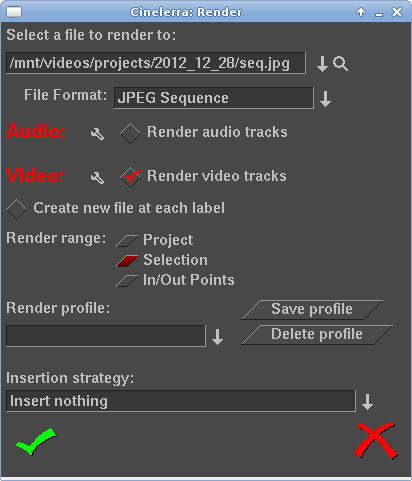
1) in Cinelerra, export a JPG sequence
2) use ImageMagick "convert" to convert to an animated gif

Export a JPG sequence
1) In Cinelerra, you can export your movie as a JPG sequence (among other choices like an EXR/PNG/TGA or TIFF image sequence):

Depending on the number of frames you're exporting, you'll get a whole bunch of files saved to your hard drive.  Since my project was set to 24fps, I had about 120 files saved to my filesystem.  The file names start and end with the number of the frames you selected to export (shown in this screen cap of the Cinelerra timeline):

Here's how the sequence of JPEGs looks in the filesystem:
-rw-rw-r--. 1 sodo sodo   1302637 Dec 28 19:50 seq000373.jpg
-rw-rw-r--. 1 sodo sodo   1304670 Dec 28 19:50 seq000374.jpg
...
-rw-rw-r--. 1 sodo sodo   1296049 Dec 28 19:50 seq000490.jpg
-rw-rw-r--. 1 sodo sodo   1297281 Dec 28 19:50 seq000491.jpg
-rw-rw-r--. 1 sodo sodo   1298527 Dec 28 19:50 seq000492.jpg


Once you've export all the single images from Cinelerra, use ImageMagick's "convert" program to assemble the individual images into an animated gif.  Since I wanted to resize the 1080P resolution images (1920x1080) into 1/8th the size of the original, I used 240x135 as the resize value.  You can see I've used other specifiers as well:
-delay 0 (no delay between frames)
-loop 0 (infinitely loop the gif)
seq*.jpg (convert is smart enough to assemble the jpgs in ordered sequence)
the other specifiers are essentially "high quality" output settings

[sodo@computer 2012_12_28]$ convert -resize 240x135 -colorspace RGB +sigmoidal-contrast 11.6933 -sigmoidal-contrast 11.6933 -colorspace sRGB -define filter:filter=Sinc -define filter:window=Jinc -define filter:lobes=3 -delay 0 -loop 0 seq*.jpg anim2.gif

The result is a thumbnail of the gif:

Neato.
da mule

Saturday, July 24, 2010

Canon 5D conversion for xiphmont's git

As Monty has been working hard to make Cinelerra more input friendly with his FFmpeg loader fixes, I've been trying to help out as a QA resource. One of my main concerns has been getting my Canon 5D video into Cinelerra. As documented in the IRC log, my custom Canon conversion (ffmpeg stream -> mpeg2enc (output: .m2v/.m2a) -> mplex (output MPEG-PS) -> ffmpeg (output MPEG-TS) was full of invalid timestamps.

In addition, with some recent security updates to my Fedora system just today, it looks like my previous Canon conversion script had broken. I get the dread error:
**ERROR: [mpeg2enc] display_horizontal_size must be in range 0...16383

So I was doubly screwed. Back to the drawing board..er, mailing list. Following up on mjpegtools' Bernhard Prachinger's advice here, I first try to play a test file using a pipe from ffmpeg, like so:
ffmpeg -i mvi_2655.mov -threads 7 -s 1920x1088 -f yuv4mpegpipe - | yuvplay

The video stream plays back with no visible errors, outside of a warning about the video stream frame rate differing from the container frame rate. Here are the top few lines of the output:
Seems stream 0 codec frame rate differs from container frame rate: 48000.00 (48000/1) -> 23.98 (24000/1001)
Input #0, mov,mp4,m4a,3gp,3g2,mj2, from 'mvi_2655.mov':
Duration: 00:00:06.92, start: 0.000000, bitrate: 45836 kb/s
Stream #0.0(eng): Video: h264, yuv420p, 1920x1088, 44296 kb/s, 23.98 tbr, 24k tbn, 48k tbc
Stream #0.1(eng): Audio: pcm_s16le, 48000 Hz, 2 channels, s16, 1536 kb/s
Metadata
major_brand : qt
minor_version : 537331968
compatible_brands: qt CAEP
Output #0, yuv4mpegpipe, to 'pipe:':
Stream #0.0(eng): Video: rawvideo, yuv420p, 920x108, q=2-31, 200 kb/s, 90k tbn, 23.98 tbc
Stream mapping:
Stream #0.0 -> #0.0
Press [q] to stop encoding

INFO: [yuvplay] Playing frame 0000 - 0:00:00.00
INFO: [yuvplay] Playing frame 0001 - 0:00:00.01
INFO: [yuvplay] Playing frame 0002 - 0:00:00.02
INFO: [yuvplay] Playing frame 0003 - 0:00:00.03
INFO: [yuvplay] Playing frame 0004 - 0:00:00.04
INFO: [yuvplay] Playing frame 0005 - 0:00:00.05
INFO: [yuvplay] Playing frame 0006 - 0:00:00.06
INFO: [yuvplay] Playing frame 0007 - 0:00:00.077 bitrate=752028.9kbits/s


So, streaming from FFmpeg to a y4m stream works. I then take that y4m stream and convert it to an mpeg2video for use in Cinelerra, again using Bernhard's simplified mpeg2enc pipe adjusted for aspect ratio and higher bitrate:
ffmpeg -i mvi_2655.mov -threads 7 -s 1920x1088 -f yuv4mpegpipe - | mpeg2enc --verbose 2 --format 3 --aspect 3 --video-bitrate 24000 --no-constraints --video-buffer 448 -o mvi_2655.m2v

Looking at the output (--verbose 2), there don't seem to be any major errors here:
Seems stream 0 codec frame rate differs from container frame rate: 48000.00 (48000/1) -> 23.98 (24000/1001)
Input #0, mov,mp4,m4a,3gp,3g2,mj2, from 'mvi_2655.mov':
Duration: 00:00:06.92, start: 0.000000, bitrate: 45836 kb/s
Stream #0.0(eng): Video: h264, yuv420p, 1920x1088, 44296 kb/s, 23.98 tbr, 24k tbn, 48k tbc
Stream #0.1(eng): Audio: pcm_s16le, 48000 Hz, 2 channels, s16, 1536 kb/s
Metadata
major_brand : qt
minor_version : 537331968
compatible_brands: qt CAEP
Output #0, yuv4mpegpipe, to 'pipe:':
Stream #0.0(eng): Video: rawvideo, yuv420p, 920x108, q=2-31, 200 kb/s, 90k tbn, 23.98 tbc
Stream mapping:
Stream #0.0 -> #0.0
Press [q] to stop encoding
INFO: [mpeg2enc] Selecting Generic MPEG2 output profile
INFO: [mpeg2enc] Assuming norm NTSC
INFO: [mpeg2enc] Progressive input - selecting progressive encoding.
INFO: [mpeg2enc] Encoding MPEG-2 video to mvi_2655.m2v
INFO: [mpeg2enc] Horizontal size: 920 pel
INFO: [mpeg2enc] Vertical size: 108 pel
INFO: [mpeg2enc] Aspect ratio code: 3 = 16:9 display
INFO: [mpeg2enc] Frame rate code: 1 = 24000.0/1001.0 (NTSC 3:2 pulldown converted FILM)
INFO: [mpeg2enc] Bitrate: 24000 KBit/s
INFO: [mpeg2enc] Quality factor: 8 (Quantisation = 9) (1=best, 31=worst)
INFO: [mpeg2enc] Field order for input: none/progressive
INFO: [mpeg2enc] Sequence unlimited length
INFO: [mpeg2enc] Search radius: 16
INFO: [mpeg2enc] DualPrime: no
INFO: [mpeg2enc] Using one-pass rate controller
INFO: [mpeg2enc] GOP SIZE RANGE 7 TO 15
INFO: [mpeg2enc] Setting colour/gamma parameters to "NTSC"
INFO: [mpeg2enc] Progressive format frames = 1
INFO: [mpeg2enc] Using default unmodified quantization matrices
INFO: [mpeg2enc] SETTING MMX and MMX for QUANTIZER!
--DEBUG: [mpeg2enc] PAR = 7


I then take the output of the audio conversion:
ffmpeg -i mvi_2655.mov -acodec mp2 -ab 384k -ar 48000 -ac 2 test.m2a

Output:
Seems stream 0 codec frame rate differs from container frame rate: 48000.00 (48000/1) -> 23.98 (24000/1001)
Input #0, mov,mp4,m4a,3gp,3g2,mj2, from 'mvi_2655.mov':
Duration: 00:00:06.92, start: 0.000000, bitrate: 45836 kb/s
Stream #0.0(eng): Video: h264, yuv420p, 1920x1088, 44296 kb/s, 23.98 tbr, 24k tbn, 48k tbc
Stream #0.1(eng): Audio: pcm_s16le, 48000 Hz, 2 channels, s16, 1536 kb/s
Metadata
major_brand : qt
minor_version : 537331968
compatible_brands: qt CAEP
Output #0, mp2, to 'mvi_2655.m2a':
Stream #0.0(eng): Audio: mp2, 48000 Hz, 2 channels, s16, 384 kb/s
Stream mapping:
Stream #0.1 -> #0.0
Press [q] to stop encoding
size= 325kB time=6.94 bitrate= 384.0kbits/s
video:0kB audio:325kB global headers:0kB muxing overhead 0.000000%

and mux both the video and audio streams to an MPEG-PS in mplex:
mplex -f 3 -b 2000 mvi_2655.m2a mvi_2655.m2v -o mvi_2655.ps

Output:
INFO: [mplex] mplex version 1.9.0 (2.2.7 $Date: 2006/02/01 22:23:01 $)
INFO: [mplex] File mvi_2655.m2a looks like an MPEG Audio stream.
INFO: [mplex] File mvi_2655.m2v looks like an MPEG Video stream.
INFO: [mplex] Found 1 audio streams and 1 video streams
INFO: [mplex] Selecting generic MPEG2 output profile
INFO: [mplex] Multiplexing video program stream!
INFO: [mplex] Scanning for header info: Audio stream c0 (mvi_2655.m2a)
INFO: [mplex] MPEG AUDIO STREAM: c0
INFO: [mplex] Audio version : 1.0
INFO: [mplex] Layer : 2
INFO: [mplex] CRC checksums : no
INFO: [mplex] Bit rate : 49152 bytes/sec (384 kbit/sec)
INFO: [mplex] Frequency : 48000 Hz
INFO: [mplex] Mode : 0 stereo
INFO: [mplex] Mode extension : 0
INFO: [mplex] Copyright bit : 0 no copyright
INFO: [mplex] Original/Copy : 1 original
INFO: [mplex] Emphasis : 0 none
INFO: [mplex] Scanning for header info: Video stream e0 (mvi_2655.m2v)
INFO: [mplex] VIDEO STREAM: e0
INFO: [mplex] Frame width : 1920
INFO: [mplex] Frame height : 1088
INFO: [mplex] Aspect ratio : 16:9 display
INFO: [mplex] Picture rate : 23.976 frames/sec
INFO: [mplex] Bit rate : 24000000 bits/sec
INFO: [mplex] Vbv buffer size : 229376 bytes
INFO: [mplex] CSPF : 0
INFO: [mplex] SYSTEMS/PROGRAM stream:
INFO: [mplex] rough-guess multiplexed stream data rate : 24894496
INFO: [mplex] Setting best-guess data rate.
INFO: [mplex] Run-in delay = 30030 Video delay = 30030 Audio delay = 33783
INFO: [mplex] New sequence commences...
INFO: [mplex] Audio c0: buf= 0 frame=000000 sector=00000000
INFO: [mplex] Video e0: buf= 0 frame=000000 sector=00000000
INFO: [mplex] Scanned to end AU 165
INFO: [mplex] STREAM e0 completed
INFO: [mplex] STREAM c0 completed
INFO: [mplex] Multiplex completion at SCR=653806.
INFO: [mplex] Audio c0: completed
INFO: [mplex] Video e0: completed
INFO: [mplex] AUDIO_STATISTICS: c0
INFO: [mplex] Audio stream length 332928 bytes.
INFO: [mplex] Syncwords : 289
INFO: [mplex] Frames : 289 padded
INFO: [mplex] Frames : 0 unpadded
INFO: [mplex] BUFFERING min 189 Buf max 1162
INFO: [mplex] VIDEO_STATISTICS: e0
INFO: [mplex] Video Stream length: 13871991 bytes
INFO: [mplex] Sequence headers: 1
INFO: [mplex] Sequence ends : 1
INFO: [mplex] No. Pictures : 166
INFO: [mplex] No. Groups : 12
INFO: [mplex] No. I Frames : 12 avg. size162167 bytes
INFO: [mplex] No. P Frames : 154 avg. size 77441 bytes
INFO: [mplex] No. B Frames : 0 avg. size 0 bytes
INFO: [mplex] Average bit-rate : 16028800 bits/sec
INFO: [mplex] Peak bit-rate : 21470400 bits/sec
INFO: [mplex] BUFFERING min 85 Buf max 1944774
INFO: [mplex] MUX STATUS: no under-runs detected


This gives me a good program stream file that is suitable for editing in Cinelerra using Monty's changes. Update 2010/09/13: Florian Cramer advised me that the video render string does not give the highest quality output. I'm still working on improvements to the string that will render at a higher quality.

Moral of the story: never update your system.
;)
the mule

Reference
http://man-wiki.net/index.php/1:mplex
Minor headache with nvidia drivers after kernel upgrade resolved
Plus another pulseaudio fuck job.."pulseaudio module-alsa-card file not found"
- had to reinstall pulseaudio and then execute "alsamixer -c0" to fix

Friday, July 16, 2010

Green Beret parachutes in to help Cinelerra

Unbelievably, just in the past week, the Cinelerra CV community (http://cvs.cinelerra.org/) has had a heavyweight developer parachute in and start fixing stuff all over the place. The guy is Chris "Monty" Montgomery who developed the Ogg multimedia container and Vorbis audio formats (http://en.wikipedia.org/wiki/Chris_Montgomery). He is a developer currently working for Red Hat.

Monty, You're The Man!
His primary effort has been to yank out the kludgy and incompatible file loader in Cinelerra and replace it using good old FFmpeg. FFmpeg has problems of its own, but a helluva lot less problems than the Cinelerra loader. This is a task that the original developer of Cinelerra, Heroine Warrior (http://www.heroinewarrior.com/), has wisely done with the 4.1 version of Cinelerra. Much props to Father HV, for without him, this blog and Open Source video editing would be very different, if exist at all.

Monty is patching the version of FFmpeg that comes with the Cinelerra CV source code (http://cinelerra.org/getting_cinelerra.php). In Cinelerra CV's source code tree, FFmpeg is found under quicktime/ffmpeg. This means that once you compile Cinelerra from source code and add Monty's code fixes, files like the Canon 5D/7D H264 AVC files (the 1080P files spat out of the Canons') will load natively in Cinelerra.

AVC, oh AVC, Why Are You So Stubborn?
Problem here is that you can't really edit with AVC files because the decoding of them is so bloody CPU intensive. AVC playback in Cinelerra on my dual, quad core Dell SC1430 with 10GB RAM is 3-4fps. This is unacceptable for previewing edits. There is a workaround to this such that if you really wanted to edit AVC, you'd need to have background rendering enabled, make your edits and then wait for the background render to finish. But that bg render takes a long time too. You could speed this up to by creating a ramdisk (http://www.techanswerguy.com/2009/02/creating-ramdisk-in-linux.html) and setting the background render to use that ramdisk. But that's a whole other task.

Transcoding Canon 5D/7D Files, as usual
Thus, we're still left with the task of transcoding Canon 5D/7D files into a more compatible format. There are two solutions:
1) get my varied MPEG-TS conversion magic to work for you (http://crazedmuleproductions.blogspot.com/2009/02/dark-of-winter-has-me-in-its-grasp.html)
2) convert the 5D/7D files using FFmpeg into another format that works since FFmpeg is now Cinelerra's loader (with Monty's additions)

Both require research/work, but I did a quick conversion that I tested in Cinelerra with Monty's code additions:
ffmpeg -i [inputFileFromCanon] -acodec mp2 -ar 48000 -ab 384k -ac 2 -vcodec mpeg2video -qscale 1 [outputFile]

The audio format is mpeg, layer II and the video format is mpeg2video. This loads in Cinelerra and is fast to edit with. Once edited, render out from Cinelerra as usual.

How to Compile Cinelerra for Ubuntu and Fedora users
So Monty's additions require compiling from source. I'll provide some quick links here. For Ubuntu folks, Raffaella Traniello has put a nice post together on how to compile Cinelerra in Ubuntu:
http://www.g-raffa.eu/Cinelerra/HOWTO/compilation.html

For Fedora users, I have a post here:
http://crazedmuleproductions.blogspot.com/2010/02/fedora-12-x86-64-cinelerra-install.html

Get Monty's Additions Working
Once you get the source code compiled, install it (make install) and just test that Cinelerra works at a basic level. Once you've tested that your compile has worked, move onto apply Monty's code additions:
- remove your installed Cinelerra (make uninstall)
- download Monty's additions at http://people.xiph.org/~xiphmont/cinelerra/patches/
- apply each of them to the Cinelerra source code tree one at a time (git apply [patch name])
or join in Monty's git branch:
1) git remote add xiphmont git://git.xiph.org/users/xiphmont/cinelerraCV.git
2) git remote update
- compile Cinelerra, this time with all Monty's additions (make clean;make;make install)

After starting CinCV with Monty's additions, you should see the startup info change:
[mule@ogre my_cinelerra]$ cinelerra
Cinelerra 2.1CVxiphmont
GIT::8c01c13bbb21d30aff2733454a49fbfe641e51ca
(C) 2006 Heroine Virtual Ltd.
(C) 2006-2010 The CinelerraCV Community
Internal ffmpeg 0.6+fixes
Compiled on Fri Jul 16 20:40:38 EDT 2010


As well, you should see that FFmpeg becomes the default loader for videos in you goto the Resources window, right-click on a video and click "Info". You should see FFMPEG there under File Format:


A Few Git Notes..
While I'm at it..

View current git branches
[mule@ogre my_cinelerra]$ git branch
* master

Add Monty's remote branch
[mule@ogre my_cinelerra]$ git remote add xiphmont git://git.xiph.org/users/xiphmont/cinelerraCV.git

Update the local copy of Monty's remote branch
[mule@ogre my_cinelerra]$ git remote update
Fetching origin
Fetching xiphmont
remote: Counting objects: 2754, done.
remote: Compressing objects: 100% (1904/1904), done.
remote: Total 1981 (delta 997), reused 0 (delta 0)
Receiving objects: 100% (1981/1981), 2.77 MiB 1.07 MiB/s, done.
Resolving deltas: 100% (997/997), completed with 711 local objects.
From git://git.xiph.org/users/xiphmont/cinelerraCV
* [new branch] master -> xiphmont/master


Check that Monty's branch has been added
[mule@ogre my_cinelerra]$ git branch
* master
xiphmont

I then was able to switch branches
[mule@ogre my_cinelerra]$ git checkout -b xiphmont xiphmont/master
Branch xiphmont set up to track remote branch master from xiphmont.
Switched to a new branch 'xiphmont'


"git branch" shows that I have switched to Monty's branch
[mule@ogre my_cinelerra]$ git branch
master
* xiphmont

Now I can switch easily between branches (Monty's and CinelerraCV)
[mule@ogre my_cinelerra]$ git checkout master
Switched to branch 'master'


Switching to Monty's branch
[mule@ogre my_cinelerra]$ git checkout xiphmont
Switched to branch 'xiphmont'


Show the current status of the git code repositories
[sfrase@ogre my_cinelerra]$ git status | head -6
# On branch xiphmont
# Untracked files:
# (use "git add ..." to include in what will be committed)
#
# cinelerra-cvs-current.spec
# cinelerra/.deps/
>


View the latest change log
[mule@ogre my_cinelerra]$ git log xiphmont/master | head -6
commit 8c01c13bbb21d30aff2733454a49fbfe641e51ca
Author: Monty
Date: Fri Jul 16 07:30:10 2010 -0400

iAlter/extend versioning to avoid any confusion between this temporarily
forked version and the main CinelerraCV repo

Pull in the latest code updates:
[mule@ogre my_cinelerra]$ git pull


Troubleshooting
I tried to switch branches and got this error
[mule@ogre my_cinelerra]$ git checkout -b xiphmont xiphmont/master
error: You have local changes to 'po/de.po'; cannot switch branches.

I did a hard reset to clear the above error
[mule@ogre my_cinelerra]$ git reset --hard HEAD
HEAD is now at d95887f Pass --libdir given to configure on to ffmpeg configure.

Last resort for repos not working, a destructive clean:
[mule@ogre my_cinelerra]$ git clean -dfx


Update 2010/07/16
Looks like the YUV4MPEG render stream is broken..this simple render pipe outputs a file unreadable in FF
ffmpeg -f yuv4mpegpipe -i - -y -target dvd -f mpeg2video %

I talked to Monty and he will fix..something about colorspace converter.
*** end update ***

Note that you have to compile Cinelerra and do a full reinstall, as the Cinelerra "make" process hard links the installation directory into the cinelerra executable.

So I hope Monty stays with us as long as possible. Thanks man! Hope springs eternal!
the mule

References
http://www.itworld.com/open-source/115063/breaking-open-video-frontier-despite-mpeg-la

Saturday, March 27, 2010

timelapse in Cinelerra

I've been playing around for the past few weeks with DSLR Remote, an iPhone app that allows you to control recent Canon or Nikon cameras remotely. DSLR Remote has an intervalometer, or timer, to allow you to take N number of photographs at T intervals. Once you take a bunch of photos, you can assemble them in Cinelerra to create a video of the change seen over time in the pictures, or timelapse.

Overview
This is my first experimentation with timelapse; specifically, timelapses of clouds and nighttime city scenes. I'm using a Canon 5D Mark II. Timelapse has been a real challenge, as the camera must be setup for proper exposure. I'm generally satisfied with the result, but I think it can be improved upon once I figure out the proper exposure settings.

An Education
I have learned some basics over the eight or so timelapses I've done:
1) don't use Automatic mode or full manual because the exposures vary quite a bit if the aperature (F Stop) or shutter speed change dramatically or conversely, don't change. Use aperature priority mode instead. Also, if the camera is in Auto mode, sometimes it will take time to change its settings. This will change the time interval between shots and make your final timelapse production jump around and jerky.

From the EXIF data in the JPEGs that I took during a morning timelapse, you can see how my shutter speed bounces around as the sun rose over a period of about an hour (FStop and ISO were locked):
[mule@ogre cinelerra]$ ./imageIdentifyFIsoShutter.sh /mnt/videos/projects/timelapse/Remote04639.jpg
exif:ExposureTime: 1/5
exif:FNumber: 11/1
exif:ISOSpeedRatings: 640
[mule@ogre cinelerra]$ ./imageIdentifyFIsoShutter.sh /mnt/videos/projects/timelapse/Remote05639.jpg
exif:ExposureTime: 1/100
exif:FNumber: 11/1
exif:ISOSpeedRatings: 640
[mule@ogre cinelerra]$ ./imageIdentifyFIsoShutter.sh /mnt/videos/projects/timelapse/Remote06239.jpg
exif:ExposureTime: 1/500
exif:FNumber: 11/1
exif:ISOSpeedRatings: 640


This can also blowout highlights and generally wash out the colors in the image, as shown in the latter half of this video:


2) shoot in aperature priority mode with auto ISO on. Auto ISO will account for variations in lighting conditions, like when a cloud passes in front of the sun.

3) make sure any lens stabilization is turned off, as this will make the frame jump around at times. This sounds counterintuitive, yes, but if the camera is on a tripod (as it should be for timelapse photography) a lens stabilizer will try to correct for movement that isn't present and will shift the frame around slightly. I figured this out after about five tries. (Yes, I am a doofus).

4) turn off automatic white balancing as it will effect the exposure from frame to frame

5) if you want to emphasize depth of field during day timelapses, make sure to get a neutral density filter. This will allow you to keep your aperature open wider, thus creating greater depth of field.

6) slower shutter speeds slightly blur movement. For example, daytime time lapse photography of clouds seem smoother with a slower shutter speed. Again, try a neutral density filter to help slow down the shutter speed. Of course, slow shutter speeds are very cool for time lapse traffic shots.

7) make sure your intervalometer is functioning properly. If it doesn't accurately time the snapshots, your final timelapse will look jerky and jump around once stitched together in Cinelerra.

Proper Interval
My camera has a limitation of 999 total shots that can be taken. In my experiments, I found that to acheive a smooth movement of clouds in my timelapses, I should take a picture every two or three seconds. That means if I want to take a picture every two seconds (30 pictures per minute) and I have 999 total shots available, my timelapse will last for a period of 33.3 minutes (999 shots / 30 pictures/minute). Doesn't seem that long, does it? If I chose an interval between shots of three seconds, my timelapse would occur over 49.95 minutes (999 shots / 20 pictures/minute). That seems a little more useful.

Timelapse in Cinelerra
Once I have my 999 images, I then stitch them together in Cinelerra at 60fps, 30fps or 15fps depending on my desired result..fast, medium or slower motion of whatever I was time lapsing. You'll need to do a bit of calculation to figure out at what duration (length) the images will be once imported into Cinelerra. That duration is set in Preferences -> Recording (screen below). I've provided those calculations below:
15 seconds = .0667
30 seconds = .0333
60 seconds = .0167

Be aware that if you import that many JPEGs, and especially if the JPEGs are very large, the import can take a while. My source files were 5616x3744 and took about 15-20 minutes to load.


Here's my acceptable timelapse..not the best..but getting there:


Going forward, the one thing I'd like to acheive is to remove or limit the slight changes in exposure that occur every once in a while so that the timelapse flows smoothly from one frame to another.

another work in progress..
the mule

Canon 5D: Best Modes for Video and Photos

Friday, April 24, 2009

presentation at TCF, 4/25/09

Got my presentation worked out for the Trenton Computer Festival (http://www.tcf-nj.org/web/) tomorrow. It looks ugly, but the content of the presentation should outweigh the aesthetic of the slides:

http://www.slideshare.net/crazedmule/video-production-using-open-source-tools

Update 2009/5/15
Here are a few pics from the talk.

The Mule in front of a LARGE display (only got to 1024x768 resolution, though).


A rapt audience.


The Mule making an important point.


Definitely had some fun, with a little help from my buddy Ironlung on the Mark II 5D.
*** end update ***

The Mule

Saturday, February 07, 2009

the dark of winter has me in its grasp

The Mule has been working long hours for himself and you, valued video compatriots!

That sounds positive, as it should be. Though in truth, I am feeling less positive than that message implies. Personal and professional life has got me down, but is par for the course these days. Oh well. A pithy quote to pick myself up would be rather nice here. Instead, let me regale you of the past weeks activities, as some of the tribulations may help individuals in similar need.

Sh*t Storm
This week, as I look back at my notes, I see a hailstorm of problems that I've dealt with:
-Fedora 10, x86-64 spontaneous system lockups/reboots (workaround: noapic on kernel cmd line)
-pulseaudio screwing up my audio
-usb keyboard stops working (workaround: disable keyboard acceleration)
-Gnome session saving broken (the workaround seems more of a pain than its worth)
-1080p editing eats RAM! (bought more RAM)
-Belkin firewire card causing reboots
-I didn't order my RAM in matched pairs, so I'm stuck waiting until Monday for RAM! (finally got it!)
-Evolution has trouble fetching mail from Comcast's POP servers, so I've reverted to use Pine (now "Alpine")

Needless to say, my productivity dropped and frustration was running high.

The Good News
Knock on wood, I think I was able to workaround the spontaneous reboots using "noapic" boot option to the kernel. Whereas the box was rebooting every six hours, now it has been up a full two days without a reboot! Of course, this isn't a true fix and I will have to submit a bug to the Fedora team. And the other problems still exist.

Most importantly, I've discovered a new scheme for solid, fast 1080P editing in Cinelerra:
1) convert Canon 5D video to MPEG2-TS
2) import into Cinelerra
3) render to any format you need

A Couple of Options
In my initial post on editing Canon 5D video, I found that the easiest way for me to get content from the Canon 5D into Cinelerra was using a conversion to MJPEG. However, the drawback with using mjpeg is that the image quality is lacking. Specifically, the output is darker than the original content. So over the past week, I found two solutions to convert the beautiful output of the Canon:

1) convert to H264 using this two pass string:
#CONVERT CANON USING H264, pass 1
ffmpeg -y -i INPUT.MOV -an -v 1 -threads 8 -vcodec libx264 -aspect 1.7777 -b 9000k -bt 7775k -refs 1 -loop 1 -deblockalpha 0 -deblockbeta 0 -parti4x4 1 -partp8x8 1 -me full -subq 1 -me_range 21 -chroma 1 -slice 2 -bf 0 -level 30 -g 300 -keyint_min 30 -sc_threshold 40 -rc_eq 'blurCplx^(1-qComp)' -qcomp 0.7 -qmax 51 -qdiff 4 -i_qfactor 0.71428572 -maxrate 10000k -bufsize 2M -cmp 1 -f mp4 -pass 1 /dev/null

#CONVERT CANON USING H264, pass 2
ffmpeg -y -i INPUT.MOV -v 1 -threads 8 -vcodec libx264 -aspect 1.7777 -b 9000k -bt 7775k -refs 1 -loop 1 -deblockalpha 0 -deblockbeta 0 -parti4x4 1 -partp8x8 1 -me full -subq 1 -me_range 21 -chroma 1 -slice 2 -bf 0 -level 30 -g 300 -keyint_min 30 -sc_threshold 40 -rc_eq 'blurCplx^(1-qComp)' -qcomp 0.7 -qmax 51 -qdiff 4 -i_qfactor 0.71428572 -maxrate 10000k -bufsize 2M -acodec libfaac -ab 160k -ar 48000 -ac 2 -cmp 1 -f mp4 -pass 2 OUTPUT.mp4


Now, this H264 content is beautiful, will import into Cinelerra and is editable. However, I found that when I went to render the final output, four minutes of the 1080p, H264 content took SIX HOURS to render!! That is unacceptable. I believe the lengthy render time has something to do with the color space or internal conversion that Cinelerra is doing. This bears further research.

If you're not familiar with H264 (x264 libraries on Linux), here's some useful H264 reference material.

2) convert to MPEG2-TS

Converting Canon to 1080p, MPEG2-TS
Now, there are a few steps here.

a. Take a file from the Canon and use ffmpeg to pass a lossless yuv4mpegpipe stream into mpeg2enc, with the result a video stream with no audio:
ffmpeg -i INPUT.MOV -threads 8 -s 1920x1088 -f yuv4mpegpipe - | mpeg2enc --multi-thread 8 --verbose 0 --aspect 3 --format 13 --frame-rate 5 --video-bitrate 24000 --nonvideo-bitrate 384 --interlace-mode 0 --force-b-b-p --video-buffer 448 --video-norm n --keep-hf --no-constraints --sequence-header-every-gop --min-gop-size 6 --max-gop-size 6 -o OUTPUT.m2v

Next, render out the audio:
ffmpeg -y -i INPUT.MOV -acodec mp2 -ar 44100 -ab 256k -ac 2 OUTPUT.m2a

Using mplex, mux the video and audio streams together:
mplex -f 3 -b 2000 OUTPUT.m2a OUTPUT.m2v -o OUTPUT.ps

Using VLC, convert the MPEG2-PS into an MPEG2-TS:
cvlc OUTPUT.ps --sout '#duplicate{dst=std{access=file,mux=ts,dst="OUTPUT.m2t"}}' vlc://quit

Update 2009/02/13
I've found that VLC is not writing proper keyframes at the beginning of the converted MPEG-PS video output from mplex. This is only for 1080p video. The VLC command for 720p video still works. For the 1080p, I've found a workaround using our savior, ffmpeg:
ffmpeg -y -i OUTPUT.ps -acodec copy -f mpegts -qscale 1 OUTPUT.m2t
*** end update ***

I used this method to output a new version of my Water video from Cinelerra to Vimeo here:
/2009/01/water-new-canon-5d-video.html

The quality and the colors are definetly improved upon over the old version. However, the larger file size is a drawback (479MB for 4m16s of video). So I'd like to get the H264 output without compression artifacts during the scenes with a lot of motion. So now its time to figure that out. Erg.

In general though, I think this is some good news!

Until the next time,
the mule

Sunday, January 25, 2009

stock footage, encoding H264 and the iPod

I had a bit of a rough day yesterday. I started early, about 8am, upgrading my MacBook Pro to Leopard. That process went more or less smoothly and finished around noon. Next, I had taken some video the night before and wanted to create a video that would serve as a table of contents to my archive. Also, this short video might enable me to market some of my source material as stock footage. So it might be a fun little project that shouldn't take long. I should know to never say "shouldn't take too long", because things have a way of blowing up in your face when you don't expect them to.

Converting 1080P directly to an iPod-ready format
The goal was to convert some 1080P video from my Canon 5D directly into an iPod readable format. However, as I was overly tired on this day, my mind defeated me. Essentially what happened was that after I rendered out the video and loaded it to the iPod, I kept seeing only three quarters of the video. Flummoxed, I thought it must be a rendering problem. Long story short, I found that the problem was not with my rendering parameters, but the fact that my iTouch has a zoom/scaling feature that I forgot about, but had enabled. Here is the little bugger:


So I had spent about three hours until 2am fighting with encoding parameters, re-encoding video, transferring many test files to my Mac and then loading them to the iPod, only to find that the source of the problem was this little stupid icon on the iTouch.

Boy, am I dense.

A Learning Experience
I did learn a few things through my travails this weekend:
1) The el cheapo haze filter on my camera shows a lot of lens flare and needs to be replaced.

2) Don't merge a longer audio stream with a shorter video stream or else you'll be wondering why your 1m45s video is suddenly 9m30s. Duh.

3) When encoding videos to H264 format, always try to use resolutions where the height and width are divisible by 16. This will make the level of compression and quality of the resulting video better. I will post separately about resolutions that are divisible by 16.

4) A dvd video encoded by ffmpeg using -target ntsc-dvd and then downrezzed using the following command syntax will NOT have the proper aspect ratio once loaded onto the iPod:
ffmpeg -y -i ${NAME}.mpg -an -v 1 -threads 8 -vcodec h264 -b 250k -bt 175k -refs 1 -loop 1 -deblockalpha 0 -deblockbeta 0 -parti4x4 1 -partp8x8 1 -me full -subq 1 -me_range 21 -chroma 1 -slice 2 -bf 0 -level 30 -g 300 -keyint_min 30 -sc_threshold 40 -rc_eq 'blurCplx^(1-qComp)' -qcomp 0.7 -qmax 51 -qdiff 4 -i_qfactor 0.71428572 -maxrate 450k -bufsize 2M -cmp 1 -s 720x480 -f mp4 -pass 1 /dev/null

ffmpeg -y -i ${NAME}.mpg -v 1 -threads 8 -vcodec h264 -b 250k -bt 175k -refs 1 -loop 1 -deblockalpha 0 -deblockbeta 0 -parti4x4 1 -partp8x8 1 -me full -subq 6 -me_range 21 -chroma 1 -slice 2 -bf 0 -level 30 -g 300 -keyint_min 30 -sc_threshold 40 -rc_eq 'blurCplx^(1-qComp)' -qcomp 0.7 -qmax 51 -qdiff 4 -i_qfactor 0.71428572 -maxrate 450k -bufsize 2M -cmp 1 -s 720x480 -acodec aac -ab 160k -ar 48000 -ac 2 -f mp4 -pass 2 -threads 8 ${NAME}.mp4


So don't try that at home, kids.

I had previously been using this string of encoding parameters to encode a video of my band rehearsals. The encode was from a DVD source file, so perhaps I will just use the 1080P as source going forward. I will have to test this out first. Strangely, the conversion of the audio from AC3 format had audible hiccups from time to time. Since this process was working fine on Fedora 7, perhaps this is just an issue with Fedora 10.

Downrezzed 1080P Video Ready for the iPod
The following two pass Cinelerra encoding parameters via yuv4mpeg stream worked well to produce a high quality video from 1080P source. In short, you will do two renders from a YUV4MPEG stream:
render 1: the pipe to /dev/null in order to create the optimization log
render 2: the pipe to create the file

#CINELERRA YUV4MPEG RENDER 1
ffmpeg -f yuv4mpegpipe -y -i - -an -v 1 -threads 8 -vcodec libx264 -b 1000k -bt 775k -refs 1 -loop 1 -deblockalpha 0 -deblockbeta 0 -parti4x4 1 -partp8x8 1 -me full -subq 1 -me_range 21 -chroma 1 -slice 2 -bf 0 -level 30 -g 300 -keyint_min 30 -sc_threshold 40 -rc_eq 'blurCplx^(1-qComp)' -qcomp 0.7 -qmax 51 -qdiff 4 -i_qfactor 0.71428572 -maxrate 1000k -bufsize 2M -cmp 1 -s 512x288 -f mp4 -pass 1 /dev/null

#CINELERRA YUV4MPEG RENDER 2

ffmpeg -f yuv4mpegpipe -y -i - -i /mnt/videos/projects/2009_01_23/nightUrbanIndustrialIpod.mp3 -v 1 -threads 8 -vcodec libx264 -b 1000k -bt 775k -refs 1 -loop 1 -deblockalpha 0 -deblockbeta 0 -parti4x4 1 -partp8x8 1 -me full -subq 6 -me_range 21 -chroma 1 -slice 2 -bf 0 -level 30 -g 300 -keyint_min 30 -sc_threshold 40 -rc_eq 'blurCplx^(1-qComp)' -qcomp 0.7 -qmax 51 -qdiff 4 -i_qfactor 0.71428572 -maxrate 1000k -bufsize 2M -cmp 1 -s 512x288 -acodec libfaac -ab 160k -ar 48000 -ac 2 -f mp4 -pass 2 -threads 8 %

I chose a resolution of 512x288 because:
1) the aspect ratio is the same as my 1080P source video, 16:9 (1.777)
2) both the height and width are divisible by 16
3) there were no errors and it comes out looking great on the iPod

Rendering Parameters for a High Quality Vimeo Upload
Finally, I was able to output an H264 video at 1920x1080 that looks great in Vimeo. Psych! I was able to remove the ugly bottom bar seen in Vimeo from my previous post. Here is the two-pass encoding method that I used from Cinelerra. Two notes:
1) the two passes are YUV4MPEG stream renders from Cinelerra using FFMPEG and will need to be run as individual renders in Cinelerra.
2) the second pass muxes (combines) a pre-rendered audio stream with the video stream. So you'll need to render that audio file first.

Here is your first render command string (the first pass of the two-pass) that will create the optimization log:
#CINELERRA RENDER PASS1
ffmpeg -f yuv4mpegpipe -y -i - -an -v 1 -threads 8 -vcodec libx264 -aspect 1.7777 -b 9000k -bt 7775k -refs 1 -loop 1 -deblockalpha 0 -deblockbeta 0 -parti4x4 1 -partp8x8 1 -me full -subq 1 -me_range 21 -chroma 1 -slice 2 -bf 0 -level 30 -g 300 -keyint_min 30 -sc_threshold 40 -rc_eq 'blurCplx^(1-qComp)' -qcomp 0.7 -qmax 51 -qdiff 4 -i_qfactor 0.71428572 -maxrate 10000k -bufsize 2M -cmp 1 -f mp4 -pass 1 /dev/null


Here is the second render command that takes advantage of the optimization log created in the first-pass render. I rendered an audio file of my project earlier, so this second command also combines that audio file with the video for my final result:
#CINELERRA RENDER PASS2
ffmpeg -f yuv4mpegpipe -y -i - -i /mnt/videos/projects/blog/waterSmall.mp3 -v 1 -threads 8 -vcodec libx264 -aspect 1.7777 -b 9000k -bt 7775k -refs 1 -loop 1 -deblockalpha 0 -deblockbeta 0 -parti4x4 1 -partp8x8 1 -me full -subq 1 -me_range 21 -chroma 1 -slice 2 -bf 0 -level 30 -g 300 -keyint_min 30 -sc_threshold 40 -rc_eq 'blurCplx^(1-qComp)' -qcomp 0.7 -qmax 51 -qdiff 4 -i_qfactor 0.71428572 -maxrate 10000k -bufsize 2M -acodec libfaac -ab 160k -ar 48000 -ac 2 -cmp 1 -f mp4 -pass 2 %


I think the quality is bloody AWESOME! Take a gander:

2009/01/23: night, urban, industrial from crazed mule on Vimeo.

Conclusion
Through pain, there can sometimes be the brighter side. In this case, I learned a few things. In retrospect, I may have chosen my production company's name correctly. A mule is one stubborn beast.

Related to crazed mules, here is a story I stumbled upon the other day you might find funny:
The Day the Mules Went Crazy

The Mule

Reference
H264 Encoding
FFMPEG HowTo

Monday, January 12, 2009

Water, a new Canon 5D video

After a couple of weeks of gathering content, I completed my first real Cinelerra project using the 1080P output from my brand new Canon EOS 5D Mark II.

This camera outputs some gorgeous video as I showed in my last post. Now I have to learn how to shoot with it!

The Project
My goal with this short production was:
1) to show the capabilities of the camera
2) to prove that Cinelerra was up to the task of editing 1080P content
3) to output the final results to different output formats (media player, Vimeo, back into Cinelerra)

I'm a hobbyist, so I don't have a budget and "script" like Vincent Laforet. However, I like to compile scenes and organize them with musical accompaniment in thoughtful ways that are (hopefully) enjoyable to the viewer.

The Images
Since I am not a professional photographer, I did not have a slew of lenses before I bought the cam. I only used two lenses that I recently bought for this video:
Canon EF 24-105mm f/4 L IS USM Lens
Canon EF 50mm f1.4 USM Lens

In regards to the imagery, about half of the shots were taken with a tripod. Where you see shakey video is obviously where I held the cam by hand. You definetly do NOT want to shoot high definition video by hand. It serves to amplify any wobbling present and looks terrible when presented on a high definition television. One thing that saved me was the stabilization provided by the Canon L series zoom lens. It is very effective in dampening bounces, though the stabilization mechanism is loud and is picked up by the camera's poor quality, but usable internal stereo microphone.

I used the 50mm mainly for the indoor shots and the zoom for the outdoor shots. I shot some of the outdoor night shots with the zoom, but then realized that the zoom doesn't do well in low light conditions since it has such a long zoom barrel. So just last week, I bought the 50mm. The 50mm fixed length (prime) lens really makes night shots clear with none of the spotty, dappled artifacts that you see with high ISO night shots. During the video, you'll notice those artifacts on the shot of the ferry.

Note that I used no filters on the shots..what you see in the video is truly what you get with the camera. As I gain expertise with the camera, I look forward to acquiring lenses over the next few years.

The Editing Process
The editing process has been a bit of a challenge, as the native output from the camera does not import cleanly into Cinelerra. Hence, I needed to transcode the native output into something more Cinelerra friendly, which I discuss in earlier posts:
/2009/01/first-edit-canon-5d-mark-ii.html
/2008/11/playing-tokyo-reality-in-1080p.html

I didn't want to revisit the conversion process, so I opted to use the MJPEG conversion command I previously discovered:
ffmpeg -i input.mov -b 3000k -vcodec mjpeg -ab 256k -ar 44100 -acodec libfaac -coder 1 -flags +loop -cmp +chroma -partitions +parti4x4+partp8x8+partb8x8 -subq 5 -me_range 16 -g 250 -keyint_min 25 -sc_threshold 40 -i_qfactor 0.71 output.mov

Once loaded in Cinelerra, I found I had quite a few assets from the last couple weeks of shooting.


If I could have one improvement made to the software, it would be to add folders to the Media bin in order to better manage assets.

I went about editing the video as normal. I applied only time-based effects, like speeding up or slowing down the video, and transitions. The time-based effects were accomplished by attaching the ReframeRT video effect:


Output
I needed to output files from the project for different purposes:
1) to reimport back into Cinelerra (JPEG or MJPEG Quicktime video)
2) to export/render a format usable with my MG-350HD Media Player
(1080I/1080P MPEG2 video)
3) to export/render a format usable for Vimeo (720P MPEG2)

For #1, I exported a Quicktime for Linux container, using MJPEG compression. I just needed the video, so I had no audio on the export. I was able to reimport the resulting file easily into Cinelerra.

For #2, I rendered the video using a YUV4MPEG pipe. I needed to adjust the pipe command to export a different format and higher video bitrate.
mpeg2enc --verbose 0 --aspect 3 --format 13 --frame-rate 4 --video-bitrate 24000 --nonvideo-bitrate 384 --interlace-mode 0 --force-b-b-p --video-buffer 448 --video-norm n --keep-hf --no-constraints --sequence-header-every-gop --min-gop-size 6 --max-gop-size 6 -o %

Using mplex, I then combined the video stream with an existing audio track to an MPEG2 Program Stream:
mplex -f 3 -b 2000 canon5d.m2a canon5d.m2v -o canon5d.ps

Finally, I converted the program stream to an MPEG2 Transport Stream using vlc:
cvlc canon5d.ps --sout '#duplicate{dst=std{access=file,mux=ts,dst="canon5d.m2t"}}' vlc:quit

For #3, I reduced the 1080i/p output to 720P using FFMPEG:
ffmpeg -i canon5d.m2t -target ntsc-dvd -s 1280x720 -qscale 1 -threads 8 canon5d.mpg

Update 2008/01/13
I hadn't noticed before, but after I uploaded the 720P file to Vimeo, there was a little bit of a line on the bottom of the video. I am going to have to revisit the edit to make sure I didn't mess something up.
*** end update ***

I think the quality of the output can definitely be improved. However, I am glad that I was able to output to formats usable across different platforms (HDTV/Internet/Linux-Cinelerra).

Update 2008/02/08
I've been working on improving the quality of the output from Cinelerra. Specifically, instead of using MJPEG source files (the first conversion from the cam), I'm converting the Canon's video to MPEG2-TS. The MPEG2-TS format has very nice quality and edits quickly in Cinelerra. Here's the full skinny:
/2009/02/dark-of-winter-has-me-in-its-grasp.html
*** end update ***

In Sum
Dealing with a new media format in Linux and Cinelerra is never easy. But if you have patience, it is very satisfying to get a project done that makes your friends say "Wow" or have a laugh.

the mule

Saturday, January 03, 2009

Canon 5D Mark II video: Cinelerra edit

Well folks, I got myself quite a present for Christmas: the Canon EOS 5D Mark II:
http://www.usa.canon.com/consumer/controller?act=ModelInfoAct&fcategoryid=139&modelid=17662
Amazon: Canon EOS 5D Mark II

I've acquired a bit of video over the first few days with the cam. Now let's make sure I can edit the bloody stuff in Cinelerra! :)

Update 1/14/2009
I've done a full edit session with the output of the 5D. Lovely!
*** end update ***

I've found the following process works pretty well.

1) Convert video to a Cinelerra-usable format
As I explained in one of my earlier posts, mjpeg seems a good format to convert the H264 output of the cam:
[mule@ogre 2008_12_26]$ ffmpeg -i MVI_0072.MOV -b 3000k -vcodec mjpeg -ab 256k -ar 44100 -acodec libfaac -coder 1 -flags +loop -cmp +chroma -partitions +parti4x4+partp8x8+partb8x8 -subq 5 -me_range 16 -g 250 -keyint_min 25 -sc_threshold 40 -i_qfactor 0.71 mvi_0072.mov

Here's an image that compares the original, Canon saved H264 video to the MJPEG conversion:


Pretty close, eh? The MJPEG video seems a little lighter and you can see more detail, though the colors are a little washed out.

2) Import into Cinelerra
Unlike the H264 format the Canon saves, the MJPEG conversion imports cleanly into Cinelerra without error messages. Also, on my dual, quad core Dell running Fedora 10, I get about 18fps playing back the raw video. Nice.

3) Render to YUV4MPEG stream as H264 video
I do this step in two parts:

a. Render the audio
The Canon stores its audio in 44Khz, 16-bit PCM format. I rendered out an MPEGI, Layer2 audio file:
--------------------------------------------
Input File : 'stdin' 44.1 kHz

Output File: '/mnt/videos/projects/2008_12_26/audioTrack.m2a'

256 kbps MPEG-1 Layer II j-stereo Psy model 1

[De-emph:Off Copyright:No Original:No CRC:Off]
[Padding:Normal Byte-swap:Off Chanswap:Off DAB:Off]
ATH adjustment 0.000000
--------------------------------------------
encode_init: using tablenum 0 with sblimit 27
Hit end of audio data

Avg slots/frame = 768.000; b/smp = 5.33; bitrate = 256.000 kbps
Render::run: Session finished.


b. Render a YUV4MPEG stream. Using the following pipe, I combine the audio track that was output in the previous step with the video that is being rendered:
ffmpeg -f yuv4mpegpipe -y -i - -i /mnt/videos/projects/2008_12_26/audioTrack.m2a -b 3000k -vcodec libx264 -ab 256k -ar 44100 -acodec libfaac -coder 1 -flags +loop -cmp +chroma -partitions +parti4x4+partp8x8+partb8x8 -subq 5 -me_range 16 -g 250 -keyint_min 25 -sc_threshold 40 -i_qfactor 0.71 %

Step B is very similar to the advanced rendering technique I showed you in the Beginner's Guide to Exporting Video from Cinelerra. Here's how the render looks in a terminal window:
Input #0, yuv4mpegpipe, from 'pipe:':
Duration: N/A, bitrate: N/A
Stream #0.0: Video: rawvideo, yuv420p, 1920x1080, 30.00 tb(r)
Input #1, mp3, from '/mnt/videos/projects/2008_12_26/audioTrack.m2a':
Duration: 00:00:28.42, start: 0.000000, bitrate: 255 kb/s
Stream #1.0: Audio: mp2, 44100 Hz, stereo, s16, 256 kb/s
Output #0, mp4, to '/mnt/videos/projects/2008_12_26/mvi_0072_h264.mp4':
Stream #0.0: Video: libx264, yuv420p, 1920x1080 [PAR 1:1 DAR 16:9], q=2-31, 3000 kb/s, 30.00 tb(c)
Stream #0.1: Audio: libfaac, 44100 Hz, stereo, s16, 256 kb/s
Stream mapping:
Stream #0.0 -> #0.0
Stream #1.0 -> #0.1
[libx264 @ 0x1ec6200]using SAR=1/1
[libx264 @ 0x1ec6200]using cpu capabilities: MMX2 SSE2Fast SSSE3 Cache64
frame= 852 fps= 5 q=5.0 Lsize= 18223kB time=28.35 bitrate=5265.6kbits/s
video:17680kB audio:526kB global headers:0kB muxing overhead 0.092246%
[libx264 @ 0x1ec6200]slice I:4 Avg QP:27.33 size: 74266
[libx264 @ 0x1ec6200]slice P:848 Avg QP:28.42 size: 21000
[libx264 @ 0x1ec6200]mb I I16..4: 61.4% 0.0% 38.6%
[libx264 @ 0x1ec6200]mb P I16..4: 16.9% 0.0% 2.2% P16..4: 28.4% 8.9% 1.0% 0.0% 0.0% skip:42.6%
[libx264 @ 0x1ec6200]final ratefactor: 35.54
[libx264 @ 0x1ec6200]SSIM Mean Y:0.9495821
[libx264 @ 0x1ec6200]kb/s:5099.9
Render::run: Session finished.


The Result
Comparing the resulting video, the quality seems acceptable, though a bit dark and drained of color in comparison to the original. Notice the removal of the color bands in the sky:


That's a bit of a bummer. I am going to have to investigate how to improve the quality, especially the color.

However, you can't argue with the efficiency of the file size of the H264. Here's a comparison of all three files:
-rw-r--r--    1 mule  ogre       138M Jan  3 16:04 MVI_0072orig.MOV (ORIGINAL)
-rw-r--r-- 1 mule ogre 164M Jan 3 16:02 MVI_0072_convert.MOV (MJPEG CONVERSION)
-rw-r--r-- 1 mule ogre 17M Jan 3 20:02 mvi_0072_h264.mp4 (H264 FINAL)

All in all, its still pretty cool.

Here is the video on Vimeo:
http://vimeo.com/2711794

Since I'm on Fedora, the Vimeo uploader seems to hang. So for Fedora (and I'm sure other Linux distributions) uploads seem to work better using the Basic Uploader:
http://www.vimeo.com/upload/video/basic
Thanks Raffa!

Keep you posted,
The Mule