Showing posts with label workflow. Show all posts

Saturday, January 09, 2010

automating repetitive tasks by scripting Cinelerra EDL, part I

I produce a bi-monthly video of my band's jam sessions:
http://feeds.feedburner.com/StormpigsPodcast

The format of the video edit is roughly the same for every video:
  • intro titles
  • staff titles
  • songs
  • end credits
Since the Cinelerra EDL (edit decision list) is an XML text file, it occurred to me that I should be able to add the titles by editing this text file.

Cinelerra's Edit Decision List (EDL)
Let's look at Cinelerra's EDL. This is an XML text file that gets written when you save a Cinelerra project. The easiest way to review the EDL is to open it in a browser, as the browser will let you expand and collapse the XML elements. Here's a screen cap of the EDL in Firefox:


When I create my monthly video podcast, I place title effects on Cinelerra's timeline for each song of about a dozen songs. The title effect looks like this:


Placing title effects is a real time sink, especially when I have to place one for each song. I place title effects about 20 seconds into each song. I separate each song by placing a label between the clips. So the labels indicate where in the video track I will need to place title effects. You can see that the title effect is placed after the appearance of a label in Cinelerra's timeline below:


The Task
My goal is to have a shell script find the position of the label in the EDL and plop the title effects about 20s after the appearance of the label. After I add the labels programmatically, I can do fancier edits to the project later on.

In today's post, I will describe a bit more about my workflow and the EDL, and also show you a basic shell script command to insert a title effect into the EDL.

The Procedure
First, I put my basic edit together assembling the clips on the timeline, doing my audio and video fades and placing labels between the clips. This is my first round of edits. At this point, my timeline is very simple. I only have a video track and two audio tracks:


I will use a script to insert a title effect into the EDL file. In the Cinelerra EDL, a title effect (designated by the PLUGINSET XML element) looks like this:


Let's inspect the EDL in order to find the block of labels. If you grep for 'LABEL TIME' in the EDL, you'll find an XML code block that looks like this:


I will need to edit the video TRACK that appears directly beneath the LABELS in the EDL. Since there is quite a bit of confusing repetition in the EDL file, finding the list of LABELs helps identify which TRACK we need to edit. I've capitalized the words in the above sentence to highlight the XML elements you'll need to look for when editing EDL.

Using a bash shell script, I'll add a title effect after the last MASKAUTOS XML tag, but before the closing TRACK tag. Again, this is the closing TRACK tag of the video TRACK:


I've created a second file containing just one title effect, the PLUGINSET example from above:


I will then use a bit of sed (stream editor) magic to insert that file into the right spot in the main Cinelerra EDL for the project. Here is the script command that will place the PLUGINSET into the correct position in the XML:
sed -e "/LABEL TIME/,/^<\/MASKAUTOS/{ /<\/MASKAUTOS>/r titleEffectPluginset.txt
}" cinelerraEdl.xml > cinelerraEdlNewEdit.xml


Let's break this apart:
sed -e "/LABEL TIME/ # This finds the first occurrence of "LABEL TIME" (a label) in the EDL. Remember that the appearance of labels in the EDL tells us that the video TRACK in which we need to insert our title effect comes next in the file.

,/^<\/MASKAUTOS/{ # This finds the first occurrence of a closing MASKAUTOS tag after the string "LABEL TIME". Our title effect, the PLUGINSET, will be inserted after this closing tag.

/<\/MASKAUTOS>/r titleEffectPluginset.txt # Insert the title effect boilerplate after the end MASKAUTOS XML tag

}" cinelerraEdl.xml > cinelerraEdlNewEdit.xml # Have sed perform the edit on "cinelerraEdl.xml", but save the output to "cinelerraEdlNewEdit.xml

The Result - Before


The Result - After


You can see that sed has inserted the title effect (the PLUGINSET XML boilerplate) in between the closing MASKAUTOS tag and the closing tag of the video TRACK. Pretty cool!

This is a simple example of editing Cinelerra EDL, but is the first step to helping me automate otherwise manual tasks in my monthly video podcast creation.

I will try to expand upon this subject in future posts.

-enjoy-
The Mule

Saturday, November 22, 2008

video distribution and the blogosphere

After having this blog for a few years now, I've been thinking about the entire chain of events that occur when producing a video. So I mapped out the different components of this production workflow in relation to distribution and marketing via the blogosphere.

The Blogging Ecosystem
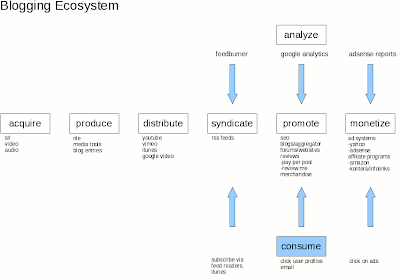
In the clickable map below, I've listed the major steps in the production chain, as well as specific subjects within each step. Go ahead and click on anything in the picture and it will take you to a summary of that particular topic or a direct resource on the web. Some of this is old hat for readers, but it was helpful to see it holistically, as an ecosystem of sorts. The flow represents a way to distribute one's video creations (content) over the web and get some eyes looking at that content.


(the graphic is hotlinked, so click on a subject for further investigation)

Summary
In general, the white boxes represent steps that the producer is responsible for; the blue box represent actions taken by the consumers of the content. The main steps are:
-having an idea for a video and storyboarding (not shown)
-acquiring source content (video/audio/imagery)
-bringing the idea to life via a production workflow
-distributing that video via the web
-syndicating the content via rss feed
-having individuals consume that feed
-monitoring and analyzing the consumption
-promoting and marketing of content
-perhaps making some money one day

Detail
If you click on any part of the graph, you'll be able to dig down further into the resources I've provided. As it will require some explaining, I'll probably do a follow up video to this graphic.

Enjoy!

Saturday, October 04, 2008

iTunes/iPod video workflow, scripted

I am going to revisit my conversation about workflow. Here's what we briefly discussed:
- the transformation of an idea (video) into reality and distributing it (in this case, using iTunes)

With today's internet, the steps involved are broad-based:
- idea creation, storyboard, distribution, production, archiving, marketing

Update 2008/11/22
I've added a few more details to my workflow in a new post here.
end update

I shall give you an example and how I reduced the amount of time spent creating and distributing my content.

When not working, my world is playing music with a band of itinerant musicians called the StormPigs. We gather together once every couple of months to play freeform music. No prior thought involved, just play. The joy of this is being together and having a good time. Otherwise, we are all busy professionals with full-time jobs and families. In remembrance of that good time, I produce videos of the event, distributed via iTunes and YouTube.

As time seems compressed these days, I want to spend as little time as possible behind the keyboard (though I am a technologist by trade). And as readers of this blog know, I am avid proponent of Linux. The beauty of Linux is that the system is completely configurable and flexible. But with this power comes a price. You have to invest the time to learn the shell, some bits of scripting and other Linux arcana. Consequently, it is daunting to the newcomer. But the benefits return to you many times over, as time you once spent on minutiae can now be spent thinking of new ideas for shows and creating new content, rather than simply focusing on the details of getting a file up to the server or copy and pasting content from one application to the other.

I am not a programmer of fanciful GUI front ends. I am a guy who just needs to get work done. So I try to solve my problems in the simplest way possible using the Linux programs and bash shell scripts to tie multiple programs together.

Here is the latest problem I needed to solve:
- how to I get my videos onto the web and in an iTunes ready form as quickly as possible?

In that light, I have come up with some scripts to help me on my way:
- the first encodes my editing video project into various formats (HDV, DVD, podcast)
- the second creates the list of songs from the video that will go into the podcast
- the third merges that songlist information into the podcast
- the fourth creates a new iTunes RSS feed (XML file) from the songlist information
- the fifth uploads the new podcast to my webserver
- the last is a wrapper that starts the other five

The encoding script is most useful and is the basis for the others. This script takes 720P video and 48Khz MPEG, Layer II stereo audio output rendered from a Cinelerra project and converts it to various formats: MPEG2 Program Stream, HDV, DVD and iTunes/iPod compatible formats. You will need the following programs installed for this script to work:
-mplex
-vlc
-ffmpeg

I've found the quality of each output file to be very good to excellent.

You can wrap some validation and input around this script, but the guts of the script look like this, where the arguments enclosed in curly braces will be replaced by the names of your input and output files:
#!/bin/bash
echo "Input: M2A audio and MPEG2 720P video streams"

echo "Output: program stream"
mplex -f 3 -b 2000 ${AUDIO} ${VIDEO} -o ${PS}

echo "Input: program stream"
echo "Output: MPEG2-TS, HDV"
vlc ${PS} --sout '#duplicate{dst=std{access=file,mux=ts,dst="'${HDV}'"}}' vlc:quit


echo "Input: MPEG2-TS, HDV"
echo "Output: MPEG2 DVD"
ffmpeg -i ${HDV} -target dvd -threads 8 ${DVD}

echo "Input: MPEG2 DVD"
echo "Output: iTunes/iPod compatible MP4"
ffmpeg -y -i ${DVD} -an -v 1 -threads 8 -vcodec h264 -b 250k -bt 175k -refs 1 -loop 1 -deblockalpha 0 -deblockbeta 0 -parti4x4 1 -partp8x8 1 -me full -subq 1 -me_range 21 -chroma 1 -slice 2 -bf 0 -level 30 -g 300 -keyint_min 30 -sc_threshold 40 -rc_eq 'blurCplx^(1-qComp)' -qcomp 0.7 -qmax 51 -qdiff 4 -i_qfactor 0.71428572 -maxrate 450k -bufsize 2M -cmp 1 -s 720x480 -f mp4 -pass 1 /dev/null

ffmpeg -y -i ${DVD} -v 1 -threads 8 -vcodec h264 -b 250k -bt 175k -refs 1 -loop 1 -deblockalpha 0 -deblockbeta 0 -parti4x4 1 -partp8x8 1 -me full -subq 6 -me_range 21 -chroma 1 -slice 2 -bf 0 -level 30 -g 300 -keyint_min 30 -sc_threshold 40 -rc_eq 'blurCplx^(1-qComp)' -qcomp 0.7 -qmax 51 -qdiff 4 -i_qfactor 0.71428572 -maxrate 450k -bufsize 2M -cmp 1 -s 720x480 -acodec aac -ab 160k -ar 48000 -ac 2 -f mp4 -pass 2 -threads 8 ${MP4}


Stay tuned for discussions of the remaining scripts to make your life easier,
CM

Monday, February 12, 2007

the big picture

With the dualdvd archive piece and scripted workflow, I was able to optimize a couple of pieces of the video production lifecycle:

idea creation -> storyboard -> production -> distribution -> marketing -> archive

Update 2008/11/22
I've added a few more details to my workflow in a new post here.
end update

I fear I'm spending too much time on the production piece and all the associated technical details. However, from a business perspective, the devil is in the details and if you have a good workflow, that means that you can do more in less time and be able to dedicated more time to the more creative/marketing aspects. So I don't think it is for nothing that I am doing this. Too bad I can't get those darn Ximeta NDAS drivers to work on Linux!!

Saturday, February 10, 2007

scripted rendering!

I am very happy to say that I've been able to script a couple pieces of the rendering process. Once I've edited my HDV masterpiece, I export out an .m2v file and an mp3, layer 2 file, according to my previous post:
http://crazedmuleproductions.blogspot.com/2006/11/cam-compatible-hdv-edit-chain-part-ii.html

I then use the following script to:
1) combine the .m2v and .m2a as a program stream (using mplex)
2) convert the program stream to a transport stream, MPEG-TS file (using VLC)
3) convert the MPEG-TS to a DVD compatible mpg (using ffmpeg)
4) lastly, convert the DVD to an iTunes compatible format (again, using ffmpeg)

Obviously, their is inherent quality loss in each step. I tried to eliminate one conversion step by rendering to the iTunes format direct from the HDV source, but for some reason, ffmpeg gave me errors. So, I saved time and just converted from the DVD source. I will revisit this problem in a later post.

I can say that scripting VLC kicks ass! No more GUI!! Yay!

Here is the script. Don't forget to "chmod a+x " in order to run it.

Note that when run, the script will ask for a filename. That filename must be common to the .m2v and .m2a files. For example, start with two files called test.m2v and test.m2a. The script will prompt you for the filename, at which point you will enter "test" and hit enter. After that, the script will chug away and render each of the files to the filename test., where format will vary by the destination type (.ps/.m2t/.mpg/.mov).

Good luck!

#!/bin/bash -v
#
# This script converts HDV content
echo "Type in the name of the m2a/m2v files for mplex'ing"
read NAME
echo "Mplex'ing $NAME"
mplex -f 3 -b 2000 ${NAME}.m2a ${NAME}.m2v -o ${NAME}.ps

echo "VLC'ing $NAME"
vlc $NAME.ps --sout '#duplicate{dst=std{access=file,mux=ts,dst="'$NAME'.m2t"}}' vlc:quit

echo "FFMPEG convert to DVD"
ffmpeg -i ${NAME}.m2t -target dvd ${NAME}.mpg

echo "FFMPEG convert to MOV"
ffmpeg -i ${NAME}.m2t -f mov -vcodec mpeg4 -qscale 7 -s 320x180 -r 29.97 -aspect 16:9 -acodec aac -ac 2 -ab 128 ${NAME}.mov
echo "Done"

Friday, November 10, 2006

cam compatible HDV edit chain, part II (short)

I posted a more detailed version of this two posts ago (http://crazedmuleproductions.blogspot.com/2006_10_01_archive.html), but I thought I'd reiterate it in a shorter format:
1) from Cinelerra, export video using YUV4MPEG using mpeg2enc (.m2v) compression scheme with special params:
mpeg2enc --verbose 0 --aspect 3 --format 3 --frame-rate 4 --video-bitrate 18300 --nonvideo-bitrate 384 --interlace-mode 0 --force-b-b-p --video-buffer 448 --video-norm n --keep-hf --no-constraints --sequence-header-every-gop --min-gop-size 6 --max-gop-size 6 -o %
2) from Cinelerra, export audio using mpeg audio, layer II (384Kbps)
3) multiplex audio and video streams to MPEGPS (Program Stream) format using mplex:
mplex -f 3 -b 2000 video.m2v audio.m2a -o output.ps
4) convert .ps to .ts, MPEGTS (Transport Stream) format using VLC
5) export to cam, consider using 10sec blank leader

Update 5/17/2009
Note that if you bring the video into Cinelerra and the thumbnail is green, this means that the first frame of the video is not a keyframe. This is a problem with VLC. You can avoid this problem by using this ffmpeg command in place of Step 4 above:
ffmpeg -y -i OUTPUT.ps -acodec copy -f mpegts -qscale 1 OUTPUT.m2t
*** end update ***

Update 3/14/2008
Once the video is converted, you may then output to the camera using test-mpeg2 from libiec61883:
/2006/10/success-and-failure-in-land-of-dvhdv.html

Also, take note of a possible 2GB limit in libiec61883 uploading your content to the cam:
/2006/10/libiec61883-now-exports-files-greater.html
*** end update ***

Update 11/17/06
Last night, I found that doing performing other operations on your system like surfing the web or playing audio while running mplex or VLC convert may cause problems with the video as it uploads to the camera. So don't do anything while you convert your videos.

In my case, I was 28 minutes into an hour long video uploading to the cam when the import stopped. I no longer had uploading video displayed on the LCD screen of the cam. I only saw blue, the upload seemed to continue, but I got no final output. The solution was to remux the original streams using mplex and rebuild the MPEGTS using VLC. The important point being that one of these two processes is very sensitive to fluctuations in CPU or hard drive performance. So leave your PC alone while these processes are active.
*** end update ***

That's all she wrote for today. Enjoy!
the mule

Sunday, October 29, 2006

rendering cam-compatible HDV MPEGTS files

I have been successful in exporting HDV back out to my cam. I haven't posted detailed output from the individual steps before, so here it is:

General Steps
1) export video from Cinelerra as mpeg2 using mpeg2enc
2) export audio from Cinelerra as mp3
3) mux in mplex
4) open MPEGPS in VLC and convert to TS.

Detail
1) export video from Cinelerra as mpeg2 using mpeg2enc:
mpeg2enc --verbose 0 --aspect 3 --format 3 --frame-rate 4 --video-bitrate 18300 --nonvideo-bitrate 384 --interlace-mode 0 --force-b-b-p --video-buffer 448 --video-norm n --keep-hf --no-constraints --sequence-header-every-gop --min-gop-size 6 --max-gop-size 6 -o /mnt/videos/20050721/20050721.m2v

2) export audio from Cinelerra as mp3:
--------------------------------------------
Input File : 'stdin' 48.0 kHz
Output File: '/mnt/videos/20050721/test.mp3'
384 kbps MPEG-1 Layer II j-stereo Psy model 1
[De-emph:Off Copyright:No Original:No CRC:Off]
[Padding:Normal Byte-swap:Off Chanswap:Off DAB:Off]
ATH adjustment 0.000000
--------------------------------------------
encode_init: using tablenum 0 with sblimit 27
Hit end of audio data
Avg slots/frame = 1152.000; b/smp = 8.00; bitrate = 384.000 kbps


3) mux in mplex
[root@computer 20050721]# mplex -f 3 -b 2000 -o test.ps test.mp3 20050721.m2v
INFO: [mplex] mplex version 1.8.0 (2.2.4 $Date: 2005/08/28 17:50:54 $)
INFO: [mplex] File test.mp3 looks like an MPEG Audio stream.
INFO: [mplex] File 20050721.m2v looks like an MPEG Video stream.
INFO: [mplex] Found 1 audio streams and 1 video streams
INFO: [mplex] Selecting generic MPEG2 output profile
INFO: [mplex] Multiplexing video program stream!
INFO: [mplex] Scanning for header info: Audio stream c0 (test.mp3)
INFO: [mplex] MPEG AUDIO STREAM: c0
INFO: [mplex] Audio version : 1.0
INFO: [mplex] Layer : 2
INFO: [mplex] CRC checksums : no
INFO: [mplex] Bit rate : 49152 bytes/sec (384 kbit/sec)
INFO: [mplex] Frequency : 48000 Hz
INFO: [mplex] Mode : 0 stereo
INFO: [mplex] Mode extension : 0
INFO: [mplex] Copyright bit : 0 no copyright
INFO: [mplex] Original/Copy : 0 copy
INFO: [mplex] Emphasis : 0 none
INFO: [mplex] Scanning for header info: Video stream e0 (20050721.m2v)
INFO: [mplex] VIDEO STREAM: e0
INFO: [mplex] Frame width : 1280
INFO: [mplex] Frame height : 720
INFO: [mplex] Aspect ratio : 16:9 display
INFO: [mplex] Picture rate : 29.970 frames/sec
INFO: [mplex] Bit rate : 18300000 bits/sec
INFO: [mplex] Vbv buffer size : 229376 bytes
INFO: [mplex] CSPF : 0
INFO: [mplex] SYSTEMS/PROGRAM stream:
INFO: [mplex] rough-guess multiplexed stream data rate : 19077648
INFO: [mplex] Setting best-guess data rate.
INFO: [mplex] Run-in Sectors = 752 Video delay = 58123 Audio delay = 61126
INFO: [mplex] New sequence commences...
INFO: [mplex] Audio c0: buf= 0 frame=000000 sector=00000000
INFO: [mplex] Video e0: buf= 0 frame=000000 sector=00000000
INFO: [mplex] Scanned to end AU 39469
INFO: [mplex] STREAM e0 completed @ frame 39469.
INFO: [mplex] STREAM c0 completed @ frame 54874.
INFO: [mplex] Multiplex completion at SCR=118584775.
INFO: [mplex] Audio c0: buf= 2304 frame=054874 sector=00031342
INFO: [mplex] Video e0: buf= 0 frame=054843 sector=00509538
INFO: [mplex] AUDIO_STATISTICS: c0
INFO: [mplex] Audio stream length 63216000 bytes.
INFO: [mplex] Syncwords : 54875
INFO: [mplex] Frames : 54875 padded
INFO: [mplex] Frames : 0 unpadded
INFO: [mplex] BUFFERING min 18 Buf max 1169
INFO: [mplex] VIDEO_STATISTICS: e0
INFO: [mplex] Video Stream length: 1031417371 bytes
INFO: [mplex] Sequence headers: 6579
INFO: [mplex] Sequence ends : 1
INFO: [mplex] No. Pictures : 39470
INFO: [mplex] No. Groups : 6579
INFO: [mplex] No. I Frames : 6579 avg. size 58215 bytes
INFO: [mplex] No. P Frames : 32891 avg. size 19714 bytes
INFO: [mplex] No. B Frames : 0 avg. size 0 bytes
INFO: [mplex] Average bit-rate : 6264800 bits/sec
INFO: [mplex] Peak bit-rate : 9203600 bits/sec
INFO: [mplex] BUFFERING min 943996 Buf max 1944874
INFO: [mplex] MUX STATUS: no under-runs detected.
[root@computer 20050721]#


4) open MPEGPS in VLC and convert to MPEGTS.

Update 3/14/2008
Once the video is converted, you may then output to the camera using test-mpeg2 from libiec61883:

/2006/10/success-and-failure-in-land-of-dvhdv.html

Also, take note of a possible 2GB limit in libiec61883 uploading your content to the cam:
/2006/10/libiec61883-now-exports-files-greater.html

Thursday, October 19, 2006

HDV MPEG2 transport stream file sizes/render rates

The data rate of the 720P MPEG2-TS files output from my cam is about 108.95MB/min or 1.82MB/s. Here is a table of video length-to-size conversions.

duration size

12m 1.32GB
15m 1.65GB
18m35s 2.07GB
19m12s 2.12GB
20m01s 2.18GB
34m 3.70GB
Exporting 720P HDV from Cinelerra takes two processes:
1) render the video
2) render the audio

Here are some rendering times using mpeg2enc and mpeg layer 2 audio compression:

duration mpeg2enc render rate
63m 310m 4.92min per min of video

duration mp2 render rate
63m 6m 0.09min per min of audio

Mplex takes about 7 minutes to mux about an hour of audio and video.

Monday, October 16, 2006

hard work is paying off / HDV workflow

OK! I've got the latest video up on iTunes and now I just need to edit the XML for it. Editing the damn XML always takes too long. And of course, I want to get the track list right with the correct track times and witty comments. Ufff. OK! So the track list is done and now to send the boys the email for the latest video! Hurrah!

More for my benefit than anyone elses, here is my HDV workflow using Cinelerra:
1) import video
2) edit video
3) for multiple segments, make sure you set "align to frames" and audio and video segments end at the exact same time.
4) for HD output, render using mpeg2enc settings
5) for DVD output, render using ffmpeg -target DVD from Cinelerra, something like this:
ffmpeg -f yuv4mpegpipe -i - -y -i /mnt/videos/20050721/20050721.wav -target dvd %
6) for iPod output, render using ffmpeg -target DVD, then output to mpeg4 video/aac audio mov container:
ffmpeg -i inputdvd.mpg -f mov -vcodec mpeg4 -qscale 7 -s 320x180 -r 29.97 -aspect 16:9 -acodec aac -ac 2 -ab 128 output.mov
7) import .mov to XP iTunes
8) upload .mov to website
9) edit RSS XML
10) final test in iTunes