Friday, January 30, 2009

high quality h264 output

For the last few years, I've been working with 720P content. With the recent purchase of a Canon 5D, I'm now working with 1080P video. Both formats are in 16:9 aspect ratio. 

- 720P video implies a horizontal resolution of 1280 pixels, 1280x720 frame resolution with a total of 921,600 pixels. 

- 1080P video implies a horizontal resolution of 1920 pixels, 1920x1080 frame resolution with a total of 2,073,600 pixels. 

Though this is a blog on Linux video editing, I heartily welcome good information on the often confusing subject of video compression. Here is an article on Apple's site that conveys the basic information you'll need to understand about encoding H264 videos: http://www.apple.com/quicktime/tutorials/h264.html 

As I work to produce higher quality video, one of the things I've thought about is the possibility of getting my material aired on cable TV. So the Broadcast Standards discussion in the above Wikipedia article was very interesting. Also, it occurred to me that I've never properly understood the differences between fields and frames, in the context of telecine, or how film is transferred to video. The Wiki article above clarified it for me and is highly recommended. 

Fields and frames are also useful in the context of how Cinelerra processes video.  

Rendering High Quality H264 video 

It is important to understand aspect ratio in the context of rendering high quality video. Lately, I've been encoding H264 video; specifically, I've been reducing the size of my videos to load onto an iPhone/iTouch. For this task, one of the easiest ways to assure best output quality is to make sure that both the height and width of the rendered output are divisible by 16. 

Without going into the highly technical details of the H.264/MPEG-4 AVC standard or how video compression works, here is a somewhat simplistic analysis: "..it's slightly better to have dimensions divisible by 16, but only because H.264 divides up a picture into 16x16 blocks and if you have a partial block it still has to expend time and bandwidth on it. A size that is an exact multiple of 16 H & V will compress a tiny bit more efficiently, or look slightly better at the same bitrate." -extracted from this conversation that no longer exists.

To make sure the dimensions of my videos are always divisible by 16, you can do the calculations yourself, or take a look at a couple nice charts from Andrew Armstrong's site to help you choose dimensions where the height and width are both divisible by 16. 

To make it easy for you, there are only a few choices: 1536x864 1280x720 768x432 512x288 256x144 This will avoid the dread "width or height not divisible by 16, compression will suffer" error you would see in many H264 encoders.  

Robert Swain's blog (again, no longer exists) was very helpful in determining x264 parameters that yield great looking video. Especially the page regarding ffmpeg presets, though I haven't yet determined what preset is best for my content. The presets listed on Robert's page need to be put into a .ffmpeg directory under your user's home directory. 

Finally, this bitrate calculator for was something useful I stumbled up while researching this post.

-- the Mule --

 
PS 2023/04/16 - Sven from videoproc.com was kind enough to point out that Kino has been discontinued and not actively maintained since 2009, and its official website - Kinodv.org, was also completely shut down and out of service since April, 2021.

Sven recently published a guide talking about what happened to Kino and its official website, and you can check it here,
https://www.videoproc.com/resource/what-happened-to-kinodv.htm
 
Thanks again, Sven!

PS 2021/05/31 - Sven from videoproc.org wrote a fantastic piece on H.264 and H.265/HEVC encoding, I learned a lot from it.  Here's the link:

Sunday, January 25, 2009

stock footage, encoding H264 and the iPod

I had a bit of a rough day yesterday. I started early, about 8am, upgrading my MacBook Pro to Leopard. That process went more or less smoothly and finished around noon. Next, I had taken some video the night before and wanted to create a video that would serve as a table of contents to my archive. Also, this short video might enable me to market some of my source material as stock footage. So it might be a fun little project that shouldn't take long. I should know to never say "shouldn't take too long", because things have a way of blowing up in your face when you don't expect them to.

Converting 1080P directly to an iPod-ready format
The goal was to convert some 1080P video from my Canon 5D directly into an iPod readable format. However, as I was overly tired on this day, my mind defeated me. Essentially what happened was that after I rendered out the video and loaded it to the iPod, I kept seeing only three quarters of the video. Flummoxed, I thought it must be a rendering problem. Long story short, I found that the problem was not with my rendering parameters, but the fact that my iTouch has a zoom/scaling feature that I forgot about, but had enabled. Here is the little bugger:


So I had spent about three hours until 2am fighting with encoding parameters, re-encoding video, transferring many test files to my Mac and then loading them to the iPod, only to find that the source of the problem was this little stupid icon on the iTouch.

Boy, am I dense.

A Learning Experience
I did learn a few things through my travails this weekend:
1) The el cheapo haze filter on my camera shows a lot of lens flare and needs to be replaced.

2) Don't merge a longer audio stream with a shorter video stream or else you'll be wondering why your 1m45s video is suddenly 9m30s. Duh.

3) When encoding videos to H264 format, always try to use resolutions where the height and width are divisible by 16. This will make the level of compression and quality of the resulting video better. I will post separately about resolutions that are divisible by 16.

4) A dvd video encoded by ffmpeg using -target ntsc-dvd and then downrezzed using the following command syntax will NOT have the proper aspect ratio once loaded onto the iPod:
ffmpeg -y -i ${NAME}.mpg -an -v 1 -threads 8 -vcodec h264 -b 250k -bt 175k -refs 1 -loop 1 -deblockalpha 0 -deblockbeta 0 -parti4x4 1 -partp8x8 1 -me full -subq 1 -me_range 21 -chroma 1 -slice 2 -bf 0 -level 30 -g 300 -keyint_min 30 -sc_threshold 40 -rc_eq 'blurCplx^(1-qComp)' -qcomp 0.7 -qmax 51 -qdiff 4 -i_qfactor 0.71428572 -maxrate 450k -bufsize 2M -cmp 1 -s 720x480 -f mp4 -pass 1 /dev/null

ffmpeg -y -i ${NAME}.mpg -v 1 -threads 8 -vcodec h264 -b 250k -bt 175k -refs 1 -loop 1 -deblockalpha 0 -deblockbeta 0 -parti4x4 1 -partp8x8 1 -me full -subq 6 -me_range 21 -chroma 1 -slice 2 -bf 0 -level 30 -g 300 -keyint_min 30 -sc_threshold 40 -rc_eq 'blurCplx^(1-qComp)' -qcomp 0.7 -qmax 51 -qdiff 4 -i_qfactor 0.71428572 -maxrate 450k -bufsize 2M -cmp 1 -s 720x480 -acodec aac -ab 160k -ar 48000 -ac 2 -f mp4 -pass 2 -threads 8 ${NAME}.mp4


So don't try that at home, kids.

I had previously been using this string of encoding parameters to encode a video of my band rehearsals. The encode was from a DVD source file, so perhaps I will just use the 1080P as source going forward. I will have to test this out first. Strangely, the conversion of the audio from AC3 format had audible hiccups from time to time. Since this process was working fine on Fedora 7, perhaps this is just an issue with Fedora 10.

Downrezzed 1080P Video Ready for the iPod
The following two pass Cinelerra encoding parameters via yuv4mpeg stream worked well to produce a high quality video from 1080P source. In short, you will do two renders from a YUV4MPEG stream:
render 1: the pipe to /dev/null in order to create the optimization log
render 2: the pipe to create the file

#CINELERRA YUV4MPEG RENDER 1
ffmpeg -f yuv4mpegpipe -y -i - -an -v 1 -threads 8 -vcodec libx264 -b 1000k -bt 775k -refs 1 -loop 1 -deblockalpha 0 -deblockbeta 0 -parti4x4 1 -partp8x8 1 -me full -subq 1 -me_range 21 -chroma 1 -slice 2 -bf 0 -level 30 -g 300 -keyint_min 30 -sc_threshold 40 -rc_eq 'blurCplx^(1-qComp)' -qcomp 0.7 -qmax 51 -qdiff 4 -i_qfactor 0.71428572 -maxrate 1000k -bufsize 2M -cmp 1 -s 512x288 -f mp4 -pass 1 /dev/null

#CINELERRA YUV4MPEG RENDER 2

ffmpeg -f yuv4mpegpipe -y -i - -i /mnt/videos/projects/2009_01_23/nightUrbanIndustrialIpod.mp3 -v 1 -threads 8 -vcodec libx264 -b 1000k -bt 775k -refs 1 -loop 1 -deblockalpha 0 -deblockbeta 0 -parti4x4 1 -partp8x8 1 -me full -subq 6 -me_range 21 -chroma 1 -slice 2 -bf 0 -level 30 -g 300 -keyint_min 30 -sc_threshold 40 -rc_eq 'blurCplx^(1-qComp)' -qcomp 0.7 -qmax 51 -qdiff 4 -i_qfactor 0.71428572 -maxrate 1000k -bufsize 2M -cmp 1 -s 512x288 -acodec libfaac -ab 160k -ar 48000 -ac 2 -f mp4 -pass 2 -threads 8 %

I chose a resolution of 512x288 because:
1) the aspect ratio is the same as my 1080P source video, 16:9 (1.777)
2) both the height and width are divisible by 16
3) there were no errors and it comes out looking great on the iPod

Rendering Parameters for a High Quality Vimeo Upload
Finally, I was able to output an H264 video at 1920x1080 that looks great in Vimeo. Psych! I was able to remove the ugly bottom bar seen in Vimeo from my previous post. Here is the two-pass encoding method that I used from Cinelerra. Two notes:
1) the two passes are YUV4MPEG stream renders from Cinelerra using FFMPEG and will need to be run as individual renders in Cinelerra.
2) the second pass muxes (combines) a pre-rendered audio stream with the video stream. So you'll need to render that audio file first.

Here is your first render command string (the first pass of the two-pass) that will create the optimization log:
#CINELERRA RENDER PASS1
ffmpeg -f yuv4mpegpipe -y -i - -an -v 1 -threads 8 -vcodec libx264 -aspect 1.7777 -b 9000k -bt 7775k -refs 1 -loop 1 -deblockalpha 0 -deblockbeta 0 -parti4x4 1 -partp8x8 1 -me full -subq 1 -me_range 21 -chroma 1 -slice 2 -bf 0 -level 30 -g 300 -keyint_min 30 -sc_threshold 40 -rc_eq 'blurCplx^(1-qComp)' -qcomp 0.7 -qmax 51 -qdiff 4 -i_qfactor 0.71428572 -maxrate 10000k -bufsize 2M -cmp 1 -f mp4 -pass 1 /dev/null


Here is the second render command that takes advantage of the optimization log created in the first-pass render. I rendered an audio file of my project earlier, so this second command also combines that audio file with the video for my final result:
#CINELERRA RENDER PASS2
ffmpeg -f yuv4mpegpipe -y -i - -i /mnt/videos/projects/blog/waterSmall.mp3 -v 1 -threads 8 -vcodec libx264 -aspect 1.7777 -b 9000k -bt 7775k -refs 1 -loop 1 -deblockalpha 0 -deblockbeta 0 -parti4x4 1 -partp8x8 1 -me full -subq 1 -me_range 21 -chroma 1 -slice 2 -bf 0 -level 30 -g 300 -keyint_min 30 -sc_threshold 40 -rc_eq 'blurCplx^(1-qComp)' -qcomp 0.7 -qmax 51 -qdiff 4 -i_qfactor 0.71428572 -maxrate 10000k -bufsize 2M -acodec libfaac -ab 160k -ar 48000 -ac 2 -cmp 1 -f mp4 -pass 2 %


I think the quality is bloody AWESOME! Take a gander:

2009/01/23: night, urban, industrial from crazed mule on Vimeo.

Conclusion
Through pain, there can sometimes be the brighter side. In this case, I learned a few things. In retrospect, I may have chosen my production company's name correctly. A mule is one stubborn beast.

Related to crazed mules, here is a story I stumbled upon the other day you might find funny:
The Day the Mules Went Crazy

The Mule

Reference
H264 Encoding
FFMPEG HowTo

Monday, January 12, 2009

Water, a new Canon 5D video

After a couple of weeks of gathering content, I completed my first real Cinelerra project using the 1080P output from my brand new Canon EOS 5D Mark II.

This camera outputs some gorgeous video as I showed in my last post. Now I have to learn how to shoot with it!

The Project
My goal with this short production was:
1) to show the capabilities of the camera
2) to prove that Cinelerra was up to the task of editing 1080P content
3) to output the final results to different output formats (media player, Vimeo, back into Cinelerra)

I'm a hobbyist, so I don't have a budget and "script" like Vincent Laforet. However, I like to compile scenes and organize them with musical accompaniment in thoughtful ways that are (hopefully) enjoyable to the viewer.

The Images
Since I am not a professional photographer, I did not have a slew of lenses before I bought the cam. I only used two lenses that I recently bought for this video:
Canon EF 24-105mm f/4 L IS USM Lens
Canon EF 50mm f1.4 USM Lens

In regards to the imagery, about half of the shots were taken with a tripod. Where you see shakey video is obviously where I held the cam by hand. You definetly do NOT want to shoot high definition video by hand. It serves to amplify any wobbling present and looks terrible when presented on a high definition television. One thing that saved me was the stabilization provided by the Canon L series zoom lens. It is very effective in dampening bounces, though the stabilization mechanism is loud and is picked up by the camera's poor quality, but usable internal stereo microphone.

I used the 50mm mainly for the indoor shots and the zoom for the outdoor shots. I shot some of the outdoor night shots with the zoom, but then realized that the zoom doesn't do well in low light conditions since it has such a long zoom barrel. So just last week, I bought the 50mm. The 50mm fixed length (prime) lens really makes night shots clear with none of the spotty, dappled artifacts that you see with high ISO night shots. During the video, you'll notice those artifacts on the shot of the ferry.

Note that I used no filters on the shots..what you see in the video is truly what you get with the camera. As I gain expertise with the camera, I look forward to acquiring lenses over the next few years.

The Editing Process
The editing process has been a bit of a challenge, as the native output from the camera does not import cleanly into Cinelerra. Hence, I needed to transcode the native output into something more Cinelerra friendly, which I discuss in earlier posts:
/2009/01/first-edit-canon-5d-mark-ii.html
/2008/11/playing-tokyo-reality-in-1080p.html

I didn't want to revisit the conversion process, so I opted to use the MJPEG conversion command I previously discovered:
ffmpeg -i input.mov -b 3000k -vcodec mjpeg -ab 256k -ar 44100 -acodec libfaac -coder 1 -flags +loop -cmp +chroma -partitions +parti4x4+partp8x8+partb8x8 -subq 5 -me_range 16 -g 250 -keyint_min 25 -sc_threshold 40 -i_qfactor 0.71 output.mov

Once loaded in Cinelerra, I found I had quite a few assets from the last couple weeks of shooting.


If I could have one improvement made to the software, it would be to add folders to the Media bin in order to better manage assets.

I went about editing the video as normal. I applied only time-based effects, like speeding up or slowing down the video, and transitions. The time-based effects were accomplished by attaching the ReframeRT video effect:


Output
I needed to output files from the project for different purposes:
1) to reimport back into Cinelerra (JPEG or MJPEG Quicktime video)
2) to export/render a format usable with my MG-350HD Media Player
(1080I/1080P MPEG2 video)
3) to export/render a format usable for Vimeo (720P MPEG2)

For #1, I exported a Quicktime for Linux container, using MJPEG compression. I just needed the video, so I had no audio on the export. I was able to reimport the resulting file easily into Cinelerra.

For #2, I rendered the video using a YUV4MPEG pipe. I needed to adjust the pipe command to export a different format and higher video bitrate.
mpeg2enc --verbose 0 --aspect 3 --format 13 --frame-rate 4 --video-bitrate 24000 --nonvideo-bitrate 384 --interlace-mode 0 --force-b-b-p --video-buffer 448 --video-norm n --keep-hf --no-constraints --sequence-header-every-gop --min-gop-size 6 --max-gop-size 6 -o %

Using mplex, I then combined the video stream with an existing audio track to an MPEG2 Program Stream:
mplex -f 3 -b 2000 canon5d.m2a canon5d.m2v -o canon5d.ps

Finally, I converted the program stream to an MPEG2 Transport Stream using vlc:
cvlc canon5d.ps --sout '#duplicate{dst=std{access=file,mux=ts,dst="canon5d.m2t"}}' vlc:quit

For #3, I reduced the 1080i/p output to 720P using FFMPEG:
ffmpeg -i canon5d.m2t -target ntsc-dvd -s 1280x720 -qscale 1 -threads 8 canon5d.mpg

Update 2008/01/13
I hadn't noticed before, but after I uploaded the 720P file to Vimeo, there was a little bit of a line on the bottom of the video. I am going to have to revisit the edit to make sure I didn't mess something up.
*** end update ***

I think the quality of the output can definitely be improved. However, I am glad that I was able to output to formats usable across different platforms (HDTV/Internet/Linux-Cinelerra).

Update 2008/02/08
I've been working on improving the quality of the output from Cinelerra. Specifically, instead of using MJPEG source files (the first conversion from the cam), I'm converting the Canon's video to MPEG2-TS. The MPEG2-TS format has very nice quality and edits quickly in Cinelerra. Here's the full skinny:
/2009/02/dark-of-winter-has-me-in-its-grasp.html
*** end update ***

In Sum
Dealing with a new media format in Linux and Cinelerra is never easy. But if you have patience, it is very satisfying to get a project done that makes your friends say "Wow" or have a laugh.

the mule

Saturday, January 03, 2009

Canon 5D Mark II video: Cinelerra edit

Well folks, I got myself quite a present for Christmas: the Canon EOS 5D Mark II:
http://www.usa.canon.com/consumer/controller?act=ModelInfoAct&fcategoryid=139&modelid=17662
Amazon: Canon EOS 5D Mark II

I've acquired a bit of video over the first few days with the cam. Now let's make sure I can edit the bloody stuff in Cinelerra! :)

Update 1/14/2009
I've done a full edit session with the output of the 5D. Lovely!
*** end update ***

I've found the following process works pretty well.

1) Convert video to a Cinelerra-usable format
As I explained in one of my earlier posts, mjpeg seems a good format to convert the H264 output of the cam:
[mule@ogre 2008_12_26]$ ffmpeg -i MVI_0072.MOV -b 3000k -vcodec mjpeg -ab 256k -ar 44100 -acodec libfaac -coder 1 -flags +loop -cmp +chroma -partitions +parti4x4+partp8x8+partb8x8 -subq 5 -me_range 16 -g 250 -keyint_min 25 -sc_threshold 40 -i_qfactor 0.71 mvi_0072.mov

Here's an image that compares the original, Canon saved H264 video to the MJPEG conversion:


Pretty close, eh? The MJPEG video seems a little lighter and you can see more detail, though the colors are a little washed out.

2) Import into Cinelerra
Unlike the H264 format the Canon saves, the MJPEG conversion imports cleanly into Cinelerra without error messages. Also, on my dual, quad core Dell running Fedora 10, I get about 18fps playing back the raw video. Nice.

3) Render to YUV4MPEG stream as H264 video
I do this step in two parts:

a. Render the audio
The Canon stores its audio in 44Khz, 16-bit PCM format. I rendered out an MPEGI, Layer2 audio file:
--------------------------------------------
Input File : 'stdin' 44.1 kHz

Output File: '/mnt/videos/projects/2008_12_26/audioTrack.m2a'

256 kbps MPEG-1 Layer II j-stereo Psy model 1

[De-emph:Off Copyright:No Original:No CRC:Off]
[Padding:Normal Byte-swap:Off Chanswap:Off DAB:Off]
ATH adjustment 0.000000
--------------------------------------------
encode_init: using tablenum 0 with sblimit 27
Hit end of audio data

Avg slots/frame = 768.000; b/smp = 5.33; bitrate = 256.000 kbps
Render::run: Session finished.


b. Render a YUV4MPEG stream. Using the following pipe, I combine the audio track that was output in the previous step with the video that is being rendered:
ffmpeg -f yuv4mpegpipe -y -i - -i /mnt/videos/projects/2008_12_26/audioTrack.m2a -b 3000k -vcodec libx264 -ab 256k -ar 44100 -acodec libfaac -coder 1 -flags +loop -cmp +chroma -partitions +parti4x4+partp8x8+partb8x8 -subq 5 -me_range 16 -g 250 -keyint_min 25 -sc_threshold 40 -i_qfactor 0.71 %

Step B is very similar to the advanced rendering technique I showed you in the Beginner's Guide to Exporting Video from Cinelerra. Here's how the render looks in a terminal window:
Input #0, yuv4mpegpipe, from 'pipe:':
Duration: N/A, bitrate: N/A
Stream #0.0: Video: rawvideo, yuv420p, 1920x1080, 30.00 tb(r)
Input #1, mp3, from '/mnt/videos/projects/2008_12_26/audioTrack.m2a':
Duration: 00:00:28.42, start: 0.000000, bitrate: 255 kb/s
Stream #1.0: Audio: mp2, 44100 Hz, stereo, s16, 256 kb/s
Output #0, mp4, to '/mnt/videos/projects/2008_12_26/mvi_0072_h264.mp4':
Stream #0.0: Video: libx264, yuv420p, 1920x1080 [PAR 1:1 DAR 16:9], q=2-31, 3000 kb/s, 30.00 tb(c)
Stream #0.1: Audio: libfaac, 44100 Hz, stereo, s16, 256 kb/s
Stream mapping:
Stream #0.0 -> #0.0
Stream #1.0 -> #0.1
[libx264 @ 0x1ec6200]using SAR=1/1
[libx264 @ 0x1ec6200]using cpu capabilities: MMX2 SSE2Fast SSSE3 Cache64
frame= 852 fps= 5 q=5.0 Lsize= 18223kB time=28.35 bitrate=5265.6kbits/s
video:17680kB audio:526kB global headers:0kB muxing overhead 0.092246%
[libx264 @ 0x1ec6200]slice I:4 Avg QP:27.33 size: 74266
[libx264 @ 0x1ec6200]slice P:848 Avg QP:28.42 size: 21000
[libx264 @ 0x1ec6200]mb I I16..4: 61.4% 0.0% 38.6%
[libx264 @ 0x1ec6200]mb P I16..4: 16.9% 0.0% 2.2% P16..4: 28.4% 8.9% 1.0% 0.0% 0.0% skip:42.6%
[libx264 @ 0x1ec6200]final ratefactor: 35.54
[libx264 @ 0x1ec6200]SSIM Mean Y:0.9495821
[libx264 @ 0x1ec6200]kb/s:5099.9
Render::run: Session finished.


The Result
Comparing the resulting video, the quality seems acceptable, though a bit dark and drained of color in comparison to the original. Notice the removal of the color bands in the sky:


That's a bit of a bummer. I am going to have to investigate how to improve the quality, especially the color.

However, you can't argue with the efficiency of the file size of the H264. Here's a comparison of all three files:
-rw-r--r--    1 mule  ogre       138M Jan  3 16:04 MVI_0072orig.MOV (ORIGINAL)
-rw-r--r-- 1 mule ogre 164M Jan 3 16:02 MVI_0072_convert.MOV (MJPEG CONVERSION)
-rw-r--r-- 1 mule ogre 17M Jan 3 20:02 mvi_0072_h264.mp4 (H264 FINAL)

All in all, its still pretty cool.

Here is the video on Vimeo:
http://vimeo.com/2711794

Since I'm on Fedora, the Vimeo uploader seems to hang. So for Fedora (and I'm sure other Linux distributions) uploads seem to work better using the Basic Uploader:
http://www.vimeo.com/upload/video/basic
Thanks Raffa!

Keep you posted,
The Mule

Saturday, December 20, 2008

Cinelerra render compatibility on Fedora 10, x86-64

I spent the last four days building a new Fedora 10, x86-64 server for video editing based on programs available through the RPM Fusion repository. I'll post something soon about that whole process, which required more work and frustration than expected. However, my primary goal was to create a flexible and solid Cinelerra video editing rig.

Update 2009/02/15
Here's a post on how to build Cinelerra from source on Fedora 10, x86-64
*** end update ***

Testing the New System
In order to verify my new build, I needed to test high quality, rendered output from Cinelerra. More specifically, I wanted to test formats that required no external multiplexing (muxing). This will save me time in the future.

Assumptions
Also, note the test will be conducted against a larger resolution, 720P project. This will influence the playback ability of some of the programs.

Testing Procedure
During the testing phase, I was able to put Cinelerra's batch processing feature to use. This is very nice if you need to render large masses of files. Especially nice if you want to repeat or standardize that process across different Linux distributions.

Thinking more about this, it might be a boon to the cvs.cinelerra.org community if I made the XML of the batch list available to the community. That way, we could standardize the testing of output on different Linux distributions. At the end of the day, we could say things like "mplayer on SUSE 11 doesn't playback a 720P Quicktime rendered from Cinelerra that uses MPEG4 video compression with AAC audio encoding. However, that same file does work in mplayer on Fedora 10." So, it would be helpful to the QA process. I will bring this up as an idea to the community. Here is my latest effort at making the batch render feature part of the Cinelerra testing process:
http://crazedmuleproductions.blogspot.com/2010/01/batch-render-redux.html

Source File
The original video is 21 seconds long and is in 720P format, 1280x720 at 29.97fps.

In order to test the new operating system, I exported various combinations of audio and video formats, choosing fixed bitrates that seemed appropriate given the resolution of the source project:


I tested the output in standard Linux media players (vlc/mplayer/ffplay/totem), as well as reimported them into Cinelerra.

Results
In order to make it easy for people to comprehend the results, I've put together this graphic:

Using a stop light analogy, green means that the file plays with no problem. So, if you want to know the "best" or "good", compatible formats to use in Linux media players and Cinelerra, go for the green. Red means the file doesn't play at all. And yellow means that the file plays, but plays with some problem. For instance, the audio may be out of sync or stutters, or the video plays but maybe at the wrong resolution. Be advised that my system is fairly powerful, so your mileage may vary:
* Dell SC1430, dual quad core, 1.6Ghz, 2GB RAM
* RAID0 sys/working drive, RAID1 storage drive
* NVidia 8800GT video card

Observations
JPEG and MPEG-4 Quicktimes seem to work well and have the side benefit of being re-usable within Cinelerra. MPEG-4 rendering is unbelievably quick. H264 direct out of Cinelerra seems not to work at all in most cases. There was a tie for the file type with the widest compatibility among the chosen media players: Ogg/Vorbis and surprisingly, Microsoft MPEG4 using twos complement audio.

It is interesting to note the varying file sizes of the output from Cinelerra: Besides the uncompressed formats, Motion JPEG A creates the largest file sizes, while either of the MPEG4 formats are the most space efficient. Given the chart above, this is an important data point that video editors will be able to consider when selecting a particular format.

Conclusion
Though it is powerful, Cinelerra has been somewhat crippled by new users' ability to get usable content out of Cinelerra. I think this chart will improve that situation, even if it has only been proven out on Fedora 10, 64-bit. In that light, it would be interesting to see the same chart from an alternate Linux distribution. With my source Cinelerra and batch process EDL files, it should be easy to replicate the procedure on another system. I'd be happy to share them if an interested party wants to drop me a line.

Finally, I realize there are some missing file types like avi container, MPEG2 program and transport stream formats. The MPEG2 formates generally require external muxing and thus, were off the list for this test. However, I will try to test the at some point.

enjoy,
The Mule

Friday, December 12, 2008

Fedora 9 Cinelerra deps, ATrpms note

Some people have complained of incompatibilities with Fedora and ATrpms. Instead, they recommend using the better supported RPMFusion, the repository that has merged all the other repositories for Fedora. This is a good idea; however, I have not yet had a chance to test the Fusion RPMs.

Update 2009/02/15
Here's a post on how to build Cinelerra from source on Fedora 10, x86-64
*** end update ***

I'm using ATrpms for a small number of Cinelerra dependencies, sixteen programs in all (listed below). I've given my new Fedora 9 system a fairly good break in test and have not found any issues arising from my use of ATrpms.

12/17/2008 Note regarding my use of ATrpms
So often in this topsy-turvy world of new distributions and funky repositories, the moment you write that an install is without problems, that old devil fate creeps up on you and proves you wrong.

Such is the case with my recent Cinelerra build from source using ATrpms dependencies. The whole day last Sunday was shot with a nasty Cinelerra hang that was only resolved when I removed the ATrpms repo programs, installed the RPM Fusion repository and recompiled Cinelerra. I'll follow up with a more detailed explanation but for now, The Mule would like to humbly apologize to anyone he led astray by recommending ATrpms.

On the positive side, unexpected problems usually lead one to find new solutions and better ways of doing things. So that's the upside of this mess.
end note

Here are the packages that I installed from ATrpms (and subsequently removed) on my Fedora 9, x86-64 system:

Name : ffmpeg
Version : 0.4.9
Release : 28_r15845.fc9
--
Name : fftw
Version : 3.1.2
Release : 11.fc9
--
Name : fftw-devel
Version : 3.1.2
Release : 11.fc9
--
Name : freetype-static
Version : 2.3.5
Release : 4.fc9.cubbi2
--
Name : lame
Version : 3.98.2
Release : 19.1.fc9
--
Name : libdvdcss
Version : 1.2.10
Release : 5.fc9
--
Name : libdvdcss-devel
Version : 1.2.10
Release : 5.fc9
--
Name : libdvdcss2
Version : 1.2.10
Release : 5.fc9
--
Name : libdvdnav4
Version : 0.1.10
Release : 2.fc9
--
Name : libraw1394
Version : 1.3.0
Release : 8_11.fc9
--
Name : libraw1394
Version : 1.3.0
Release : 8_11.fc9
--
Name : libraw1394-devel
Version : 1.3.0
Release : 8_11.fc9
--
Name : libraw1394_8
Version : 1.3.0
Release : 8_11.fc9
--
Name : libraw1394_8
Version : 1.3.0
Release : 8_11.fc9
--
Name : x264
Version : 0.65
Release : 8_20081108.2245.fc9
--
Name : x264-devel
Version : 0.65
Release : 8_20081108.2245.fc9


I've put my system through the following tests:
-edit 720P project in Cinelerra
-via Cinelerra's YUV4MPEG streamer and mpeg2enc, export 720P resolution MPEG2 video
-from Cinelerra, export MPEG, Layer II audio
-using mplex, combine MPEG2 video and MPEG Layer II audio stream into MPEG-PS
-using VLC, convert program stream into MPEG-TS
-using FFMPEG, convert transport stream into DVD
-using FFMPEG, convert DVD file into iTunes compatible format

This is my normal workflow. Nothing seems to have broken in this workflow, so I think ATrpms has not effected my particular install.

Again, my apologies if anyone had tried using ATrpms based on my advice.
the mule

Sunday, November 23, 2008

minor problems from new Fedora 9

I'm glad I took the time to rerun my main encoding script, as it showed a number of errors due to changes between Fedora 7 and Fedora 9. The first four I've encountered are specific to VLC; the last couple are problems with the latest FFMPEG install.

VLC Problems
1) permissions issue
This is not necessarily a problem with a change in Fedora, just a problem with how I've reorganized some of my videos to be owned by a different user. When I ran VLC to convert one of the files, I got this error:
[00000436] access_output_file access out error: cannot open `20081123.m2t' (Permission denied)
[00000434] stream_out_standard stream out error: no suitable sout access module for `file/ts://20081123.m2t'


At least the text of the error was not ambiguous..Permission Denied! :) Once I identified the permissions problem and granted appropriate privileges to the file, this message went away. A good option when running VLC is to run it with the -vvv verbose switch in order to get full debug stream on what is going on.

2) command line VLC doesn't accept quit anymore
VLC used to quit properly when my old script used to look like this:
vlc input.ps --sout '#duplicate{dst=std{access=file,mux=ts,dst="output.m2t"}}' vlc:quit

VLC's authors must now be enforcing command line syntax, as there now needs to be two slashes after the colon in the quit directive. So the following works again:
vlc input.ps --sout '#duplicate{dst=std{access=file,mux=ts,dst="output.m2t"}}' vlc://quit

Update 12/13/2008
3) Can't run VLC as root anymore
When I tried to run VLC from a script as root, I got this error:
VLC is not supposed to be run as root. Sorry.
If you need to use real-time priorities and/or privileged TCP ports
you can use vlc-wrapper (make sure it is Set-UID root first and
cannot be run by non-trusted users first).


For security reasons, it is probably better that VLC enforces this. I addressed the issue in two ways:
1) login as a non-privileged user to run VLC
2) if I need to run VLC as root, I will use the "su" command to run the command using a different user's privileges. Using my non-privileged "mule" user, the syntax of the command is something like the below. I am using command line VLC, which is started by "cvlc":
su mule -c "cvlc input.ps --sout '#duplicate{dst=std{access=file,mux=ts,dst=output.mp4}}' vlc://quit"

In either case, I made sure that all my files are owned by or at least accessible by the user that runs VLC.
end update

4) Some obscure dbus error
[00000415] inhibit interface error: Failed to connect to the D-Bus session daemon: Did not receive a reply. Possible causes include: the remote application did not send a reply, the message bus security policy blocked the reply, the reply timeout expired, or the network connection was broken.

Looking up this error in Google points to a number of threads regarding the reinstall of dbus message bus. However, this error doesn't inhibit my ability to convert video, so I'm not going to do anything about this error right now.

5) a bunch of other GUI related errors
[00000415] main interface error: no suitable interface module [00000001] main libvlc error: interface "inhibit,none" initialization failed
[00000001] main libvlc: Running vlc with the default interface. Use 'cvlc' to use vlc without interface.
No protocol specified
[00000421] qt4 interface error: Could not connect to X server
No protocol specified
[00000421] skins2 interface error: Cannot open display
[00000421] skins2 interface error: cannot initialize OSFactory


Even with these errors, VLC does start, though in remote control mode only. You can quit out of this mode by typing "quit" after the line that reads:
Remote control interface initialized. Type `help' for help.

Since I am running VLC as part of a command script, I changed the script to use the command-line version of VLC, CVLC as below:
cvlc input.ps --sout '#duplicate{dst=std{access=file,mux=ts,dst="output.m2t"}}' vlc://quit

Note that the quit directive is still "vlc://quit". Eventually, I do want to run VLC's GUI mode, so I will have to return to fixing this error.

FFMPEG Problems: library naming
Running this FFMPEG command on my shiny new Fedora 9 system:
ffmpeg -i input.mpg -threads 8 -f mov -vcodec mpeg4 -qscale 3 -s 320x180 -r 29.97 -aspect 16:9 -acodec aac -ac 2 -ar 48000 -ab 448k output.mov

Gave me this error:
Unknown encoder 'aac'

Researching on Google led me to this thread, which stated that the proper syntax is to now using the name of the library, libfaac:
http://bbs.archlinux.org/viewtopic.php?id=46958.

The version of FFMPEG that I had been using with Fedora 7 was SVN version 9975. With Fedora 9, that is revised to SVN version 12135. During the interim between the two versions, command syntax now requires full library names.

So using the proper library name 'libfaac' fixed the issue and allowed ffmpeg to continue:
ffmpeg -i input.mpg -threads 8 -f mov -vcodec mpeg4 -qscale 3 -s 320x180 -r 29.97 -aspect 16:9 -acodec libfaac -ac 2 -ar 48000 -ab 448k output.mov

The same error occurred with my command to encode a file to h264 format:
ffmpeg -y -i input.mpg -v 1 -threads 8 -vcodec h264 -b 250k -bt 175k -refs 1 -loop 1 -deblockalpha 0 -deblockbeta 0 -parti4x4 1 -partp8x8 1 -me full -subq 6 -me_range 21 -chroma 1 -slice 2 -bf 0 -level 30 -g 300 -keyint_min 30 -sc_threshold 40 -rc_eq 'blurCplx^(1-qComp)' -qcomp 0.7 -qmax 51 -qdiff 4 -i_qfactor 0.71428572 -maxrate 450k -bufsize 2M -cmp 1 -s 720x480 -acodec libfaac -ab 160k -ar 48000 -ac 2 -f mp4 -pass 2 -threads 8 output.mp4

I received this error:
Unknown encoder 'h264'

The solution was to simply replace 'h264' with 'libx264' in the command line:

Silliness!
the mule

Saturday, November 22, 2008

video distribution and the blogosphere

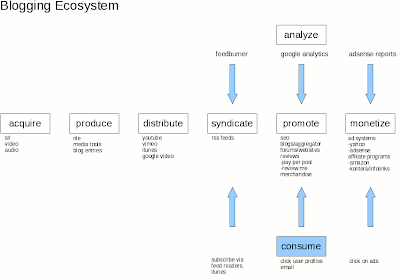
After having this blog for a few years now, I've been thinking about the entire chain of events that occur when producing a video. So I mapped out the different components of this production workflow in relation to distribution and marketing via the blogosphere.

The Blogging Ecosystem
In the clickable map below, I've listed the major steps in the production chain, as well as specific subjects within each step. Go ahead and click on anything in the picture and it will take you to a summary of that particular topic or a direct resource on the web. Some of this is old hat for readers, but it was helpful to see it holistically, as an ecosystem of sorts. The flow represents a way to distribute one's video creations (content) over the web and get some eyes looking at that content.


(the graphic is hotlinked, so click on a subject for further investigation)

Summary
In general, the white boxes represent steps that the producer is responsible for; the blue box represent actions taken by the consumers of the content. The main steps are:
-having an idea for a video and storyboarding (not shown)
-acquiring source content (video/audio/imagery)
-bringing the idea to life via a production workflow
-distributing that video via the web
-syndicating the content via rss feed
-having individuals consume that feed
-monitoring and analyzing the consumption
-promoting and marketing of content
-perhaps making some money one day

Detail
If you click on any part of the graph, you'll be able to dig down further into the resources I've provided. As it will require some explaining, I'll probably do a follow up video to this graphic.

Enjoy!

Friday, November 21, 2008

burning blu-ray discs on Linux

If I actually get a camera that can do 1080p, I'm going to have to have some means of distribution.
Update 2009/01/11
Gosh darnit, I DID get a new cam! Hooray!
*** end update ***

Blu ray seems the best bet. For testing, I'd opt to use the Blu ray rewriteable format, BD-RE.

From a few hours of research, these facts appear:
1) It IS possible to write blu ray data discs via the dvd+rw-tools. See Technical discussion and Burning links below
2) The burning of blu ray video discs to be played in consumer players may be possible in the dvd+rw-tools, but should be definetly possible in the Nero 3 product for Linux (around $25). This bears testing.

*** Update 2010/11/04 ***
Dark Shakiri has created the world's first free blu-ray encoder:
http://x264dev.multimedia.cx/archives/328

From the comments, I hear tell that it actually WORKS too!
*** end update ***

Final Thoughts
Prices are still high: $300-$400 for an internal burner and roughly $10 per disc. Testing these options out will be essential.

the mule

Update 2011/02/27
AVS HD 709 - Blu-ray & MP4 Calibration
*** end update ***

Update 2011/01/04
http://www.x264bluray.com/

Allowed Resolutions/Framerates
*** end update ***

Blu Ray US site
http://www.blu-raydisc.com/bluray_site.htm

Technical discussion of dvd+rw-tools methodology
http://fy.chalmers.se/~appro/linux/DVD+RW/

Burning BD-RE disks with dvd+rw-tools
http://forums.aliensoup.com/showthread.php?t=24180

Untested open source blu ray authoring tools *
http://linux.softpedia.com/get/Multimedia/Video/Blu-ray-video-authoring-tools-28112.shtml
* UDF generator, does not generate ISO9660 structures
Update 1/23/2009
Looks like these tools compile under 32-bit systems, but not 64-bit systems. A user (E Chalaron) got this to work under 32-bit Ubuntu Feisty. Thanks E!
*** end update ***

Nero 3 Linux product
http://club.cdfreaks.com/f104/blu-ray-burning-hw-support-236218/
http://www.burnworld.com/software/cdrburning/linux.htm
http://www.nero.com/enu/linux3.html?NeroSID=75c7543438b27626c11913f2ed0c329e


Recent prices
http://club.cdfreaks.com/f142/blu-ray-blank-media-player-recorder-prices-japan-254787/

Hardware
http://www.addonics.com/support/application_notes/app_hd.asp
LG BE06LU11 Blu-ray
LG GGW-H10N Blu-ray/HD-DVD
LG GBW-H10N Blu-ray
Panasonic SW-5582 Blu-ray

Playing BluRay/HDDVD under Ubuntu
https://help.ubuntu.com/community/RestrictedFormats/BluRayAndHDDVD

Other Options
Perhaps run HD DVD Fab under Wine
http://ubuntuforums.org/showthread.php?t=763837

Google, dammit
http://www.google.com/search?num=100&hl=en&rls=com.microsoft%3Aen-us&q=burn+blu+ray+video+in+linux

Other BluRay references
http://sourceforge.net/projects/blurayauthor/

Monday, November 17, 2008

Fedora 9 x86-64, Cinelerra dependencies

I'm happy to report that the installation of Fedora 9 x86-64 went very smoothly tonight. I yanked down a DVD install from here via torrent. I then burnt an ISO dvd of Fedora 9 using my own instructions here. From the perspective of a Cinelerra advocate, the biggest change from Fedora 7 is that Fedora 9 is more reliant on the ATrpms repository for Cinelerra source code dependencies.

Update 2009/02/15
Since writing this article, I've had very strange crashes and hangs from Cinelerra on Fedora 9. So I've moved on to using Fedora 10 x86-64. The general steps listed below to install Cinelerra still apply, but here's a post that summarizes the steps on how to build Cinelerra from source on Fedora 10, x86-64
*** end update ***

Advice on the Use of Repositories
As a general note, use as few repositories as possible for the various Cinelerra dependencies. Mixing many repos will result in a compile that doesn't work or worse, poor performance or odd behavior in Cinelerra resulting from slightly incompatible libraries. I've lived both and the latter is far worse because you'll spend hours or days pulling your hair out when, in the end, you've got some natty problem that only occurs between this library or that library. Ugh! I get the shivers just thinking about it!

Building Cinelerra from Source?
If you're using Cinelerra on Fedora 9 and want to build Cinelerra from source, here's what you need to do. There will be only three repos needed:
1) Fedora
2) ATrpms
3) Freshrpms (only for mjpegtools)


12/17/2008 NOTE on my strikethrough above
It was brought to my attention that RPM Fusion is the new repository of the repositories for Fedora (a note about Fedora and ATrpms). As I experimented more with my Fedora 9 build, I found an issue with Cinelerra hanging that I will describe in a later post. I fixed the problem by removing the ATrpms dependencies and adding RPMFusion as the only additional Fedora repository.

To reiterate, going forward, I am only using RPM Fusion in addition to Fedora's own repo.

The text below has been updated to reflect this new reality.
end NOTE

There will be only two repos needed:
1) Fedora
2) RPM Fusion

Here are the steps
1) install base Fedora 9 by selecting Office/Productivity and Development tools

2) The set of Cinelerra dependencies will come mainly from the RPM Fusion repository, so add the Fusion repo from here:
http://rpmfusion.org/Configuration

3) In addition to the Fedora repo, you'll now have RPMFusion added as a repository. Use the following script to install core programs for the Cinelerra build. Don't forget to chmod a+x your script!
yum install gsm-devel \
libvorbis* \
libogg* \
libtool* \
libtheora* \
libpng* \
libjpeg* \
libtiff* \
esound* \
audiofile* \
libraw1394* \
libavc1394* \
freetype* \
fontconfig* \
nasm \
e2fsprogs* \
OpenEXR* \
fftw \
fftw-devel \
libsndfile* \
libiec61883* \
libdv*
\
libquicktime \
ffmpeg \
xvidcore* \
lame \
lame-devel \
a52* \
faad2* \
x264* \

mjpegtools \
faac*


4) As the Cinelerra CVS source code is no longer available via subversion, install git:
yum install git

Here's a good intro to git
Another good git reference
http://www-cs-students.stanford.edu/~blynn/gitmagic/ch02.html

Here are a couple useful git commands:
To find an earlier version of source code:
git whatchanged --since="20 weeks ago"

To checkout an earlier version of source code:
git checkout [revision number]

example:
git checkout d91e062cadb8a5a7b8c35e9092234948d6918767

5) Grab the Cinelerra CVS source:
git clone git://git.cinelerra.org/j6t/cinelerra.git cinelerra_source

6) Run autogen.sh
[mule@ogre cinelerra_source]# ./autogen.sh
User defined paths to the preferred autoconf and automake versions.
Read the script if you would like to modify them.
AUTOMAKE=automake
ACLOCAL=aclocal
AUTOCONF=autoconf
AUTOHEADER=autoheader
..


7) Run configure
[mule@ogre cinelerra_source]# ./configure
checking build system type... x86_64-unknown-linux-gnu
checking host system type... x86_64-unknown-linux-gnu
checking target system type... x86_64-unknown-linux-gnu
checking for a BSD-compatible install... /usr/bin/install -c
checking whether build environment is sane... yes
checking for a thread-safe mkdir -p... /bin/mkdir -p
checking for gawk... gawk
..


8) Hopefully, configure ran properly and shows that you have all the prerequisites for a build from source:
Summary of mandatory components:
libogg found
libvorbis found
libvorbisenc found
libvorbisfile found
libtheora found
OpenEXR found
libdv found
libpng found
libjpeg libraries found
libjpeg headers found
libtiff libraries found
libtiff headers found
FreeType 2 found
libx264 libraries found
libx264 headers found
libuuid libraries found
libuuid headers found
mjpegtools found
libfftw3 libraries found
libfftw3 headers found
liba52 libraries found
liba52 headers found
libmp3lame libraries found
libmp3lame headers found
libsndfile libraries found
libsndfile headers found
libfaac libraries found
libfaac headers found
libfaad libraries found
libfaad headers found

Summary of optional components:
ESD subsystem found
ESD (Enlightenment Sound Daemon) is enabled
ALSA subsystem found
ALSA is enabled
libraw1394 found
libiec61883 found
libavc1394 libraries found
libavc1394 headers found
librom1394 libraries found
librom1394 headers found
Firewire is enabled
OpenGL 2.0 libraries found
Hardware acceleration using OpenGL 2.0 is enabled

Now type
make

to start compilation.


9) Run "make"

10) Hopefully, there were no errors on make, so run "make install"

11) As the topper, don't forget to install some media players and extra encoding tools!:
yum install avidemux mencoder mplayer transcode audacious vnc

Good luck!
The Mule

Update 2008/11/23
I verified that importing live HDV video from my cam via test-mpeg2 still works. This is done with the following command:
test-mpeg2 -r [node] [file]
end update

Sunday, November 16, 2008

playing Tokyo Reality in 1080p

The guys at Akihabara News got their hands on a Canon EOS 5D Mark II and produced some beautiful (though shakey) video while running and gunning around Tokyo:


The video is on Vimeo, but the guys kindly also made the 1080p source available here. I downloaded the gigantic 1.8GB Torrent from here. That is 1.8GB for six minutes and ten seconds of video. Wow!

Linux Playback
I wanted to see which media players could handle such a large file. Here were my results on my Fedora 7 x86-64 system:
- dual quad core, 1.6Ghz
- 2GB
- NVidia 8800GT dual head system with twin Dell FP1905 monitors

mplayer played the file cleanly if the application window was stretched to a max of about 1400 pixels wide. Any wider, and mplayer would stutter.

xine couldn't play the file as it seems I do not have the correct codec installed. I got the dreaded "file uses an unsupported codec" error:


ffplay played it with slight audio stutters and the following error:
[mpeg4aac @ 0x3947e23ca0]faac: frame decoding failed: Gain control not yet implemented

I will have to investigate this.

Update 2008/11/23
Reviewing Google for this error, most of the suggestions for fixing the problem state that you should have the latest version of faad2/faac. According to the developer at www.audiocoding.com, I do:
faac x86_64 1.26-3.fc9 installed 182 k
faac-devel x86_64 1.26-3.fc9 installed 49 k
faad2 x86_64 1:2.6.1-10.fc9 installed 344 k
faad2-devel x86_64 1:2.6.1-10.fc9 installed 414 k


So, I'm at a loss why these messages are occurring.
end update

I converted Tokyo Reality using mjpeg as the video compression method:
ffmpeg -i Tokyo-Reality-h264-1080p.mp4 -b 3000k -vcodec mjpeg -ab 256k -ar 44100 -acodec mpeg4aac -coder 1 -flags +loop -cmp +chroma -partitions +parti4x4+partp8x8+partb8x8 -me hex -subq 5 -me_range 16 -g 250 -keyint_min 25 -sc_threshold 40 -i_qfactor 0.71 tokyo.mp4

On my Dell SC1430, 1.6Ghz with eight cores, the conversion took about the same time as the file was long, about 6 minutes, 10 seconds. The size of the original was 1.8GB; the size of the conversion was 1.6GB. Not much difference there.

Update 2008/11/22
I compared the output of the original to the output of the MJPEG conversion. On the left of the below screengrab is the original from Akihabara. On the right is my conversion. You'll notice that the converted image on the right is slightly more saturated than the one on the left. I'll have to play with the conversion parameters to get the colors a little more like the original.

end update

When I replayed this video, within about four minutes, I exhausted 2GB of RAM and 4GB of swap. Holy crap! The normal Cinelerra editing functions (cutting/pasting) did not exacerbate this memory issue. Only the replay function seemed to suck up all my memory:


The replay was a little choppy at the beginning, but ran at 30fps. However, as RAM filled up, playback performance dropped to 12fps, as RAM was exhausted and swap was being utilized. Once swap was exhausted, the entire box locked up! Scary!!

Update 2008/11/17
I had been planning on upgrading my system to Fedora 9 and the above memory leak was enough for me to say "fuck it" and just do the upgrade. Upgrades are increasingly complex as I've added four RAID drives to my setup. Well, just when you think it is going to be a nightmare, along comes Fedora and actually made the process pretty seemless. Within two hours, I had Fedora 9 installed, all my Cinelerra source dependencies installed, Cinelerra compiled and up and running. Of course, this is from a guy who has been doing this for how many years now? But still..two hours..I hardly believe it myself.

The icing on the cake is that my memory leak is no longer present! The below chart show CPU utilization and memory while the video plays:


So far, the system is much more responsive than the old Fedora 7, 64-bit. I guess I had some old/outdated/corrupted libraries in there. Now playback of Tokyo Reality in Cinelerra is more consistent, albeit at a slower 19fps.
end update

MacBook Pro Playback
I next copied the file to my 2GB, dual core Intel 2.2Ghz MacBook Pro 17". I attached my 42inch display to the second head on the MacBook's video card. The file played in QuickTime. It played without errors when I manually enlarged the Quicktime window to fill the screen; however, QuickTime stuttered when the video was maximized to Full Screen using the 42" monitor as the output display.

Finally, I tried to play the file on my MediaGate to absolutely no avail.

So, it looks like the only reliable players are mplayer on Fedora 7 and QuickTime on my MacBook Pro.

I think I need to upgrade my Fedora 7 system to a newer OS. Hopefully, a more recent OS and supporting encoders/decoders will do a better job of playing these large files back.

The Mule

using partimage with RAID

Background
As I am planning on a purchase of a 1080p cam, I will need my system to be up on the latest and greatest kernal and software to get the highest performance from Cinelerra. In that light, I'd like to backup my current Fedora 7 boot and root filesystems, just in case something goes wrong with the Fedora 9 install.

Partimage and My System
I will use partimage to backup these filesystems. Partimage will need to see source and destination filesystems. My first task is to figure out what I have. I built this system over a year ago and don't remember all the specifics of which physical drive has x or y filesystems. I could go back into my notes to find out how I partitioned my system, but that would be cheating. So let's see what the filesystem tells me.

The first thing I do is look at the output of df:
[mule@ogre ~]# df -m
Filesystem 1M-blocks Used Available Use% Mounted on
/dev/md0 457295 6720 426972 2% /
/dev/md2 469453 417004 28602 94% /mnt/videos
/dev/sda1 99 19 76 20% /boot
tmpfs 1007 0 1007 0% /dev/shm


I have two RAID devices, one mounted as my root partition (/dev/md0) and one mounted as my video storage (/dev/md2). Next, I see that /dev/sda1 is my boot partition. Finally, there is a filesystem defined for shared memory, though I am not concerned about saving the contents of that as it is RAM.

How It Works
Partimage backs up filesystems that are not mounted. But partimage is started from a bootable rescue disk, like Knoppix or SysRescCd. The twist here is that I am using RAID partitions. Thus, when I boot with one of these CDs, I will need to assemble my RAID drives in order to have a source to backup (my root filesystem) and a destination to write to (my /mnt/videos filesystem). Partimage will not use a mounted filesystem as a source, but I will need to mount the destination.

Assembling My RAID Drives
I have forgotten the configuration of my RAID drives, so I look at /etc/mdadm.conf to figure out what partitions and UUIDs make up my two RAID sets:
[mule@ogre ~]# cat /etc/mdadm.conf
# mdadm.conf written out by anaconda
DEVICE partitions
MAILADDR root
ARRAY /dev/md0 level=raid0 num-devices=2 uuid=c0d4b597:c33b3014:ab694cee:76920165
ARRAY /dev/md2 level=raid1 num-devices=2 UUID=1705b387:1c71d83e:364b60b4:fb0cc192


This tells me that my root partition (/dev/md0) is a stripe set (RAID0) and that the storage for my important stuff, all my videos in /mnt/video is mirrored (RAID1) in case of a failure. I'm glad I built the system this way, as I like the performance benefits of a stripe set for my root partition, but I would consider it tragic if I lost all my work. Therefore, I've mirrored the video drive on two drives in case of a failure.

Video Display Problem with Linux and NVidia Card
For some reason I have not figured out, I cannot see virtual consoles once I exit Gnome. This is due to some incompatibility between the NVidia 8800GT card and my Dell SC1430. This also effects the display when I boot with either Knoppix or SysRescCD. Using these tools, the screen goes black and I can't see any terminal sessions or virtual consoles. Therefore, in order to use the boot cd, I removed the NVidia card and booted using Dell's ATI ES1000 onboard video.

Booting with Knoppix
Once Knoppix is fully booted, I need to assemble my two RAID partitions. You can use either use the UUID or the super-minor number of each RAID set to do this. I chose the super-minor, as it was simpler.

Assemble the Source RAID set
Here I am assembling the source drive, my root filesystem:
root@Knoppix:/ramdisk/home/knoppix# modprobe md
root@Knoppix:/ramdisk/home/knoppix# mdadm --assemble -m 0 /dev/md0


Mount the Destination Partition
Since I want to store the backup image on the same mirrored drive set that holds my videos, I'll mount that partition as the destination for the partimage. Of course, I first have to create the mount point:
mkdir /mnt/videos
mount -t ext3 /dev/md2 /mnt/videos


Run Partimage to Backup Root Partition
I'll need three things to run partimage:
-an assembled RAID set of the source, my root/boot partitions, unmounted
-an assembled RAID set of the destination, mounted
-a compression method

Here's the partimage process:
1) Select the partition to save and give the backup a destination and name. Note that the "Save partition into an image file" is selected as the default behavior:


2) Select a compression method:


3) Give the backup image a description (optional):


4) Partimage takes a few minutes to gather information about large (500GB+ drives), but then displays basic information about the partition to be backed up:


5) Partimage starts the imaging process. I had about 6GB to backup:


6) Partimage took about 20 minutes to create the backup image:


Backup complete. The restore process is similar, but instead of backing up an image file as in Step 1 above, you'll choose the "Restore Partition from an image file" option.

Run Partimage for Boot Partition
Since my boot partition is small 128MB, creating a backup image shouldn't take very long. My boot partition is /dev/sda1


Now I should be ready to an upgrade to Fedora 9. One hurdle I already see: the Fedora 9 installation doesn't recognize pre-existing RAID sets. Yarg. Looks like I might have to blow away the existing stripe set that is home to my root partition. Let you know how that goes.

Update 11/17/2008
The Fedora 9 x86-64 install went well. Here are some of the natty details:
http://crazedmuleproductions.blogspot.com/2008/11/fedora-9-x86-64-install.html
end update

Good day,
The Mule

References
mdadm man page