I am going to revisit my conversation about workflow. Here's what we briefly discussed:
- the transformation of an idea (video) into reality and distributing it (in this case, using iTunes)
With today's internet, the steps involved are broad-based:
- idea creation, storyboard, distribution, production, archiving, marketing
Update 2008/11/22
I've added a few more details to my workflow in a new post here.
end update
I shall give you an example and how I reduced the amount of time spent creating and distributing my content.
When not working, my world is playing music with a band of itinerant musicians called the StormPigs. We gather together once every couple of months to play freeform music. No prior thought involved, just play. The joy of this is being together and having a good time. Otherwise, we are all busy professionals with full-time jobs and families. In remembrance of that good time, I produce videos of the event, distributed via iTunes and YouTube.
As time seems compressed these days, I want to spend as little time as possible behind the keyboard (though I am a technologist by trade). And as readers of this blog know, I am avid proponent of Linux. The beauty of Linux is that the system is completely configurable and flexible. But with this power comes a price. You have to invest the time to learn the shell, some bits of scripting and other Linux arcana. Consequently, it is daunting to the newcomer. But the benefits return to you many times over, as time you once spent on minutiae can now be spent thinking of new ideas for shows and creating new content, rather than simply focusing on the details of getting a file up to the server or copy and pasting content from one application to the other.
I am not a programmer of fanciful GUI front ends. I am a guy who just needs to get work done. So I try to solve my problems in the simplest way possible using the Linux programs and bash shell scripts to tie multiple programs together.
Here is the latest problem I needed to solve:
- how to I get my videos onto the web and in an iTunes ready form as quickly as possible?
In that light, I have come up with some scripts to help me on my way:
- the first encodes my editing video project into various formats (HDV, DVD, podcast)
- the second creates the list of songs from the video that will go into the podcast
- the third merges that songlist information into the podcast
- the fourth creates a new iTunes RSS feed (XML file) from the songlist information
- the fifth uploads the new podcast to my webserver
- the last is a wrapper that starts the other five
The encoding script is most useful and is the basis for the others. This script takes 720P video and 48Khz MPEG, Layer II stereo audio output rendered from a Cinelerra project and converts it to various formats: MPEG2 Program Stream, HDV, DVD and iTunes/iPod compatible formats. You will need the following programs installed for this script to work:
-mplex
-vlc
-ffmpeg
I've found the quality of each output file to be very good to excellent.
You can wrap some validation and input around this script, but the guts of the script look like this, where the arguments enclosed in curly braces will be replaced by the names of your input and output files:
#!/bin/bash
echo "Input: M2A audio and MPEG2 720P video streams"
echo "Output: program stream"
mplex -f 3 -b 2000 ${AUDIO} ${VIDEO} -o ${PS}
echo "Input: program stream"
echo "Output: MPEG2-TS, HDV"
vlc ${PS} --sout '#duplicate{dst=std{access=file,mux=ts,dst="'${HDV}'"}}' vlc:quit
echo "Input: MPEG2-TS, HDV"
echo "Output: MPEG2 DVD"
ffmpeg -i ${HDV} -target dvd -threads 8 ${DVD}
echo "Input: MPEG2 DVD"
echo "Output: iTunes/iPod compatible MP4"
ffmpeg -y -i ${DVD} -an -v 1 -threads 8 -vcodec h264 -b 250k -bt 175k -refs 1 -loop 1 -deblockalpha 0 -deblockbeta 0 -parti4x4 1 -partp8x8 1 -me full -subq 1 -me_range 21 -chroma 1 -slice 2 -bf 0 -level 30 -g 300 -keyint_min 30 -sc_threshold 40 -rc_eq 'blurCplx^(1-qComp)' -qcomp 0.7 -qmax 51 -qdiff 4 -i_qfactor 0.71428572 -maxrate 450k -bufsize 2M -cmp 1 -s 720x480 -f mp4 -pass 1 /dev/null
ffmpeg -y -i ${DVD} -v 1 -threads 8 -vcodec h264 -b 250k -bt 175k -refs 1 -loop 1 -deblockalpha 0 -deblockbeta 0 -parti4x4 1 -partp8x8 1 -me full -subq 6 -me_range 21 -chroma 1 -slice 2 -bf 0 -level 30 -g 300 -keyint_min 30 -sc_threshold 40 -rc_eq 'blurCplx^(1-qComp)' -qcomp 0.7 -qmax 51 -qdiff 4 -i_qfactor 0.71428572 -maxrate 450k -bufsize 2M -cmp 1 -s 720x480 -acodec aac -ab 160k -ar 48000 -ac 2 -f mp4 -pass 2 -threads 8 ${MP4}
Stay tuned for discussions of the remaining scripts to make your life easier,
CM
Saturday, October 04, 2008
iTunes/iPod video workflow, scripted


If this post was useful to you..consider buying me a beer via PayPal!
Even a $1 Draft will keep the Mule happily working..and help pay for equipment upgrades!

Sunday, September 28, 2008
H264 encoding for video iPod
The below commands will use FFMPEG to create a video suitable for playback within both iTunes and on a video iPod.
You will need a source file as input and a filename for the resulting output. My source file came from the rendered output of a Cinelerra project that I had just completed. The output was a DVD resolution MPEG program stream, created from directions in my Beginner's Guide to Exporting Video from Cinelerra.
A Two-Step Process
Below are two sets of FFMPEG commands. These two commands encapsulate a "two pass" encoding method. On the first pass, FFMPEG examines the file to be encoded and creates an optimization index. On the second pass, FFMPEG renders the output file based on the optimizations present in the index file.
In the below example, I am encoding a typical DVD resolution (720x480, 1.5 aspect ratio) to the following container format, using the following codecs:
- MPEG4 container
- H264 video codec
- AAC audio codec
For HDV fans, if you wish to reduce your videos to an iPod compatible size, you may use a resolution of 720x400 in order to keep the aspect ratio similar to that of 720P content (1.78 aspect ratio). Though the 720x400 resolution exceeds Apples' recommendations, I've found that iTunes and the iPod will still accept videos encoded to this size.
1) First pass (create index of optimizations)
ffmpeg -y -i sourceFileName.ext -an -v 1 -threads 8 -vcodec h264 -b 500k -bt 175k -refs 1 -loop 1 -deblockalpha 0 -deblockbeta 0 -parti4x4 1 -partp8x8 1 -me full -subq 1 -me_range 21 -chroma 1 -slice 2 -bf 0 -level 30 -g 300 -keyint_min 30 -sc_threshold 40 -rc_eq 'blurCplx^(1-qComp)' -qcomp 0.7 -qmax 51 -qdiff 4 -i_qfactor 0.71428572 -maxrate 768k -bufsize 2M -cmp 1 -s 720x480 -f mp4 -pass 1 /dev/null
This first pass will create a file called x264_2pass.log that will be used as an implicit input to the second pass.
2) Second pass (render the output file)
ffmpeg -y -i sourceFileName.ext -v 1 -threads 8 -vcodec h264 -b 500k -bt 175k -refs 1 -loop 1 -deblockalpha 0 -deblockbeta 0 -parti4x4 1 -partp8x8 1 -me full -subq 6 -me_range 21 -chroma 1 -slice 2 -bf 0 -level 30 -g 300 -keyint_min 30 -sc_threshold 40 -rc_eq 'blurCplx^(1-qComp)' -qcomp 0.7 -qmax 51 -qdiff 4 -i_qfactor 0.71428572 -maxrate 768k -bufsize 2M -cmp 1 -s 720x480 -acodec aac -ab 160k -ar 48000 -ac 2 -f mp4 -pass 2 -threads 8 outputFileName.ext
I found that the file resulting from the above commands was a bit large, so I lowered the bitrate (-b) from 500 to 250. Also, I lowered the maximum instantaneous bitrate spike (-maxrate) from 768 to 450. As this was a music video and I am a bit of an audiofile, I kept the audio bitrate (-ab) at 160k. Doing this, my file size dropped by 33%, from 450MB to 300MB. This is for a video with a duration of 1hr and 39min. Impressive! Replaying both files in mplayer and xine, I noticed that there was very little appreciable loss in video quality with the lowered bitrates. Go H264!!
Here are the final two commands I used to get that 300MB file:
ffmpeg -y -i sourceFileName.ext -an -v 1 -threads 8 -vcodec h264 -b 250k -bt 175k -refs 1 -loop 1 -deblockalpha 0 -deblockbeta 0 -parti4x4 1 -partp8x8 1 -me full -subq 1 -me_range 21 -chroma 1 -slice 2 -bf 0 -level 30 -g 300 -keyint_min 30 -sc_threshold 40 -rc_eq 'blurCplx^(1-qComp)' -qcomp 0.7 -qmax 51 -qdiff 4 -i_qfactor 0.71428572 -maxrate 450k -bufsize 2M -cmp 1 -s 720x480 -f mp4 -pass 1 /dev/null
ffmpeg -y -i sourceFileName.ext -v 1 -threads 8 -vcodec h264 -b 250k -bt 175k -refs 1 -loop 1 -deblockalpha 0 -deblockbeta 0 -parti4x4 1 -partp8x8 1 -me full -subq 6 -me_range 21 -chroma 1 -slice 2 -bf 0 -level 30 -g 300 -keyint_min 30 -sc_threshold 40 -rc_eq 'blurCplx^(1-qComp)' -qcomp 0.7 -qmax 51 -qdiff 4 -i_qfactor 0.71428572 -maxrate 450k -bufsize 2M -cmp 1 -s 720x480 -acodec aac -ab 160k -ar 48000 -ac 2 -f mp4 -pass 2 -threads 8 outputFileName.ext
Results
As this encoding work was completed on my Fedora editing box, I SCP'd the file over to my MacBook Pro. I dragged the file over onto the Movies section within iTunes and iTunes accepted it without error. In order to verify that the file played correctly, I double-clicked on it and Quicktime played the file back. Hooray!
The moment of truth came when I plugged in my iPod and sync'd it to my iTunes Library. Normally, iTunes will immediately display an error if it doesn't like the new file. Thankfully, iTunes didn't show any errors and uploaded the file to my iTouch. As the file was about 300MB, this took about two minutes. I then started playback and was very happy to see my video on the beautiful, but small iTouch screen.
If you'd like to see the end result, load up one of these videos and don't mind a bit of loud rock musicians doing their thing, you could try loading my band's video podcast:
http://www.stormpigs.com/vodcast.xml
One anomaly I noticed was that when you fast forward to a different section within the movie on the iPod, the video will speed up for a second until the timeline catches up to the requested moment. Not a big deal, just something I didn't expect.
Hope this helps intrepid open source folks looking for a way into the walled garden of Apple's iTunes.
The Mule
Reference
https://help.ubuntu.com/community/iPodVideoEncoding#H.264%20Encoding
You will need a source file as input and a filename for the resulting output. My source file came from the rendered output of a Cinelerra project that I had just completed. The output was a DVD resolution MPEG program stream, created from directions in my Beginner's Guide to Exporting Video from Cinelerra.
A Two-Step Process
Below are two sets of FFMPEG commands. These two commands encapsulate a "two pass" encoding method. On the first pass, FFMPEG examines the file to be encoded and creates an optimization index. On the second pass, FFMPEG renders the output file based on the optimizations present in the index file.
In the below example, I am encoding a typical DVD resolution (720x480, 1.5 aspect ratio) to the following container format, using the following codecs:
- MPEG4 container
- H264 video codec
- AAC audio codec
For HDV fans, if you wish to reduce your videos to an iPod compatible size, you may use a resolution of 720x400 in order to keep the aspect ratio similar to that of 720P content (1.78 aspect ratio). Though the 720x400 resolution exceeds Apples' recommendations, I've found that iTunes and the iPod will still accept videos encoded to this size.
1) First pass (create index of optimizations)
ffmpeg -y -i sourceFileName.ext -an -v 1 -threads 8 -vcodec h264 -b 500k -bt 175k -refs 1 -loop 1 -deblockalpha 0 -deblockbeta 0 -parti4x4 1 -partp8x8 1 -me full -subq 1 -me_range 21 -chroma 1 -slice 2 -bf 0 -level 30 -g 300 -keyint_min 30 -sc_threshold 40 -rc_eq 'blurCplx^(1-qComp)' -qcomp 0.7 -qmax 51 -qdiff 4 -i_qfactor 0.71428572 -maxrate 768k -bufsize 2M -cmp 1 -s 720x480 -f mp4 -pass 1 /dev/null
This first pass will create a file called x264_2pass.log that will be used as an implicit input to the second pass.
2) Second pass (render the output file)
ffmpeg -y -i sourceFileName.ext -v 1 -threads 8 -vcodec h264 -b 500k -bt 175k -refs 1 -loop 1 -deblockalpha 0 -deblockbeta 0 -parti4x4 1 -partp8x8 1 -me full -subq 6 -me_range 21 -chroma 1 -slice 2 -bf 0 -level 30 -g 300 -keyint_min 30 -sc_threshold 40 -rc_eq 'blurCplx^(1-qComp)' -qcomp 0.7 -qmax 51 -qdiff 4 -i_qfactor 0.71428572 -maxrate 768k -bufsize 2M -cmp 1 -s 720x480 -acodec aac -ab 160k -ar 48000 -ac 2 -f mp4 -pass 2 -threads 8 outputFileName.ext
I found that the file resulting from the above commands was a bit large, so I lowered the bitrate (-b) from 500 to 250. Also, I lowered the maximum instantaneous bitrate spike (-maxrate) from 768 to 450. As this was a music video and I am a bit of an audiofile, I kept the audio bitrate (-ab) at 160k. Doing this, my file size dropped by 33%, from 450MB to 300MB. This is for a video with a duration of 1hr and 39min. Impressive! Replaying both files in mplayer and xine, I noticed that there was very little appreciable loss in video quality with the lowered bitrates. Go H264!!
Here are the final two commands I used to get that 300MB file:
ffmpeg -y -i sourceFileName.ext -an -v 1 -threads 8 -vcodec h264 -b 250k -bt 175k -refs 1 -loop 1 -deblockalpha 0 -deblockbeta 0 -parti4x4 1 -partp8x8 1 -me full -subq 1 -me_range 21 -chroma 1 -slice 2 -bf 0 -level 30 -g 300 -keyint_min 30 -sc_threshold 40 -rc_eq 'blurCplx^(1-qComp)' -qcomp 0.7 -qmax 51 -qdiff 4 -i_qfactor 0.71428572 -maxrate 450k -bufsize 2M -cmp 1 -s 720x480 -f mp4 -pass 1 /dev/null
ffmpeg -y -i sourceFileName.ext -v 1 -threads 8 -vcodec h264 -b 250k -bt 175k -refs 1 -loop 1 -deblockalpha 0 -deblockbeta 0 -parti4x4 1 -partp8x8 1 -me full -subq 6 -me_range 21 -chroma 1 -slice 2 -bf 0 -level 30 -g 300 -keyint_min 30 -sc_threshold 40 -rc_eq 'blurCplx^(1-qComp)' -qcomp 0.7 -qmax 51 -qdiff 4 -i_qfactor 0.71428572 -maxrate 450k -bufsize 2M -cmp 1 -s 720x480 -acodec aac -ab 160k -ar 48000 -ac 2 -f mp4 -pass 2 -threads 8 outputFileName.ext
Results
As this encoding work was completed on my Fedora editing box, I SCP'd the file over to my MacBook Pro. I dragged the file over onto the Movies section within iTunes and iTunes accepted it without error. In order to verify that the file played correctly, I double-clicked on it and Quicktime played the file back. Hooray!
The moment of truth came when I plugged in my iPod and sync'd it to my iTunes Library. Normally, iTunes will immediately display an error if it doesn't like the new file. Thankfully, iTunes didn't show any errors and uploaded the file to my iTouch. As the file was about 300MB, this took about two minutes. I then started playback and was very happy to see my video on the beautiful, but small iTouch screen.
If you'd like to see the end result, load up one of these videos and don't mind a bit of loud rock musicians doing their thing, you could try loading my band's video podcast:
http://www.stormpigs.com/vodcast.xml
One anomaly I noticed was that when you fast forward to a different section within the movie on the iPod, the video will speed up for a second until the timeline catches up to the requested moment. Not a big deal, just something I didn't expect.
Hope this helps intrepid open source folks looking for a way into the walled garden of Apple's iTunes.
The Mule
Reference
https://help.ubuntu.com/community/iPodVideoEncoding#H.264%20Encoding
If this post was useful to you..consider buying me a beer via PayPal!
Even a $1 Draft will keep the Mule happily working..and help pay for equipment upgrades!
Saturday, March 01, 2008
MPEG4 - H264 comparison
Background
I've been wanting to produce some high quality, H.264 content for my bands' music for some time, but x264 had been broken on my Fedora system. Since I've finally fixed the problem, I can now render a proper H.264 file. Without H.264, I would choose MPEG4 video compression and an AAC audio codec.
MPEG4 file
I use ffmpeg to reduce a DVD sized mpeg down to a file that I could upload to iTunes, like so:
ffmpeg -i ${NAME}.m2t -f mov -vcodec mpeg4 -qscale 7 -s 320x180 -r 29.97 -aspect 16:9 -acodec aac -ac 2 -ab 128 ${NAME}.mov
The variable in this render string is "qscale" (good explanation of which at the bottom of this post) which varies quite a bit depending on the content of your video. The final resolution of the MPEG4 video was 320x180.
H.264 file
I used AVIdemux2 to output the H.264 video. I selected the defaults with a Single Pass - Quality Quantizer (Average) encoding and a similar AAC audio encoding of the MPEG4 of 128K.
The final resolution of the H.264 video was 720x400.
I'll translate the following output into a command line x264 statement at some point, but right now, here were the detailed options to avidemux2:
vui.i_sar_width = 1, vui.i_sar_height = 1, rc.f_qcompress = 0.60, analyse.i_direct_mv_pred = 1, rc.i_qp_min = 10, rc.i_qp_max = 51, rc.i_qp_step = 4, i_frame_reference = 1, i_scenecut_threshold = 40, i_keyint_min = 25, i_keyint_max = 250, i_bframe = 2, i_bframe_bias = 0, b_bframe_pyramid = 0, analyse. b_bidir_me = 0, b_bframe_adaptive = 1, analyse.b_weighted_bipred = 1, b_cabac = 1, analyse.i_trellis = 1, analyse.i_subpel_refine = 5, analyse.b_chroma_me = 1, b_deblocking_filter = 1, i_deblocking_filter_alphac0 = 0, i_deblocking_filter_beta = 0, analyse.i_me_method = 1, analyse.i_me_range = 16, analyse.b_transform_8x8 = 1, analyse.b_mixed_references = 0, analyse.i_noise_reduction = 0, _8x8P is on, _8x8B is on, _8x8I is on, _4x4I is on
Comparing the Output
The MPEG4 file from FFMPEG was 312MB.
The H264 file from AVIdemux2 was 438MB.
Here is how a couple of snips from each file look side by side:


Conclusions
I probably haven't experimented enough with FFMPEG to get the most out of the MPEG4 compression. But the quality and compression rate of H.264 is most impressive. Even though the resolution of the H.264 encoding video was twice that of than the MPEG4, the file size was only 33% greater. That speaks to the efficiency of the H.264 encoding scheme.
I'd say that the H264 output was well worth the extra 120MB, eh?
In case you wish to see the whole hour long shebang in either format, here are the two feeds:
The StormPigs 1/11/2007 jam in MPEG4 format, courtesy of FFMPEG (312MB)
The StormPigs 1/11/2007 jam in H264 format, courtesy of AVIdemux2 (438MB)
And if you are truly insane and wish to subscribe to the StormPigs iTunes feed, here it is:
http://www.stormpigs.com/vodcast.xml
:)
The Mule
I've been wanting to produce some high quality, H.264 content for my bands' music for some time, but x264 had been broken on my Fedora system. Since I've finally fixed the problem, I can now render a proper H.264 file. Without H.264, I would choose MPEG4 video compression and an AAC audio codec.
MPEG4 file
I use ffmpeg to reduce a DVD sized mpeg down to a file that I could upload to iTunes, like so:
ffmpeg -i ${NAME}.m2t -f mov -vcodec mpeg4 -qscale 7 -s 320x180 -r 29.97 -aspect 16:9 -acodec aac -ac 2 -ab 128 ${NAME}.mov
The variable in this render string is "qscale" (good explanation of which at the bottom of this post) which varies quite a bit depending on the content of your video. The final resolution of the MPEG4 video was 320x180.
H.264 file
I used AVIdemux2 to output the H.264 video. I selected the defaults with a Single Pass - Quality Quantizer (Average) encoding and a similar AAC audio encoding of the MPEG4 of 128K.
The final resolution of the H.264 video was 720x400.
I'll translate the following output into a command line x264 statement at some point, but right now, here were the detailed options to avidemux2:
vui.i_sar_width = 1, vui.i_sar_height = 1, rc.f_qcompress = 0.60, analyse.i_direct_mv_pred = 1, rc.i_qp_min = 10, rc.i_qp_max = 51, rc.i_qp_step = 4, i_frame_reference = 1, i_scenecut_threshold = 40, i_keyint_min = 25, i_keyint_max = 250, i_bframe = 2, i_bframe_bias = 0, b_bframe_pyramid = 0, analyse. b_bidir_me = 0, b_bframe_adaptive = 1, analyse.b_weighted_bipred = 1, b_cabac = 1, analyse.i_trellis = 1, analyse.i_subpel_refine = 5, analyse.b_chroma_me = 1, b_deblocking_filter = 1, i_deblocking_filter_alphac0 = 0, i_deblocking_filter_beta = 0, analyse.i_me_method = 1, analyse.i_me_range = 16, analyse.b_transform_8x8 = 1, analyse.b_mixed_references = 0, analyse.i_noise_reduction = 0, _8x8P is on, _8x8B is on, _8x8I is on, _4x4I is on
Comparing the Output
The MPEG4 file from FFMPEG was 312MB.
The H264 file from AVIdemux2 was 438MB.
Here is how a couple of snips from each file look side by side:


Conclusions
I probably haven't experimented enough with FFMPEG to get the most out of the MPEG4 compression. But the quality and compression rate of H.264 is most impressive. Even though the resolution of the H.264 encoding video was twice that of than the MPEG4, the file size was only 33% greater. That speaks to the efficiency of the H.264 encoding scheme.
I'd say that the H264 output was well worth the extra 120MB, eh?
In case you wish to see the whole hour long shebang in either format, here are the two feeds:
The StormPigs 1/11/2007 jam in MPEG4 format, courtesy of FFMPEG (312MB)
The StormPigs 1/11/2007 jam in H264 format, courtesy of AVIdemux2 (438MB)
And if you are truly insane and wish to subscribe to the StormPigs iTunes feed, here it is:
http://www.stormpigs.com/vodcast.xml
:)
The Mule
If this post was useful to you..consider buying me a beer via PayPal!
Even a $1 Draft will keep the Mule happily working..and help pay for equipment upgrades!
Friday, February 22, 2008
creating a bootable iso in Linux
OK. So call me stupid, but I rarely create bootable DVDs from iso images in Fedora. Here is how I created a bootable Ubuntu 7.10 disk using growisofs.
Burn the ISO image to a DVD
1) Put your DVD in your DVD drive
2) Make sure your drive is reading the disk properly by using dvd+rw-mediainfo. This program is part of the dvd+rw tools. The command should also give you a write speed estimate, which is handy.
3) Using growisofs, burn the ISO image to a DVD. Note that I used this command on a DVD RW:
[mule@ogre ~]# growisofs -dvd-compat -Z /dev/dvd=ubuntu-7.10-desktop-amd64.iso
Executing 'builtin_dd if=ubuntu-7.10-desktop-amd64.iso of=/dev/dvd obs=32k seek=0'
/dev/dvd: "Current Write Speed" is 2.0x1352KBps.
3407872/2005147648 ( 0.2%) @0.5x, remaining 39:09 RBU 100.0% UBU 6.5%
12288000/2005147648 ( 0.6%) @1.9x, remaining 18:55 RBU 100.0% UBU 100.0%
..
1992097792/2005147648 (99.3%) @2.0x, remaining 0:04 RBU 77.9% UBU 100.0%
2001076224/2005147648 (99.8%) @1.9x, remaining 0:01 RBU 24.4% UBU 100.0%
builtin_dd: 979088*2KB out @ average 1.9x1352KBps
/dev/dvd: flushing cache
/dev/dvd: writing lead-out
The disc..she boots!
The Mule
Burn the ISO image to a DVD
1) Put your DVD in your DVD drive
2) Make sure your drive is reading the disk properly by using dvd+rw-mediainfo. This program is part of the dvd+rw tools. The command should also give you a write speed estimate, which is handy.
[mule@ogre ~]# dvd+rw-mediainfo /dev/dvd
INQUIRY:                [HP      ][DVD Writer 940d ][3H23]
GET [CURRENT] CONFIGURATION:
 Mounted Media:         11h, DVD-R Sequential
 Media ID:              ProdiscS03
 Current Write Speed:   4.0x1385=5540KB/s
 Write Speed #0:        4.0x1385=5540KB/s
 Write Speed #1:        2.0x1385=2770KB/s
GET [CURRENT] PERFORMANCE:
 Write Performance:     4.0x1385=5540KB/s@[0 -> 0]
 Speed Descriptor#0:    00/0 R@6.4x1385=8864KB/s W@4.0x1385=5540KB/s
 Speed Descriptor#1:    00/0 R@6.4x1385=8864KB/s W@2.0x1385=2770KB/s
READ DVD STRUCTURE[#10h]:
 Media Book Type:       00h, DVD-ROM book [revision 0]
 Legacy lead-out at:    2298496*2KB=4707319808
READ DVD STRUCTURE[#0h]:
 Media Book Type:       25h, DVD-R book [revision 5]
 Last border-out at:    2045*2KB=4188160
READ DISC INFORMATION:
 Disc status:           blank
 Number of Sessions:    1
 State of Last Session: empty
 "Next" Track:          1
 Number of Tracks:      1
READ TRACK INFORMATION[#1]:
 Track State:           invisible incremental
 Track Start Address:   0*2KB
 Next Writable Address: 0*2KB
 Free Blocks:           2297888*2KB
 Track Size:            2297888*2KB
READ CAPACITY:          0*2048=0
3) Using growisofs, burn the ISO image to a DVD. Note that I used this command on a DVD RW:
[mule@ogre ~]# growisofs -dvd-compat -Z /dev/dvd=ubuntu-7.10-desktop-amd64.iso
Executing 'builtin_dd if=ubuntu-7.10-desktop-amd64.iso of=/dev/dvd obs=32k seek=0'
/dev/dvd: "Current Write Speed" is 2.0x1352KBps.
3407872/2005147648 ( 0.2%) @0.5x, remaining 39:09 RBU 100.0% UBU 6.5%
12288000/2005147648 ( 0.6%) @1.9x, remaining 18:55 RBU 100.0% UBU 100.0%
..
1992097792/2005147648 (99.3%) @2.0x, remaining 0:04 RBU 77.9% UBU 100.0%
2001076224/2005147648 (99.8%) @1.9x, remaining 0:01 RBU 24.4% UBU 100.0%
builtin_dd: 979088*2KB out @ average 1.9x1352KBps
/dev/dvd: flushing cache
/dev/dvd: writing lead-out
The disc..she boots!
The Mule
If this post was useful to you..consider buying me a beer via PayPal!
Even a $1 Draft will keep the Mule happily working..and help pay for equipment upgrades!
Xine install on Fedora 7 x86-64
Another reason to dump FreshRPMs. I wanted to Xine on my Fedora 7, x86-64 system and got the following error:
Error: Missing Dependency: xine-lib = 1.1.7 is needed by package xine-lib-moles
Yuck. Upon investigation, it looks like FreshRPMs were screwing me up:
http://forums.fedoraforum.org/showthread.php?t=179979
http://forums.fedoraforum.org/showthread.php?t=180425
I was using FreshRPMs because they had previously worked on my Fedora Core 6 install:
/2007/06/xine-no-demuxer-plugin-available-to.html
Now that I was on Fedora 7, things had changed and those FreshRPM packages were no longer good. Specifically, I had some xine-lib packages installed from FreshRPMs which conflicted with either the Livna or Fedora base packages. I removed them:
[root@ogre ~]# yum remove xine-lib
=============================================================================
Package Arch Version Repository Size =============================================================================
Removing:
xine-lib x86_64 1.1.6-2.fc7 installed 3.9 M
Removing for dependencies:
xine-lib-devel x86_64 1.1.6-2.fc7 installed 649 k
xine-lib-extras-nonfree x86_64 1.1.7-1.lvn7 installed 1.1 M
I then installed xine from only the Fedora base and Livna repositories:
[root@ogre ~]# yum install xine --disablerepo freshrpms
Loading "installonlyn" plugin
Setting up
Install Process
Parsing package install arguments
Resolving Dependencies -->
Running transaction check --->
Package xine.x86_64 0:0.99.5-1.lvn7 set to be updated -->
Processing Dependency: libxine.so.1()(64bit) for package: xine -->
Restarting Dependency Resolution with new changes. -->
Running transaction check --->
Package xine-lib.x86_64 0:1.1.10.1-1.fc7 set to be updated
Dependencies Resolved
=============================================================================
Package Arch Version Repository Size =============================================================================
Installing: xine x86_64 0.99.5-1.lvn7 livna 1.6 M
Installing for dependencies: xine-lib x86_64 1.1.10.1-1.fc7 updates 2.3 M
Transaction Summary
=============================================================================
Install 2 Package(s)
Update 0 Package(s)
Remove 0 Package(s)
Total download size: 3.8 M Is this ok [y/N]: y
Downloading Packages:
(1/2): xine-0.99.5-1.lvn7 100% |=========================| 1.6 MB 00:02
(2/2): xine-lib-1.1.10.1- 100% |=========================| 2.3 MB 00:02
Running Transaction Test
Finished Transaction Test
Transaction Test Succeeded
Running Transaction
Installing:xine-lib ######################### [1/2]
Installing: xine ######################### [2/2]
Installed: xine.x86_64 0:0.99.5-1.lvn7
Dependency Installed: xine-lib.x86_64 0:1.1.10.1-1.fc7
Complete!
Testing the xine install with "xine-check", I got this error:
[root@ogre ~]# xine-check
[ hint ] No xine-config found. Assuming xine from RPMs The xine-config script can be used to determine some file locations used by xine-lib, but you don't have such a script on your system. However, it looks like you installed xine from the RedHat packages. So I'll just guess that you are using the standard locations. If you want me to be sure about those file locations, you can install the 'xine-lib-devel' package (or 'xine-devel', depend on what packages you're using, which contains xine-config. However, this package is not really needed to run xine... press to continue...
Doing what the man says, I installed xine-lib-devel from Fedora Updates:
[root@ogre ~]# yum install xine-lib-devel --disablerepo freshrpms
=============================================================================
Package Arch Version Repository Size ============================================================================= Installing:
xine-lib-devel i386 1.1.10.1-1.fc7 updates 282 k
xine-lib-devel x86_64 1.1.10.1-1.fc7 updates 282 k
Installing for dependencies:
xine-lib i386 1.1.10.1-1.fc7 updates 2.6 M
When I ran xine-check again, I no longer received that error. Good. But when I started up xine to play a test mpeg video, I got the dreaded error:
There is no demuxer plugin available to handle "file:/usr/share/xine/skins/xine-ui_logo.mpv".
Usually this means the file format was not recognized.
Hmm. I listed the packages I installed and found that I didn't have the "xine-lib-extras" packages installed. Specifically, the "xine-lib-extras-nonfree" one from Livna:
[root@ogre ~]# rpm -qa | grep xine
xine-lib-devel-1.1.10.1-1.fc7
xine-0.99.5-1.lvn7
xine-lib-1.1.10.1-1.fc7
xine-lib-devel-1.1.10.1-1.fc7
xine-lib-arts-1.1.10.1-1.fc7
xine-lib-1.1.10.1-1.fc7
I then installed "xine-lib-extras-nonfree" from Livna:
=============================================================================
Package Arch Version Repository Size ============================================================================= Installing:
xine-lib-extras-nonfree x86_64 1.1.10.1-1.lvn7 livna 558 k
Transaction Summary =============================================================================
Install 1 Package(s) Update 0 Package(s) Remove 0 Package(s)
Happily, my mpeg video played! Also, an x264 video played. Great! So it looks like the Livna "nonfree" package is responsible for this joy. Thanks, Livna!
The lesson here folks is that you have to watch your libraries. And stay away from FreshRPMs, if at all possible.
CM
Error: Missing Dependency: xine-lib = 1.1.7 is needed by package xine-lib-moles
Yuck. Upon investigation, it looks like FreshRPMs were screwing me up:
http://forums.fedoraforum.org/showthread.php?t=179979
http://forums.fedoraforum.org/showthread.php?t=180425
I was using FreshRPMs because they had previously worked on my Fedora Core 6 install:
/2007/06/xine-no-demuxer-plugin-available-to.html
Now that I was on Fedora 7, things had changed and those FreshRPM packages were no longer good. Specifically, I had some xine-lib packages installed from FreshRPMs which conflicted with either the Livna or Fedora base packages. I removed them:
[root@ogre ~]# yum remove xine-lib
=============================================================================
Package Arch Version Repository Size =============================================================================
Removing:
xine-lib x86_64 1.1.6-2.fc7 installed 3.9 M
Removing for dependencies:
xine-lib-devel x86_64 1.1.6-2.fc7 installed 649 k
xine-lib-extras-nonfree x86_64 1.1.7-1.lvn7 installed 1.1 M
I then installed xine from only the Fedora base and Livna repositories:
[root@ogre ~]# yum install xine --disablerepo freshrpms
Loading "installonlyn" plugin
Setting up
Install Process
Parsing package install arguments
Resolving Dependencies -->
Running transaction check --->
Package xine.x86_64 0:0.99.5-1.lvn7 set to be updated -->
Processing Dependency: libxine.so.1()(64bit) for package: xine -->
Restarting Dependency Resolution with new changes. -->
Running transaction check --->
Package xine-lib.x86_64 0:1.1.10.1-1.fc7 set to be updated
Dependencies Resolved
=============================================================================
Package Arch Version Repository Size =============================================================================
Installing: xine x86_64 0.99.5-1.lvn7 livna 1.6 M
Installing for dependencies: xine-lib x86_64 1.1.10.1-1.fc7 updates 2.3 M
Transaction Summary
=============================================================================
Install 2 Package(s)
Update 0 Package(s)
Remove 0 Package(s)
Total download size: 3.8 M Is this ok [y/N]: y
Downloading Packages:
(1/2): xine-0.99.5-1.lvn7 100% |=========================| 1.6 MB 00:02
(2/2): xine-lib-1.1.10.1- 100% |=========================| 2.3 MB 00:02
Running Transaction Test
Finished Transaction Test
Transaction Test Succeeded
Running Transaction
Installing:xine-lib ######################### [1/2]
Installing: xine ######################### [2/2]
Installed: xine.x86_64 0:0.99.5-1.lvn7
Dependency Installed: xine-lib.x86_64 0:1.1.10.1-1.fc7
Complete!
Testing the xine install with "xine-check", I got this error:
[root@ogre ~]# xine-check
[ hint ] No xine-config found. Assuming xine from RPMs The xine-config script can be used to determine some file locations used by xine-lib, but you don't have such a script on your system. However, it looks like you installed xine from the RedHat packages. So I'll just guess that you are using the standard locations. If you want me to be sure about those file locations, you can install the 'xine-lib-devel' package (or 'xine-devel', depend on what packages you're using, which contains xine-config. However, this package is not really needed to run xine... press
Doing what the man says, I installed xine-lib-devel from Fedora Updates:
Package Arch Version Repository Size ============================================================================= Installing:
xine-lib-devel i386 1.1.10.1-1.fc7 updates 282 k
xine-lib-devel x86_64 1.1.10.1-1.fc7 updates 282 k
Installing for dependencies:
xine-lib i386 1.1.10.1-1.fc7 updates 2.6 M
When I ran xine-check again, I no longer received that error. Good. But when I started up xine to play a test mpeg video, I got the dreaded error:
There is no demuxer plugin available to handle "file:/usr/share/xine/skins/xine-ui_logo.mpv".
Usually this means the file format was not recognized.
Hmm. I listed the packages I installed and found that I didn't have the "xine-lib-extras" packages installed. Specifically, the "xine-lib-extras-nonfree" one from Livna:
[root@ogre ~]# rpm -qa | grep xine
xine-lib-devel-1.1.10.1-1.fc7
xine-0.99.5-1.lvn7
xine-lib-1.1.10.1-1.fc7
xine-lib-devel-1.1.10.1-1.fc7
xine-lib-arts-1.1.10.1-1.fc7
xine-lib-1.1.10.1-1.fc7
I then installed "xine-lib-extras-nonfree" from Livna:
=============================================================================
Package Arch Version Repository Size ============================================================================= Installing:
xine-lib-extras-nonfree x86_64 1.1.10.1-1.lvn7 livna 558 k
Transaction Summary =============================================================================
Install 1 Package(s) Update 0 Package(s) Remove 0 Package(s)
Happily, my mpeg video played! Also, an x264 video played. Great!
The lesson here folks is that you have to watch your libraries. And stay away from FreshRPMs, if at all possible.
CM
If this post was useful to you..consider buying me a beer via PayPal!
Even a $1 Draft will keep the Mule happily working..and help pay for equipment upgrades!
Wednesday, February 20, 2008
x264 troubles..ends well
Anyone who reads my blog knows that although I am a loyal Penguin, I'm all about getting the work done expeditiously and distributing my videos to the widest array of formats possible. One of those formats is Apple's Quicktime. And for me, a rendered Quicktime usually ends up as an MPEG4 video in iTunes. With Apple announcing that the new Apple TV 2.0 displays web content as well as iTunes podcasts, higher definition content on iTunes is poised for much growth.
Therefore, it is in that light that I have tasked myself to encode and share some of my band videos to iTunes in glorious (or in the case of my band, un-glorious) DVD resolution. And while I'm at it, I should use tasty H.264 compression for maximum quality at a minimum file size. But of course, this seemingly simple task was much easier said than done.
For me, the rub is that encoding to x264 in Cinelerra is broken. I was getting this error when encoding to H.264:
x264 [error]: no ratecontrol method specified
I had seen this error a few weeks back and emailed the Cinelerra CVS board, but no one had a clue. But tonight, I was going to figure out what the hell was going on. So my first stop was to try encoding to h264 with my old mainstay, ffmpeg. Alas, my friend through thick and thin segfaulted:
[root@ogre 20080206]# ffmpeg -i StormPigs20080206.mpg -an -pass 1 -vcodec h264 -b 1500 -flags +loop -cmp +chroma -partitions +parti4x4+partp8x8+partb8x8 -me epzs -subq 1 -trellis 0 -refs 1 -bf 3 -b_strategy 1 -coder 1 -me_range 16 -g 250 -keyint_min 25 -sc_threshold 40 -i_qfactor 0.71 -bt 1500 -rc_eq 'blurCplx^(1-qComp)' -qcomp 0.6 -qmin 10 -qmax 51 -qdiff 4 output.mp4
FFmpeg version SVN-r8876,
Copyright (c) 2000-2007 Fabrice Bellard, et al.
configuration: --prefix=/usr --incdir=/usr/include/ffmpeg --libdir=/usr/lib64 --shlibdir=/usr/lib64 --mandir=/usr/share/man --arch=x86_64 --extra-cflags=-O2 -g -pipe -Wall -Wp,-D_FORTIFY_SOURCE=2 -fexceptions -fstack-protector --param=ssp-buffer-size=4 -m64 -mtune=generic --enable-libmp3lame --enable-libogg --enable-libtheora --enable-libvorbis --enable-libfaad --enable-libfaac --enable-libgsm --enable-xvid --enable-x264 --enable-liba52 --enable-liba52bin --enable-libdts --enable-pp --enable-pthreads --disable-static --enable-shared --enable-gpl --disable-debug --disable-opts --disable-strip
libavutil version: 49.4.0
libavcodec version: 51.40.4
libavformat version: 51.12.1
built on May 3 2007 12:41:19, gcc: 4.1.2 20070424 (Red Hat 4.1.2-11)
Input #0, mpeg, from 'StormPigs20080206.mpg':
Duration: 01:50:37.0, start: 0.500000, bitrate: 4677 kb/s
Stream #0.0[0x1e0]: Video: mpeg2video, yuv420p, 720x480, 9000 kb/s, 29.97 fps(r)
Stream #0.1[0x80]: Audio: ac3, 48000 Hz, stereo, 448 kb/s
Output #0, mp4, to 'output.mp4':
Stream #0.0: Video: h264, yuv420p, 720x480, q=10-51, pass 1, 1 kb/s, 29.97 fps(c)
Stream mapping:
Stream #0.0 -> #0.0
Segmentation fault
FFmpeg had crapped out, so I gave avidemux2 a shot. When I tried to encode using either command line x264 or x264 encoding through avidemux2, I would get this error:
x264 [error]: width or height not divisible by 2 (480x1)
Update 2009/02/12
Here's a more recent entry regarding proper divisors for x264 compression:
http://crazedmuleproductions.blogspot.com/2009/01/high-quality-h264-output.html
*** end update ***
Well..the video is 720x480. Certainly those two numbers are divisible by two, so what gives with the logic of that error?
After Googling and trying various tweaks for about an hour, it occurred to me that there seemed to be no rhyme or reason to the error I was seeing. With that thought in mind, I decided to remove the x264 package entirely. I had installed the package from freshrpms:
[root@ogre 20080206]# yum remove x264*
Loading "installonlyn" plugin
Setting up
Remove Process
Resolving Dependencies -->
Running transaction check
---> Package x264.x86_64 0:0.0.0-0.3.20070529.fc7 set to be erased
---> Package x264-devel.x86_64 0:0.0.0-0.3.20070529.fc7 set to be erased
Dependencies Resolved =============================================================================
Package Arch Version Repository Size ============================================================================= Removing:
x264 x86_64 0.0.0-0.3.20070529.fc7 installed 1.0 M
x264-devel x86_64 0.0.0-0.3.20070529.fc7 installed 712 k
Hmmm. Looking at the version number, it seemed like the x264 from FreshRPMs was a VERY early version number. Let me see if another repository has a different version. Luckily, Livna had some love waiting for me:
[root@ogre 20080206]# yum install x264* --disablerepo=freshrpms
Loading "installonlyn" plugin
Setting up Install Process
Parsing package install arguments
Resolving Dependencies -->
Running transaction check
---> Package x264.x86_64 0:0-0.8.20061028.lvn7 set to be updated
---> Package x264-devel.x86_64 0:0-0.8.20061028.lvn7 set to be updated
Dependencies Resolved =============================================================================
Package Arch Version Repository Size ============================================================================= Installing:
x264 x86_64 0-0.8.20061028.lvn7 livna 227 k
x264-devel x86_64 0-0.8.20061028.lvn7 livna 15 k
Now that version looks a little more recent, yes? With the new Livna repository x264 installed, I tried my render using the shortest path possible: avidemux2. Lo and behold, x264 no longer complained about my height and width not being divisible by 2! Better yet, I was able to render a complete file using avidemux2's two pass defaults without any errors! Some folks might appreciate seeing the verbose output:
**saving:**
Output format:7
AVI family
Enc X264, using /mnt/videos/20070912/StormPigs20070912.mp4.stat as logfile
X264 Encoder ready , w: 720 h:480 mode:3X264 pass 1
x264 codec using /mnt/videos/20070912/StormPigs20070912.mp4.stat as statfile
Opening X264 for 720 x 480
vui.i_sar_width = 1
vui.i_sar_height = 1
rc.f_qcompress = 0.60
analyse.i_direct_mv_pred = 1
rc.i_qp_min = 10
rc.i_qp_max = 51
rc.i_qp_step = 4
i_frame_reference = 1
i_scenecut_threshold = 40
i_keyint_min = 25
i_keyint_max = 250
i_bframe = 2
i_bframe_bias = 0
b_bframe_pyramid = 0
analyse. b_bidir_me = 0
b_bframe_adaptive = 1
analyse.b_weighted_bipred = 0
b_cabac = 1
analyse.i_trellis = 0
analyse.i_subpel_refine = 2
analyse.b_chroma_me = 1
b_deblocking_filter = 1
i_deblocking_filter_alphac0 = 0
i_deblocking_filter_beta = 0
analyse.i_me_method = 0
analyse.i_me_range = 16
analyse.b_transform_8x8 = 0
analyse.b_mixed_references = 0
analyse.i_noise_reduction = 0
x264 [info]: using SAR=1/1
x264 [info]: using cpu capabilities MMX MMXEXT SSE SSE2
X264 init ok (atom mode : 1)
X264 using 4 threads
Nb nal :3
?? type :6 in nal 0
X264 :Unknown image type:0
X264 :Unknown image type:0
Starting pass 2 (720x480)
[x264] Size 700, average bitrate 1007301 kb/s
x264 [info]: slice I:703 Avg QP: 0.00 size:153296 PSNR Mean Y:70.14 U:71.46 V:71.57 Avg:70.54 Global:67.35
x264 [info]: slice P:124246 Avg QP: 2.00 size: 98655 PSNR Mean Y:59.56 U:60.40 V:60.59 Avg:59.82 Global:57.88
x264 [info]: slice B:49758 Avg QP: 4.00 size: 59273 PSNR Mean Y:66.82 U:67.47 V:67.73 Avg:67.04 Global:57.02
x264 [info]: mb I I16..4: 19.0% 0.0% 81.0%
x264 [info]: mb P I16..4: 9.0% 0.0% 0.0% P16..4: 85.4% 0.0% 0.0% 0.0% 0.0% skip: 5.6%
x264 [info]: mb B I16..4: 4.3% 0.0% 0.0% B16..8: 39.5% 0.0% 0.0% direct:30.0% skip:26.3%
x264 [info]: SSIM Mean Y:0.9992809
x264 [info]: PSNR Mean Y:61.673 U:62.456 V:62.668 Avg:61.920 Global:57.635 kb/s:21017.02
X264 dual size: 700 MB
X264 pass 2, using bitrate of 1007
x264 codec using /mnt/videos/20070912/StormPigs20070912.mp4.stat as statfile
Opening X264 for 720 x 480
vui.i_sar_width = 1
vui.i_sar_height = 1
rc.f_qcompress = 0.60
analyse.i_direct_mv_pred = 1
rc.i_qp_min = 10
rc.i_qp_max = 51
rc.i_qp_step = 4
i_frame_reference = 1
i_scenecut_threshold = 40
i_keyint_min = 25
i_keyint_max = 250
i_bframe = 2
i_bframe_bias = 0
b_bframe_pyramid = 0
analyse. b_bidir_me = 0
b_bframe_adaptive = 1
analyse.b_weighted_bipred = 1
b_cabac = 1
analyse.i_trellis = 2
analyse.i_subpel_refine = 5
analyse.b_chroma_me = 1
b_deblocking_filter = 1
i_deblocking_filter_alphac0 = 0
i_deblocking_filter_beta = 0
analyse.i_me_method = 1
analyse.i_me_range = 16
analyse.b_transform_8x8 = 1
analyse.b_mixed_references = 0
analyse.i_noise_reduction = 0
_8x8P is on
_8x8B is on
_8x8I is on
_4x4I is on
x264 [info]: using SAR=1/1
x264 [info]: using cpu capabilities MMX MMXEXT SSE SSE2
X264 init ok (atom mode : 1)
X264 using 4 threads
Nb nal :3
?? type :6 in nal 0
x264 has 39 extra bytes
We have extradata for video in copy mode (39)
X264 :Unknown image type:0
X264 :Unknown image type:0
[Bridge] Going to time 0
Syncing on 8192
Sync found at offset 0
A52 sync found at 0 + 0
[Bridge] Starting with time 0, shift 0
[Bridge] Ending with time 0, sample 0
[Bridge] Going to time 0
Syncing on 8192
Sync found at offset 0
A52 sync found at 0 + 0
[Bridge] Going to time 0
Syncing on 8192
Sync found at offset 0
A52 sync found at 0 + 0
[FAAC] : Sample input:2048, max byte output1536
[Faac] Initialized :
[Faac]Version : 1.25
[Faac]Bitrate : 192000
[Faac]Mpeg2 (1)/4(0) : 0
[Faac]Use lfe ) : 0
[Faac]Sample output : 1024
[Faac]Bitrate : 384000
[LavFormat] Bitrate 384
Output #0, mp4, to '/mnt/videos/20070912/StormPigs20070912.mp4':
Stream #0.0, 29.97 fps(c): Video: 0x0000, 720x480, q=2-31, 2000 kb/s
Stream #0.1: Audio: 0x0000, 48000 Hz, stereo, 384 kb/s
lavformat mpeg muxer initialized
PacketQueue MP4 audioQ created
[AudioQueueThread] Starting
DMX_audio Going out of bound (position : 326445000 asked 5000 end326446848)
DMX_audio Going out of bound (position : 326446848 asked 5000 end326446848)
**PKTZ:READ ERROR
**END OF AUDIO STREAM
EditorPacket:Read failed; retrying (were at seg 0sample 279810048
/ 279814208)
EditorPacket : End of *last* stream
read failed, end of stream ?
EditorPacket:Read failed; retrying (were at seg 0sample 279810048
/ 279814208)
EditorPacket : End of *last* stream
read failed, end of stream ?
[Bridge] End of stream
EditorPacket:Read failed; retrying (were at seg 0sample 279810048
/ 279814208)
EditorPacket : End of *last* stream
read failed, end of stream ?
[Bridge] End of stream
EditorPacket:Read failed; retrying (were at seg 0sample 279810048
/ 279814208)
EditorPacket : End of *last* stream
read failed, end of stream ?
[Bridge] End of stream
[bridge] No data in 0 max 24448 out 0
[AudioQueueThread] Exiting
[AudioThread] Target 4294901760, got 279810048, 0.065149 %
LavMuxer:Audio DTS is too low 5829354666 / 5829362696!
x264 [error]: 2nd pass has more frames than 1st pass (174709)
x264 [error]: continuing anyway, at constant QP=22
x264 [error]: disabling adaptive B-frames
LavMuxer:Audio DTS is too low 5829354666 / 5829396062!
x264 [info]: slice I:703 Avg QP:18.35 size: 28210 PSNR Mean Y:52.78 U:53.43 V:54.33 Avg:53.09 Global:47.62
x264 [info]: slice P:124248 Avg QP:21.42 size: 5232 PSNR Mean Y:47.14 U:47.26 V:48.82 Avg:47.39 Global:44.70
x264 [info]: slice B:49758 Avg QP:21.06 size: 1286 PSNR Mean Y:58.14 U:58.09 V:59.69 Avg:58.30 Global:45.20
x264 [info]: mb I I16..4: 17.5% 42.4% 40.1%
x264 [info]: mb P I16..4: 2.4% 9.0% 0.2% P16..4: 39.2% 12.0% 2.3% 0.0% 0.0% skip:34.8%
x264 [info]: mb B I16..4: 0.1% 1.2% 0.0% B16..8: 7.7% 0.4% 0.8% direct:14.5% skip:75.3%
x264 [info]: 8x8 transform intra:76.4% inter:65.0%
x264 [info]: SSIM Mean Y:0.9828109
x264 [info]: PSNR Mean Y:50.297 U:50.371 V:51.938 Avg:50.519 Global:44.843 kb/s:1007.06
[Bridge] Destroying bridge
[FAAC] Deleting faac
yv12close called
ba010000 -> ba010000
And best yet, the rendered x264 file loads into iTunes! Hooray!
Of course, I haven't tried actually bringing it to an iPod, but that will be the next thing to do. I'll let you know.
cheers,
da mule
Reference
Here are Apple's specifications for making a podcast:
http://www.apple.com/itunes/store/podcaststechspecs.html
Therefore, it is in that light that I have tasked myself to encode and share some of my band videos to iTunes in glorious (or in the case of my band, un-glorious) DVD resolution. And while I'm at it, I should use tasty H.264 compression for maximum quality at a minimum file size. But of course, this seemingly simple task was much easier said than done.
For me, the rub is that encoding to x264 in Cinelerra is broken. I was getting this error when encoding to H.264:
x264 [error]: no ratecontrol method specified
I had seen this error a few weeks back and emailed the Cinelerra CVS board, but no one had a clue. But tonight, I was going to figure out what the hell was going on. So my first stop was to try encoding to h264 with my old mainstay, ffmpeg. Alas, my friend through thick and thin segfaulted:
[root@ogre 20080206]# ffmpeg -i StormPigs20080206.mpg -an -pass 1 -vcodec h264 -b 1500 -flags +loop -cmp +chroma -partitions +parti4x4+partp8x8+partb8x8 -me epzs -subq 1 -trellis 0 -refs 1 -bf 3 -b_strategy 1 -coder 1 -me_range 16 -g 250 -keyint_min 25 -sc_threshold 40 -i_qfactor 0.71 -bt 1500 -rc_eq 'blurCplx^(1-qComp)' -qcomp 0.6 -qmin 10 -qmax 51 -qdiff 4 output.mp4
FFmpeg version SVN-r8876,
Copyright (c) 2000-2007 Fabrice Bellard, et al.
configuration: --prefix=/usr --incdir=/usr/include/ffmpeg --libdir=/usr/lib64 --shlibdir=/usr/lib64 --mandir=/usr/share/man --arch=x86_64 --extra-cflags=-O2 -g -pipe -Wall -Wp,-D_FORTIFY_SOURCE=2 -fexceptions -fstack-protector --param=ssp-buffer-size=4 -m64 -mtune=generic --enable-libmp3lame --enable-libogg --enable-libtheora --enable-libvorbis --enable-libfaad --enable-libfaac --enable-libgsm --enable-xvid --enable-x264 --enable-liba52 --enable-liba52bin --enable-libdts --enable-pp --enable-pthreads --disable-static --enable-shared --enable-gpl --disable-debug --disable-opts --disable-strip
libavutil version: 49.4.0
libavcodec version: 51.40.4
libavformat version: 51.12.1
built on May 3 2007 12:41:19, gcc: 4.1.2 20070424 (Red Hat 4.1.2-11)
Input #0, mpeg, from 'StormPigs20080206.mpg':
Duration: 01:50:37.0, start: 0.500000, bitrate: 4677 kb/s
Stream #0.0[0x1e0]: Video: mpeg2video, yuv420p, 720x480, 9000 kb/s, 29.97 fps(r)
Stream #0.1[0x80]: Audio: ac3, 48000 Hz, stereo, 448 kb/s
Output #0, mp4, to 'output.mp4':
Stream #0.0: Video: h264, yuv420p, 720x480, q=10-51, pass 1, 1 kb/s, 29.97 fps(c)
Stream mapping:
Stream #0.0 -> #0.0
Segmentation fault
FFmpeg had crapped out, so I gave avidemux2 a shot. When I tried to encode using either command line x264 or x264 encoding through avidemux2, I would get this error:
x264 [error]: width or height not divisible by 2 (480x1)
Update 2009/02/12
Here's a more recent entry regarding proper divisors for x264 compression:
http://crazedmuleproductions.blogspot.com/2009/01/high-quality-h264-output.html
*** end update ***
Well..the video is 720x480. Certainly those two numbers are divisible by two, so what gives with the logic of that error?
After Googling and trying various tweaks for about an hour, it occurred to me that there seemed to be no rhyme or reason to the error I was seeing. With that thought in mind, I decided to remove the x264 package entirely. I had installed the package from freshrpms:
[root@ogre 20080206]# yum remove x264*
Loading "installonlyn" plugin
Setting up
Remove Process
Resolving Dependencies -->
Running transaction check
---> Package x264.x86_64 0:0.0.0-0.3.20070529.fc7 set to be erased
---> Package x264-devel.x86_64 0:0.0.0-0.3.20070529.fc7 set to be erased
Dependencies Resolved =============================================================================
Package Arch Version Repository Size ============================================================================= Removing:
x264 x86_64 0.0.0-0.3.20070529.fc7 installed 1.0 M
x264-devel x86_64 0.0.0-0.3.20070529.fc7 installed 712 k
Hmmm. Looking at the version number, it seemed like the x264 from FreshRPMs was a VERY early version number. Let me see if another repository has a different version. Luckily, Livna had some love waiting for me:
[root@ogre 20080206]# yum install x264* --disablerepo=freshrpms
Loading "installonlyn" plugin
Setting up Install Process
Parsing package install arguments
Resolving Dependencies -->
Running transaction check
---> Package x264.x86_64 0:0-0.8.20061028.lvn7 set to be updated
---> Package x264-devel.x86_64 0:0-0.8.20061028.lvn7 set to be updated
Dependencies Resolved =============================================================================
Package Arch Version Repository Size ============================================================================= Installing:
x264 x86_64 0-0.8.20061028.lvn7 livna 227 k
x264-devel x86_64 0-0.8.20061028.lvn7 livna 15 k
Now that version looks a little more recent, yes? With the new Livna repository x264 installed, I tried my render using the shortest path possible: avidemux2. Lo and behold, x264 no longer complained about my height and width not being divisible by 2! Better yet, I was able to render a complete file using avidemux2's two pass defaults without any errors! Some folks might appreciate seeing the verbose output:
**saving:**
Output format:7
AVI family
Enc X264, using /mnt/videos/20070912/StormPigs20070912.mp4.stat as logfile
X264 Encoder ready , w: 720 h:480 mode:3X264 pass 1
x264 codec using /mnt/videos/20070912/StormPigs20070912.mp4.stat as statfile
Opening X264 for 720 x 480
vui.i_sar_width = 1
vui.i_sar_height = 1
rc.f_qcompress = 0.60
analyse.i_direct_mv_pred = 1
rc.i_qp_min = 10
rc.i_qp_max = 51
rc.i_qp_step = 4
i_frame_reference = 1
i_scenecut_threshold = 40
i_keyint_min = 25
i_keyint_max = 250
i_bframe = 2
i_bframe_bias = 0
b_bframe_pyramid = 0
analyse. b_bidir_me = 0
b_bframe_adaptive = 1
analyse.b_weighted_bipred = 0
b_cabac = 1
analyse.i_trellis = 0
analyse.i_subpel_refine = 2
analyse.b_chroma_me = 1
b_deblocking_filter = 1
i_deblocking_filter_alphac0 = 0
i_deblocking_filter_beta = 0
analyse.i_me_method = 0
analyse.i_me_range = 16
analyse.b_transform_8x8 = 0
analyse.b_mixed_references = 0
analyse.i_noise_reduction = 0
x264 [info]: using SAR=1/1
x264 [info]: using cpu capabilities MMX MMXEXT SSE SSE2
X264 init ok (atom mode : 1)
X264 using 4 threads
Nb nal :3
?? type :6 in nal 0
X264 :Unknown image type:0
X264 :Unknown image type:0
Starting pass 2 (720x480)
[x264] Size 700, average bitrate 1007301 kb/s
x264 [info]: slice I:703 Avg QP: 0.00 size:153296 PSNR Mean Y:70.14 U:71.46 V:71.57 Avg:70.54 Global:67.35
x264 [info]: slice P:124246 Avg QP: 2.00 size: 98655 PSNR Mean Y:59.56 U:60.40 V:60.59 Avg:59.82 Global:57.88
x264 [info]: slice B:49758 Avg QP: 4.00 size: 59273 PSNR Mean Y:66.82 U:67.47 V:67.73 Avg:67.04 Global:57.02
x264 [info]: mb I I16..4: 19.0% 0.0% 81.0%
x264 [info]: mb P I16..4: 9.0% 0.0% 0.0% P16..4: 85.4% 0.0% 0.0% 0.0% 0.0% skip: 5.6%
x264 [info]: mb B I16..4: 4.3% 0.0% 0.0% B16..8: 39.5% 0.0% 0.0% direct:30.0% skip:26.3%
x264 [info]: SSIM Mean Y:0.9992809
x264 [info]: PSNR Mean Y:61.673 U:62.456 V:62.668 Avg:61.920 Global:57.635 kb/s:21017.02
X264 dual size: 700 MB
X264 pass 2, using bitrate of 1007
x264 codec using /mnt/videos/20070912/StormPigs20070912.mp4.stat as statfile
Opening X264 for 720 x 480
vui.i_sar_width = 1
vui.i_sar_height = 1
rc.f_qcompress = 0.60
analyse.i_direct_mv_pred = 1
rc.i_qp_min = 10
rc.i_qp_max = 51
rc.i_qp_step = 4
i_frame_reference = 1
i_scenecut_threshold = 40
i_keyint_min = 25
i_keyint_max = 250
i_bframe = 2
i_bframe_bias = 0
b_bframe_pyramid = 0
analyse. b_bidir_me = 0
b_bframe_adaptive = 1
analyse.b_weighted_bipred = 1
b_cabac = 1
analyse.i_trellis = 2
analyse.i_subpel_refine = 5
analyse.b_chroma_me = 1
b_deblocking_filter = 1
i_deblocking_filter_alphac0 = 0
i_deblocking_filter_beta = 0
analyse.i_me_method = 1
analyse.i_me_range = 16
analyse.b_transform_8x8 = 1
analyse.b_mixed_references = 0
analyse.i_noise_reduction = 0
_8x8P is on
_8x8B is on
_8x8I is on
_4x4I is on
x264 [info]: using SAR=1/1
x264 [info]: using cpu capabilities MMX MMXEXT SSE SSE2
X264 init ok (atom mode : 1)
X264 using 4 threads
Nb nal :3
?? type :6 in nal 0
x264 has 39 extra bytes
We have extradata for video in copy mode (39)
X264 :Unknown image type:0
X264 :Unknown image type:0
[Bridge] Going to time 0
Syncing on 8192
Sync found at offset 0
A52 sync found at 0 + 0
[Bridge] Starting with time 0, shift 0
[Bridge] Ending with time 0, sample 0
[Bridge] Going to time 0
Syncing on 8192
Sync found at offset 0
A52 sync found at 0 + 0
[Bridge] Going to time 0
Syncing on 8192
Sync found at offset 0
A52 sync found at 0 + 0
[FAAC] : Sample input:2048, max byte output1536
[Faac] Initialized :
[Faac]Version : 1.25
[Faac]Bitrate : 192000
[Faac]Mpeg2 (1)/4(0) : 0
[Faac]Use lfe ) : 0
[Faac]Sample output : 1024
[Faac]Bitrate : 384000
[LavFormat] Bitrate 384
Output #0, mp4, to '/mnt/videos/20070912/StormPigs20070912.mp4':
Stream #0.0, 29.97 fps(c): Video: 0x0000, 720x480, q=2-31, 2000 kb/s
Stream #0.1: Audio: 0x0000, 48000 Hz, stereo, 384 kb/s
lavformat mpeg muxer initialized
PacketQueue MP4 audioQ created
[AudioQueueThread] Starting
DMX_audio Going out of bound (position : 326445000 asked 5000 end326446848)
DMX_audio Going out of bound (position : 326446848 asked 5000 end326446848)
**PKTZ:READ ERROR
**END OF AUDIO STREAM
EditorPacket:Read failed; retrying (were at seg 0sample 279810048
/ 279814208)
EditorPacket : End of *last* stream
read failed, end of stream ?
EditorPacket:Read failed; retrying (were at seg 0sample 279810048
/ 279814208)
EditorPacket : End of *last* stream
read failed, end of stream ?
[Bridge] End of stream
EditorPacket:Read failed; retrying (were at seg 0sample 279810048
/ 279814208)
EditorPacket : End of *last* stream
read failed, end of stream ?
[Bridge] End of stream
EditorPacket:Read failed; retrying (were at seg 0sample 279810048
/ 279814208)
EditorPacket : End of *last* stream
read failed, end of stream ?
[Bridge] End of stream
[bridge] No data in 0 max 24448 out 0
[AudioQueueThread] Exiting
[AudioThread] Target 4294901760, got 279810048, 0.065149 %
LavMuxer:Audio DTS is too low 5829354666 / 5829362696!
x264 [error]: 2nd pass has more frames than 1st pass (174709)
x264 [error]: continuing anyway, at constant QP=22
x264 [error]: disabling adaptive B-frames
LavMuxer:Audio DTS is too low 5829354666 / 5829396062!
x264 [info]: slice I:703 Avg QP:18.35 size: 28210 PSNR Mean Y:52.78 U:53.43 V:54.33 Avg:53.09 Global:47.62
x264 [info]: slice P:124248 Avg QP:21.42 size: 5232 PSNR Mean Y:47.14 U:47.26 V:48.82 Avg:47.39 Global:44.70
x264 [info]: slice B:49758 Avg QP:21.06 size: 1286 PSNR Mean Y:58.14 U:58.09 V:59.69 Avg:58.30 Global:45.20
x264 [info]: mb I I16..4: 17.5% 42.4% 40.1%
x264 [info]: mb P I16..4: 2.4% 9.0% 0.2% P16..4: 39.2% 12.0% 2.3% 0.0% 0.0% skip:34.8%
x264 [info]: mb B I16..4: 0.1% 1.2% 0.0% B16..8: 7.7% 0.4% 0.8% direct:14.5% skip:75.3%
x264 [info]: 8x8 transform intra:76.4% inter:65.0%
x264 [info]: SSIM Mean Y:0.9828109
x264 [info]: PSNR Mean Y:50.297 U:50.371 V:51.938 Avg:50.519 Global:44.843 kb/s:1007.06
[Bridge] Destroying bridge
[FAAC] Deleting faac
yv12close called
ba010000 -> ba010000
And best yet, the rendered x264 file loads into iTunes! Hooray!
Of course, I haven't tried actually bringing it to an iPod, but that will be the next thing to do. I'll let you know.
cheers,
da mule
Reference
Here are Apple's specifications for making a podcast:
http://www.apple.com/itunes/store/podcaststechspecs.html
If this post was useful to you..consider buying me a beer via PayPal!
Even a $1 Draft will keep the Mule happily working..and help pay for equipment upgrades!
Friday, February 08, 2008
Why Cinelerra?
I received a question from a person unfamiliar with Cinelerra and I thought that my response should be shared. The person has a friend who runs Cinelerra in Ubuntu and he wanted a more experienced users' perspective on how Cinelerra compares to the more established, commercial packages like Premiere or Vegas. Here is how I responded to him.
Cinelerra is very powerful software if you can overcome some of its idiosyncracies. Idiosyncracies like:
1) it is difficult to install for most people
2) it sometimes crashes. There are more crashes on 32-bit systems. However, the consequences of a crash aren't bad, as you can simply restart Cinelerra, load the automatically generated backup file and pick up where you left off.
3) rendering to final formats is challenging
Cinelerra is buggy in a consistent way. In other words, if you have the time and energy to figure out what works and what doesn't work, then you can base a workflow around that. But that effort is a huge time sink.
It doesn't get any better when you upgrade your system, because what once
worked in a previous distro will break in your new distro. So, you spend
oodles of time figuring out how to fix it.
It takes a certain kind of person who relishes the constant challenges of Cinelerra and Linux to power through these difficulties. Cinelerra is not everyone's cup of tea for sure, but you can get usable content out of Cinelerra if you know what works and what doesn't. Otherwise, save your valuable time and effort, buy a dual quad core Mac or PC with Final Cut Pro or Avid or Premiere or Vegas and be happy that everything works out of the box. Which isn't always the case even with those softwares.
Because Cinelerra is free software, it will never be as well supported as those commercial products. That being said, I have Cinelerra installed on Fedora 10 x86, 64-bit and the only time it has crashed is when I've done something stupid like try to write to a filesystem that is full or trigger a known bug, like using the broken DV import-record function.
I have spent the last two years learning the software and documenting specific processes using Cinelerra. You might glean some useful information by subscribing to my blog's RSS feed, because it documents the challenges I face in getting the software to work properly:
http://crazedmuleproductions.blogspot.com/
I would suggest that a 64-bit machine is most stable for Cinelerra, moreso than a 32-bit machine. That is due to the fact that the 64-bit build will take full advantage of the memory resources on your computer and video editing is very taxing on a computers memory.
From the conversations on http://cvs.cinelerra.org/, the largest installed base of users seems to be on Ubuntu, Fedora and Debian distros. I would suggest starting with one of those distros, as many people on the CVS will be able to help you if you encounter problems.
There are two versions of Cinelerra. The original version you can get from http://www.heroinewarrior.com/, but the author does not support the software. The most actively supported version of the software is the Community Version (CV) and can be found on http://cvs.cinelerra.org/. That community of which I am part, has done significant work to fix bugs, accumulate and pass on knowledge to people interested in this great, free software and video editing in general.
The RPMFusion repository is the one main Fedora repository has Cinelerra RPMs for most recent Fedora versions:
rpmfusion.org
Information on installing Cinelerra for all other distributions can be found here:
http://cvs.cinelerra.org/getting_cinelerra.php
Here is a list of related articles regarding first-time installations on Fedora:
Getting Started with Cinelerra
Building Cinelerra on 64-bit Fedora 9 from Source
Beginner's Guide to Exporting Video from Cinelerra
Exports and Linux Player Compatibility Chart from the article Render Compatibility on Fedora 10, x86-64
Cinelerra for Grandma
Finally, if you don't want to fuss with your own install, you may download one of two VMware virtual machines that I have created specifically for video editing with Cinelerra and all the tools you need to get started:
Fedora Core 6, 32-bit VMware virtual machine ~1GB
Fedora 10, x86-64 VMware virtual machine ~3GB
The Mule
Cinelerra is very powerful software if you can overcome some of its idiosyncracies. Idiosyncracies like:
1) it is difficult to install for most people
2) it sometimes crashes. There are more crashes on 32-bit systems. However, the consequences of a crash aren't bad, as you can simply restart Cinelerra, load the automatically generated backup file and pick up where you left off.
3) rendering to final formats is challenging
Cinelerra is buggy in a consistent way. In other words, if you have the time and energy to figure out what works and what doesn't work, then you can base a workflow around that. But that effort is a huge time sink.
It doesn't get any better when you upgrade your system, because what once
worked in a previous distro will break in your new distro. So, you spend
oodles of time figuring out how to fix it.
It takes a certain kind of person who relishes the constant challenges of Cinelerra and Linux to power through these difficulties. Cinelerra is not everyone's cup of tea for sure, but you can get usable content out of Cinelerra if you know what works and what doesn't. Otherwise, save your valuable time and effort, buy a dual quad core Mac or PC with Final Cut Pro or Avid or Premiere or Vegas and be happy that everything works out of the box. Which isn't always the case even with those softwares.
Because Cinelerra is free software, it will never be as well supported as those commercial products. That being said, I have Cinelerra installed on Fedora 10 x86, 64-bit and the only time it has crashed is when I've done something stupid like try to write to a filesystem that is full or trigger a known bug, like using the broken DV import-record function.
I have spent the last two years learning the software and documenting specific processes using Cinelerra. You might glean some useful information by subscribing to my blog's RSS feed, because it documents the challenges I face in getting the software to work properly:
http://crazedmuleproductions.blogspot.com/
I would suggest that a 64-bit machine is most stable for Cinelerra, moreso than a 32-bit machine. That is due to the fact that the 64-bit build will take full advantage of the memory resources on your computer and video editing is very taxing on a computers memory.
From the conversations on http://cvs.cinelerra.org/, the largest installed base of users seems to be on Ubuntu, Fedora and Debian distros. I would suggest starting with one of those distros, as many people on the CVS will be able to help you if you encounter problems.
There are two versions of Cinelerra. The original version you can get from http://www.heroinewarrior.com/, but the author does not support the software. The most actively supported version of the software is the Community Version (CV) and can be found on http://cvs.cinelerra.org/. That community of which I am part, has done significant work to fix bugs, accumulate and pass on knowledge to people interested in this great, free software and video editing in general.
The RPMFusion repository is the one main Fedora repository has Cinelerra RPMs for most recent Fedora versions:
rpmfusion.org
Information on installing Cinelerra for all other distributions can be found here:
http://cvs.cinelerra.org/getting_cinelerra.php
Here is a list of related articles regarding first-time installations on Fedora:
Getting Started with Cinelerra
Building Cinelerra on 64-bit Fedora 9 from Source
Beginner's Guide to Exporting Video from Cinelerra
Exports and Linux Player Compatibility Chart from the article Render Compatibility on Fedora 10, x86-64
Cinelerra for Grandma
Finally, if you don't want to fuss with your own install, you may download one of two VMware virtual machines that I have created specifically for video editing with Cinelerra and all the tools you need to get started:
Fedora Core 6, 32-bit VMware virtual machine ~1GB
Fedora 10, x86-64 VMware virtual machine ~3GB
The Mule
If this post was useful to you..consider buying me a beer via PayPal!
Even a $1 Draft will keep the Mule happily working..and help pay for equipment upgrades!
Thursday, January 24, 2008
capturing WinAmp visuals
Like a lot of us who are into film and video editing, I am also a part-time musician. For Christmas, I received a very exciting present: a digital model of an old analog synthesizer, the Creamware Prodyssey:
Sound on Sound review of Prodyssey
Oh, how lovely it is to create sounds with this box of sliders and switches! The music part will come later, but right now I am enjoying creating rythymic bleeps and bloops the old fashioned way using oscillators, filters and envelopes. Attack, decay, sustain, release, LFO and all that lot. As I was creating this cacaphony, I thought that it would be cool to have some visualizations to go along with the audio.
Years ago using Windows XP, I streamed music visualizations from WinAmp out through S-Video to a second computer that would capture the pretty pictures. The quality wasn't that great. Of course, if WinAmp had an export feature, that would be the best. But working with what I had today, I figured now that I've purchased a mighty dual quad core, I should be able to capture the screens within the machine itself. Of course, my primary OS is now Linux. And WinAmp is not made for Linux. And I didn't know of a Linux based visualizer that looked quite as good as WinAmp. What to do? I remember using Wine, the Windows emulator for Linux, back in 2001, but it wasn't very stable. I wonder if it's more stable these days?
With thoughts of sugar-plum visualizations in my head, I installed Wine the other day. Given my past experiences, I wasn't very hopeful. I was pleasantly surprised to find that the latest version of Wine was easy to setup on my Fedora 7 x86-64 system. Once Wine was setup, I installed WinAmp through a short series of steps. Excellent! I opened an MP3 file and was again, glad to hear the MP3 playing. Wow! Two in a row! Can we go for a trifecta? With the audio coming out of WinAmp through Wine, I decided to go for broke and started up the Advanced Visualization Studio visualizer. I could hardly believe my eyes when AVS played in gorgeous colors in a window on one of my monitors!
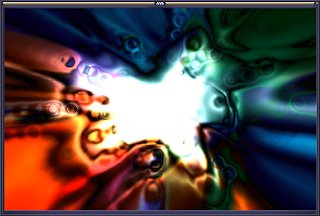
So now I have WinAmp working under Wine. But how to capture the beautiful screens? Here, Cinelerra came to the rescue. Using my BFG Geforce 8500 GT PCI Express 256MB card and a dual-head configuration, I opened Cinelerra in my right monitor, started WinAmp under Wine and kicked off the visualization in the left monitor. I expanded the window to roughly DVD resolution (720x480) and tweaked my Cinelerra screencapture recording settings to match the visualization window. Lo and behold, Cinelerra was capturing the resolutions at DVD quality! I looked carefully for frame drops. This is listed in the Cinelerra Recording window as "Frames Behind". I did not see one frame drop! Awesome!

I synchronized the results of the screen capture with the music on the Cinelerra timeline and output the audio and video to DVD-compatible formats. I then burnt a menuless DVD and was off to the races! I had created some "music", added a visualization track and burned a DVD! Sweet!
Next up:
How cool would it be to capture the visualizations in HD and play them on my HDTV at 720P resolution? Ooooh. Aaaah.
Sound on Sound review of Prodyssey
Oh, how lovely it is to create sounds with this box of sliders and switches! The music part will come later, but right now I am enjoying creating rythymic bleeps and bloops the old fashioned way using oscillators, filters and envelopes. Attack, decay, sustain, release, LFO and all that lot. As I was creating this cacaphony, I thought that it would be cool to have some visualizations to go along with the audio.
Years ago using Windows XP, I streamed music visualizations from WinAmp out through S-Video to a second computer that would capture the pretty pictures. The quality wasn't that great. Of course, if WinAmp had an export feature, that would be the best. But working with what I had today, I figured now that I've purchased a mighty dual quad core, I should be able to capture the screens within the machine itself. Of course, my primary OS is now Linux. And WinAmp is not made for Linux. And I didn't know of a Linux based visualizer that looked quite as good as WinAmp. What to do? I remember using Wine, the Windows emulator for Linux, back in 2001, but it wasn't very stable. I wonder if it's more stable these days?
With thoughts of sugar-plum visualizations in my head, I installed Wine the other day. Given my past experiences, I wasn't very hopeful. I was pleasantly surprised to find that the latest version of Wine was easy to setup on my Fedora 7 x86-64 system. Once Wine was setup, I installed WinAmp through a short series of steps. Excellent! I opened an MP3 file and was again, glad to hear the MP3 playing. Wow! Two in a row! Can we go for a trifecta? With the audio coming out of WinAmp through Wine, I decided to go for broke and started up the Advanced Visualization Studio visualizer. I could hardly believe my eyes when AVS played in gorgeous colors in a window on one of my monitors!

So now I have WinAmp working under Wine. But how to capture the beautiful screens? Here, Cinelerra came to the rescue. Using my BFG Geforce 8500 GT PCI Express 256MB card and a dual-head configuration, I opened Cinelerra in my right monitor, started WinAmp under Wine and kicked off the visualization in the left monitor. I expanded the window to roughly DVD resolution (720x480) and tweaked my Cinelerra screencapture recording settings to match the visualization window. Lo and behold, Cinelerra was capturing the resolutions at DVD quality! I looked carefully for frame drops. This is listed in the Cinelerra Recording window as "Frames Behind". I did not see one frame drop! Awesome!

I synchronized the results of the screen capture with the music on the Cinelerra timeline and output the audio and video to DVD-compatible formats. I then burnt a menuless DVD and was off to the races! I had created some "music", added a visualization track and burned a DVD! Sweet!
Next up:
How cool would it be to capture the visualizations in HD and play them on my HDTV at 720P resolution? Ooooh. Aaaah.
If this post was useful to you..consider buying me a beer via PayPal!
Even a $1 Draft will keep the Mule happily working..and help pay for equipment upgrades!
Sunday, January 20, 2008
new 500GB SATA RAID1 mirror
For fault tolerance, I finally got around to upgrading my drives to a RAID1 mirror this weekend. I bought a pair of Seagate ST3500641AS-RK Barracuda from Outpost.com for $99 each. Sale is over now, of course.
Here's what I had to do:
Partition the drives with good ol' fdisk
I had to partition each drive and give each drive a partition type of "Linux raid autodetect". This is type "fd". Here is a snip of my fdisk session for one of the drives:
[mule@ogre ~]# fdisk /dev/sdf
Device contains neither a valid DOS partition table, nor Sun, SGI or OSF disklabel
Building a new DOS disklabel. Changes will remain in memory only,
until you decide to write them. After that, of course, the previous
content won't be recoverable.
The number of cylinders for this disk is set to 60801.
There is nothing wrong with that, but this is larger than 1024,
and could in certain setups cause problems with:
1) software that runs at boot time (e.g., old versions of LILO)
2) booting and partitioning software from other OSs
(e.g., DOS FDISK, OS/2 FDISK)
Warning: invalid flag 0x0000 of partition table 4 will be corrected by w(rite)
Command (m for help): p
Disk /dev/sdf: 500.1 GB, 500107862016 bytes
255 heads, 63 sectors/track, 60801 cylinders
Units = cylinders of 16065 * 512 = 8225280 bytes
Device Boot Start End Blocks Id System
Command (m for help): n
Command action
e extended
p primary partition (1-4)
p
Partition number (1-4):
Value out of range.
Partition number (1-4): 1
First cylinder (1-60801, default 1):
Using default value 1
Last cylinder or +size or +sizeM or +sizeK (1-60801, default 60801):
Using default value 60801
Command (m for help): t
Selected partition 1
Hex code (type L to list codes): fd
Command (m for help): p
Disk /dev/sdf: 500.1 GB, 500107862016 bytes
255 heads, 63 sectors/track, 60801 cylinders
Units = cylinders of 16065 * 512 = 8225280 bytes
Device Boot Start End Blocks Id System
/dev/sdf1 1 60801 488384001 fd Linux raid autodetect
Command (m for help): w
The partition table has been altered!
Calling ioctl() to re-read partition table.
Syncing disks.
Create the mirror
I created the mirror using mdadm. Note the "--level=1" for the RAID1 mirror:
[mule@ogre ~]# mdadm --create /dev/md2 --level=1 --raid-devices=2 /dev/sde1 /dev/sdf1
Let's check out the details:
[mule@ogre ~]# mdadm --detail /dev/md2
/dev/md2:
Version : 00.90.03
Creation Time : Thu Jan 17 19:58:30 2008
Raid Level : raid1
Array Size : 488383936 (465.76 GiB 500.11 GB)
Used Dev Size : 488383936 (465.76 GiB 500.11 GB)
Raid Devices : 2
Total Devices : 2
Preferred Minor : 2
Persistence : Superblock is persistent
Update Time : Sun Jan 20 16:19:10 2008
State : clean
Active Devices : 2
Working Devices : 2
Failed Devices : 0
Spare Devices : 0
UUID : 1705b387:1c71d83e:364b60b4:fb0cce92
Events : 0.6
Number Major Minor RaidDevice State
0 8 17 0 active sync /dev/sde1
1 8 49 1 active sync /dev/sdf1
Wait for the mirror to build
You can also look in /proc/mdstat for status information:
[mule@ogre ~]# cat /proc/mdstat
Personalities : [raid0] [raid6] [raid5] [raid4] [raid1]
md2 : active raid1 sdb1[0] sdd1[1]
488383936 blocks [2/2] [UU]
md0 : active raid0 sda3[0] sdc2[1]
483411456 blocks 256k chunks
unused devices:
Format the partition
The -j parameter to mke2fs creates the filesystem with an ext3 journal, for another level of safety. File access on an ext3 filesystem is a bit slower than on an ext2 filesystem. However, the benefit is that you have a journaling filesystem that recovers from errors quickly and safely. Here's some documentation on the ext3 filesystem:
http://www.ibm.com/developerworks/linux/library/l-fs7.html
Here is the command I ran to create the ext3 filesystem:
[mule@ogre ~]# mke2fs -j /dev/md2
Test the mount
You should always test mounting the new filesystem. Since this filesystem is going to store all my videos, I am going to create my mount point and mount the new RAID mirror to /mnt/videos:
[mule@ogre ~]# mkdir /mnt/videos
[mule@ogre ~]# mount -t ext3 /dev/md2 /mnt/videos
[mule@ogre ~]#
You see no errors after the mount command. This means that the mount was successful. Yes!
Add to /etc/fstab
Of course, we want the new filesystem to be mounted when we reboot, so I add the following line to my /etc/fstab:
/dev/md2 /mnt/videos ext3 defaults 1 1
Reboot!
The final test is to reboot. The following lines in dmesg output make me happy:
md: md2 stopped.
md: bind
md: bind
md: raid1 personality registered for level 1
raid1: raid set md2 active with 2 out of 2 mirrors
Rock and roll! We're good with the new RAID mirror and safe from drive failures!
The Mule
from Outpost.com for $99 each. Sale is over now, of course. Here's what I had to do:
- partition the drives using fdisk
- create the mirror
- wait for the mirror to sync
- format the mirror
- test a mount
- add to /etc/fstab
- reboot to make sure everything comes up
Partition the drives with good ol' fdisk
I had to partition each drive and give each drive a partition type of "Linux raid autodetect". This is type "fd". Here is a snip of my fdisk session for one of the drives:
[mule@ogre ~]# fdisk /dev/sdf
Device contains neither a valid DOS partition table, nor Sun, SGI or OSF disklabel
Building a new DOS disklabel. Changes will remain in memory only,
until you decide to write them. After that, of course, the previous
content won't be recoverable.
The number of cylinders for this disk is set to 60801.
There is nothing wrong with that, but this is larger than 1024,
and could in certain setups cause problems with:
1) software that runs at boot time (e.g., old versions of LILO)
2) booting and partitioning software from other OSs
(e.g., DOS FDISK, OS/2 FDISK)
Warning: invalid flag 0x0000 of partition table 4 will be corrected by w(rite)
Command (m for help): p
Disk /dev/sdf: 500.1 GB, 500107862016 bytes
255 heads, 63 sectors/track, 60801 cylinders
Units = cylinders of 16065 * 512 = 8225280 bytes
Device Boot Start End Blocks Id System
Command (m for help): n
Command action
e extended
p primary partition (1-4)
p
Partition number (1-4):
Value out of range.
Partition number (1-4): 1
First cylinder (1-60801, default 1):
Using default value 1
Last cylinder or +size or +sizeM or +sizeK (1-60801, default 60801):
Using default value 60801
Command (m for help): t
Selected partition 1
Hex code (type L to list codes): fd
Command (m for help): p
Disk /dev/sdf: 500.1 GB, 500107862016 bytes
255 heads, 63 sectors/track, 60801 cylinders
Units = cylinders of 16065 * 512 = 8225280 bytes
Device Boot Start End Blocks Id System
/dev/sdf1 1 60801 488384001 fd Linux raid autodetect
Command (m for help): w
The partition table has been altered!
Calling ioctl() to re-read partition table.
Syncing disks.
Create the mirror
I created the mirror using mdadm. Note the "--level=1" for the RAID1 mirror:
[mule@ogre ~]# mdadm --create /dev/md2 --level=1 --raid-devices=2 /dev/sde1 /dev/sdf1
Let's check out the details:
[mule@ogre ~]# mdadm --detail /dev/md2
/dev/md2:
Version : 00.90.03
Creation Time : Thu Jan 17 19:58:30 2008
Raid Level : raid1
Array Size : 488383936 (465.76 GiB 500.11 GB)
Used Dev Size : 488383936 (465.76 GiB 500.11 GB)
Raid Devices : 2
Total Devices : 2
Preferred Minor : 2
Persistence : Superblock is persistent
Update Time : Sun Jan 20 16:19:10 2008
State : clean
Active Devices : 2
Working Devices : 2
Failed Devices : 0
Spare Devices : 0
UUID : 1705b387:1c71d83e:364b60b4:fb0cce92
Events : 0.6
Number Major Minor RaidDevice State
0 8 17 0 active sync /dev/sde1
1 8 49 1 active sync /dev/sdf1
Wait for the mirror to build
You can also look in /proc/mdstat for status information:
[mule@ogre ~]# cat /proc/mdstat
Personalities : [raid0] [raid6] [raid5] [raid4] [raid1]
md2 : active raid1 sdb1[0] sdd1[1]
488383936 blocks [2/2] [UU]
md0 : active raid0 sda3[0] sdc2[1]
483411456 blocks 256k chunks
unused devices:
Format the partition
The -j parameter to mke2fs creates the filesystem with an ext3 journal, for another level of safety. File access on an ext3 filesystem is a bit slower than on an ext2 filesystem. However, the benefit is that you have a journaling filesystem that recovers from errors quickly and safely. Here's some documentation on the ext3 filesystem:
http://www.ibm.com/developerworks/linux/library/l-fs7.html
Here is the command I ran to create the ext3 filesystem:
[mule@ogre ~]# mke2fs -j /dev/md2
Test the mount
You should always test mounting the new filesystem. Since this filesystem is going to store all my videos, I am going to create my mount point and mount the new RAID mirror to /mnt/videos:
[mule@ogre ~]# mkdir /mnt/videos
[mule@ogre ~]# mount -t ext3 /dev/md2 /mnt/videos
[mule@ogre ~]#
You see no errors after the mount command. This means that the mount was successful. Yes!
Add to /etc/fstab
Of course, we want the new filesystem to be mounted when we reboot, so I add the following line to my /etc/fstab:
/dev/md2 /mnt/videos ext3 defaults 1 1
Reboot!
The final test is to reboot. The following lines in dmesg output make me happy:
md: md2 stopped.
md: bind
md: bind
md: raid1 personality registered for level 1
raid1: raid set md2 active with 2 out of 2 mirrors
Rock and roll! We're good with the new RAID mirror and safe from drive failures!
The Mule
If this post was useful to you..consider buying me a beer via PayPal!
Even a $1 Draft will keep the Mule happily working..and help pay for equipment upgrades!
Tuesday, January 15, 2008
dvd file for iTunes
Last night, I was putting together a presentation on my MacBook and wanted to incorporate a DVD resolution video from Cinelerra. Since the Mac world is so tightly controlled, getting the format correct for iTunes was a royal pain. I tried a number of different renders, but only one worked:
file format video audio result
QTforLinux MPEG4 MPEG4 no (crashed iTunes 7.1)
QTforLinux MPEG4 MP3 no
QTforLinux MPEG4 WAV yes
QTforLinux H.264 MPEG4 cinelerra hung
At this point, I'm not sure if its my Fedora 7, x86-64 libraries or just iTunes being very selective about what it likes and dislikes. Just for kicks, tonight I will render out the same file using Fedora 6, i386 and see if the results are the same. Once I finish my research, I'll update the Beginner's Guide.
the mule
file format video audio result
QTforLinux MPEG4 MPEG4 no (crashed iTunes 7.1)
QTforLinux MPEG4 MP3 no
QTforLinux MPEG4 WAV yes
QTforLinux H.264 MPEG4 cinelerra hung
At this point, I'm not sure if its my Fedora 7, x86-64 libraries or just iTunes being very selective about what it likes and dislikes. Just for kicks, tonight I will render out the same file using Fedora 6, i386 and see if the results are the same. Once I finish my research, I'll update the Beginner's Guide.
the mule
If this post was useful to you..consider buying me a beer via PayPal!
Even a $1 Draft will keep the Mule happily working..and help pay for equipment upgrades!
Monday, January 14, 2008
MediaGate MG350HD v1.1.7 firmware
For my MediaGate MG350HD wired and wireless media player:
http://www.mediagateusa.com/html/mg350.html
I upgraded to the latest MediaGate firmware version 1.1.7. The previous version I was using was 1.1.1beta. With that version, I had been experiencing poor playback of HDV MPEG-TS videos. The video would stutter and the audio would drop out. I downloaded the upgrade from here:
http://www.mediagateusa.com/html/download/download.html
MediaGate firmware upgrades are always a pain in the ass because when the new firmware is written to the device, the configuration of the device gets reset and you need to re-enter all your configuration information. Most painful is entering the wireless security information. A long WEP key password is particularly painful because you have to enter the 20+ alphanumeric key using the remote. And, the video output settings are similarly reset, so instead of viewing the menus in HD, I have to use the separate composite connection and then reset the output type and resolution to DVI, 1080P. Ugh.
On the brighter side, once I got my wired and wireless network and display settings re-input, I was very pleased to find out that the video freezes and audio drop outs for the HDV MPEG-TS videos had been eliminated! Thanks MediaGate, for fixing those problems!
In addition, the new 1.1.7 firmware has an FTP server, so I no longer have to install the kludgy NDAS drivers.
Setup of an FTP Server with the MediaGate is easy:
One suggestion for the MediaGate people is to create a firmware upgrade that does not wipe out my configuration information. That would be greatly appreciated.
:)
http://www.mediagateusa.com/html/mg350.html
I upgraded to the latest MediaGate firmware version 1.1.7. The previous version I was using was 1.1.1beta. With that version, I had been experiencing poor playback of HDV MPEG-TS videos. The video would stutter and the audio would drop out. I downloaded the upgrade from here:
http://www.mediagateusa.com/html/download/download.html
MediaGate firmware upgrades are always a pain in the ass because when the new firmware is written to the device, the configuration of the device gets reset and you need to re-enter all your configuration information. Most painful is entering the wireless security information. A long WEP key password is particularly painful because you have to enter the 20+ alphanumeric key using the remote. And, the video output settings are similarly reset, so instead of viewing the menus in HD, I have to use the separate composite connection and then reset the output type and resolution to DVI, 1080P. Ugh.
On the brighter side, once I got my wired and wireless network and display settings re-input, I was very pleased to find out that the video freezes and audio drop outs for the HDV MPEG-TS videos had been eliminated! Thanks MediaGate, for fixing those problems!
In addition, the new 1.1.7 firmware has an FTP server, so I no longer have to install the kludgy NDAS drivers.
Setup of an FTP Server with the MediaGate is easy:
- Start up your 1.1.7 Mediagate
- Press "Setup" on your remote
- Navigate to the "FTP Server" section of the setup
- Enable the FTP server
- If you wish to change the username and password, do so here
- Save your settings
- Verify the MediaGate is on your network. Use "ping [IP address of the MediaGate]" either wired or wirelessly) to make sure the device is on the network
- Test FTP access by logging in from another machine on your network. From the command line, this would entail a command such as "ftp [IP address of the MediaGate]".
- If you get a connection via the above command, enter your username and password. You should be good to go!
One suggestion for the MediaGate people is to create a firmware upgrade that does not wipe out my configuration information. That would be greatly appreciated.
:)
If this post was useful to you..consider buying me a beer via PayPal!
Even a $1 Draft will keep the Mule happily working..and help pay for equipment upgrades!
Tuesday, January 01, 2008
method to create a menuless DVD
Happy 2008, everybody!
I keep forgetting the commands to create and burn DVD-ready files from Cinelerra. As the following commands worked well for me, I thought I'd write 'em down for folks. I won't concentrate on creating the DVD-ready file, but more on the latter steps using dvdauthor and burning an iso.
In order to get a working DVD, you're going to do the following:
1 - from Cinelerra, create a valid DVD-ready MPEG file
2 - with dvdauthor, create a DVD filesystem from that MPEG
3 - with dvdauthor, create a table of contents for the DVD filesystem
4 - with mkisofs, create a DVD-ready ISO image in prep for burning to DVD
5 - with growisofs, burn the DVD
PrerequisitesCinelerra
mplex
dvdauthor
dvd+rw-tools
References
http://gentoo-wiki.com/HOWTO_Create_a_DVD:Burn
http://gentoo-wiki.com/HOWTO_Mencoder_Introduction_Guide
1 - Create a valid DVD-ready MPEG file
In Cinelerra, create a project with the following specs:
Audio
Samplerate: 48000
Channels: 2
Video
Framerate: 29.97
Width: 720
Height: 480
W/H Ratios both 1
Color Model: YUVA-8bit
Aspect Ratio: 3:2 or check Auto
Interlace Mode: Not Interlaced
Render Options
Audio
File Format: MPEG Audio
Layer: II
Kbits per second: 384Kbps
Video
File Format: YUV4MPEG
Either mpeg2enc or ffmpeg presets should work. Just make sure the aspect ratio of the resultant video is 16:9, because dvdauthor will not create the DVD filesystem if this is not the case. The switch to ffmpeg is "-aspect 16:9" or "aspect 1.777" like so:
ffmpeg -f yuv4mpegpipe -i - -y -target dvd -aspect 1.777 -f mpeg2video %
Since multiplexing to DVD-ready file in ffmpeg doesn't work as expected, I combine the audio and video with MPLEX using this command:
mplex -f 8 -o test.mpg video.m2v audio.mp2
I will try to figure out the source of the ffmpeg issue later.
2 - Create a DVD filesystem from MPEG
Using dvdauthor, run this command to create a filesystem in a folder called "dvd" from your test mpeg:
[mule@ogre ~]# dvdauthor -o dvd/ -t test.mpg
DVDAuthor::dvdauthor, version 0.6.14.
Build options: gnugetopt iconv freetype fribidi
Send bugs to
INFO: dvdauthor creating VTS
STAT: Picking VTS 03
STAT: Processing test.mpg...
STAT: VOBU 1488 at 394MB, 1 PGCS
INFO: Video pts = 0.133 .. 598.564
INFO: Audio[8] pts = 0.133 .. 598.621
STAT: VOBU 1499 at 395MB, 1 PGCS
INFO: Generating VTS with the following video attributes:
INFO: MPEG version: mpeg2
INFO: TV standard: ntsc
INFO: Aspect ratio: 16:9
INFO: Resolution: 720x480
INFO: Audio ch 0 format: mp2/2ch, 48khz 20bps
STAT: fixed 1499 VOBUS
3 - Create a Table of Contents
Using dvdauthor, run this command to create a table of contents for the DVD filesystem:
[mule@ogre ~]# dvdauthor -o dvd/ -T
DVDAuthor::dvdauthor, version 0.6.14.
Build options: gnugetopt iconv freetype fribidi
Send bugs to
INFO: dvdauthor creating table of contents
INFO: Scanning dvd/VIDEO_TS/VTS_01_0.IFO
INFO: Scanning dvd/VIDEO_TS/VTS_02_0.IFO
INFO: Scanning dvd/VIDEO_TS/VTS_03_0.IFO
INFO: Scanning dvd/VIDEO_TS/VTS_04_0.IFO
4 - Create a DVD-ready ISO image for burning
Using mkisofs, create an ISO image:
[mule@ogre ~]# mkisofs -dvd-video -o dvd.iso dvd/
I: -input-charset not specified, using utf-8 (detected in locale settings)
Unknown file type (unallocated) dvd/.. - ignoring and continuing.
0.51% done, estimate finish Mon Dec 31 20:31:57 2007
1.02% done, estimate finish Mon Dec 31 20:31:57 2007
..
99.07% done, estimate finish Mon Dec 31 20:32:50 2007
99.58% done, estimate finish Mon Dec 31 20:32:50 2007
Total translation table size: 0
Total rockridge attributes bytes: 0
Total directory bytes: 4380
Path table size(bytes): 42
Max brk space used 0
979076 extents written (1912 MB)
Here's nice tip on testing your ISO by mouting it from your filesystem:
http://gentoo-wiki.com/TIP_Mounting_Iso_Files
5 - Burn the ISO image to a DVD
Using growisofs, burn the ISO image to a DVD. Note that I used this command on a DVD RW:
[mule@ogre ~]# growisofs -dvd-compat -Z /dev/dvd=dvd.iso
Executing 'builtin_dd if=dvd.iso of=/dev/dvd obs=32k seek=0'
/dev/dvd: "Current Write Speed" is 2.0x1352KBps.
3407872/2005147648 ( 0.2%) @0.5x, remaining 39:09 RBU 100.0% UBU 6.5%
12288000/2005147648 ( 0.6%) @1.9x, remaining 18:55 RBU 100.0% UBU 100.0%
..
1992097792/2005147648 (99.3%) @2.0x, remaining 0:04 RBU 77.9% UBU 100.0%
2001076224/2005147648 (99.8%) @1.9x, remaining 0:01 RBU 24.4% UBU 100.0%
builtin_dd: 979088*2KB out @ average 1.9x1352KBps
/dev/dvd: flushing cache
/dev/dvd: writing lead-out
Appendix
Formatting a DVD RW
Using dvd+rw-format, format your DVD RW media:
[mule@ogre Desktop]# dvd+rw-format -f /dev/dvd
* BD/DVD±RW/-RAM format utility by, version 7.0.
* 4.7GB DVD-RW media in Restricted Overwrite mode detected.
* formatting 29.2/
That's it. Happy New Year!
The Mule
I keep forgetting the commands to create and burn DVD-ready files from Cinelerra. As the following commands worked well for me, I thought I'd write 'em down for folks. I won't concentrate on creating the DVD-ready file, but more on the latter steps using dvdauthor and burning an iso.
In order to get a working DVD, you're going to do the following:
1 - from Cinelerra, create a valid DVD-ready MPEG file
2 - with dvdauthor, create a DVD filesystem from that MPEG
3 - with dvdauthor, create a table of contents for the DVD filesystem
4 - with mkisofs, create a DVD-ready ISO image in prep for burning to DVD
5 - with growisofs, burn the DVD
PrerequisitesCinelerra
mplex
dvdauthor
dvd+rw-tools
References
http://gentoo-wiki.com/HOWTO_Create_a_DVD:Burn
http://gentoo-wiki.com/HOWTO_Mencoder_Introduction_Guide
1 - Create a valid DVD-ready MPEG file
In Cinelerra, create a project with the following specs:
Audio
Samplerate: 48000
Channels: 2
Video
Framerate: 29.97
Width: 720
Height: 480
W/H Ratios both 1
Color Model: YUVA-8bit
Aspect Ratio: 3:2 or check Auto
Interlace Mode: Not Interlaced
Render Options
Audio
File Format: MPEG Audio
Layer: II
Kbits per second: 384Kbps
Video
File Format: YUV4MPEG
Either mpeg2enc or ffmpeg presets should work. Just make sure the aspect ratio of the resultant video is 16:9, because dvdauthor will not create the DVD filesystem if this is not the case. The switch to ffmpeg is "-aspect 16:9" or "aspect 1.777" like so:
ffmpeg -f yuv4mpegpipe -i - -y -target dvd -aspect 1.777 -f mpeg2video %
Since multiplexing to DVD-ready file in ffmpeg doesn't work as expected, I combine the audio and video with MPLEX using this command:
mplex -f 8 -o test.mpg video.m2v audio.mp2
I will try to figure out the source of the ffmpeg issue later.
2 - Create a DVD filesystem from MPEG
Using dvdauthor, run this command to create a filesystem in a folder called "dvd" from your test mpeg:
[mule@ogre ~]# dvdauthor -o dvd/ -t test.mpg
DVDAuthor::dvdauthor, version 0.6.14.
Build options: gnugetopt iconv freetype fribidi
Send bugs to
INFO: dvdauthor creating VTS
STAT: Picking VTS 03
STAT: Processing test.mpg...
STAT: VOBU 1488 at 394MB, 1 PGCS
INFO: Video pts = 0.133 .. 598.564
INFO: Audio[8] pts = 0.133 .. 598.621
STAT: VOBU 1499 at 395MB, 1 PGCS
INFO: Generating VTS with the following video attributes:
INFO: MPEG version: mpeg2
INFO: TV standard: ntsc
INFO: Aspect ratio: 16:9
INFO: Resolution: 720x480
INFO: Audio ch 0 format: mp2/2ch, 48khz 20bps
STAT: fixed 1499 VOBUS
3 - Create a Table of Contents
Using dvdauthor, run this command to create a table of contents for the DVD filesystem:
[mule@ogre ~]# dvdauthor -o dvd/ -T
DVDAuthor::dvdauthor, version 0.6.14.
Build options: gnugetopt iconv freetype fribidi
Send bugs to
INFO: dvdauthor creating table of contents
INFO: Scanning dvd/VIDEO_TS/VTS_01_0.IFO
INFO: Scanning dvd/VIDEO_TS/VTS_02_0.IFO
INFO: Scanning dvd/VIDEO_TS/VTS_03_0.IFO
INFO: Scanning dvd/VIDEO_TS/VTS_04_0.IFO
4 - Create a DVD-ready ISO image for burning
Using mkisofs, create an ISO image:
[mule@ogre ~]# mkisofs -dvd-video -o dvd.iso dvd/
I: -input-charset not specified, using utf-8 (detected in locale settings)
Unknown file type (unallocated) dvd/.. - ignoring and continuing.
0.51% done, estimate finish Mon Dec 31 20:31:57 2007
1.02% done, estimate finish Mon Dec 31 20:31:57 2007
..
99.07% done, estimate finish Mon Dec 31 20:32:50 2007
99.58% done, estimate finish Mon Dec 31 20:32:50 2007
Total translation table size: 0
Total rockridge attributes bytes: 0
Total directory bytes: 4380
Path table size(bytes): 42
Max brk space used 0
979076 extents written (1912 MB)
Here's nice tip on testing your ISO by mouting it from your filesystem:
http://gentoo-wiki.com/TIP_Mounting_Iso_Files
5 - Burn the ISO image to a DVD
Using growisofs, burn the ISO image to a DVD. Note that I used this command on a DVD RW:
[mule@ogre ~]# growisofs -dvd-compat -Z /dev/dvd=dvd.iso
Executing 'builtin_dd if=dvd.iso of=/dev/dvd obs=32k seek=0'
/dev/dvd: "Current Write Speed" is 2.0x1352KBps.
3407872/2005147648 ( 0.2%) @0.5x, remaining 39:09 RBU 100.0% UBU 6.5%
12288000/2005147648 ( 0.6%) @1.9x, remaining 18:55 RBU 100.0% UBU 100.0%
..
1992097792/2005147648 (99.3%) @2.0x, remaining 0:04 RBU 77.9% UBU 100.0%
2001076224/2005147648 (99.8%) @1.9x, remaining 0:01 RBU 24.4% UBU 100.0%
builtin_dd: 979088*2KB out @ average 1.9x1352KBps
/dev/dvd: flushing cache
/dev/dvd: writing lead-out
Appendix
Formatting a DVD RW
Using dvd+rw-format, format your DVD RW media:
[mule@ogre Desktop]# dvd+rw-format -f /dev/dvd
* BD/DVD±RW/-RAM format utility by
* 4.7GB DVD-RW media in Restricted Overwrite mode detected.
* formatting 29.2/
That's it. Happy New Year!
The Mule
If this post was useful to you..consider buying me a beer via PayPal!
Even a $1 Draft will keep the Mule happily working..and help pay for equipment upgrades!
Thursday, December 27, 2007
libx264.so.54: cannot open shared object file
While trying to render out a DVD-ready file, I'm not sure why I got this libx264 error today:
trying popen( ffmpeg -f yuv4mpegpipe -i - -y -target dvd -ilme -ildct -f mpeg2video /root/synth.m2v)
ffmpeg: error while loading shared libraries: libx264.so.54: cannot open shared object file: No such file or directory
I have the -devel package for libx264 installed. Since I haven't been editing video lately, perhaps I updated the package and did not notice. So the resolution is to link libx264.so.54 to the latest libx264. In my case, that happens to be libx264.so.55.
Since I am running 64-bit Fedora, my libraries are in /usr/lib64. Here is the command:
ln -s /usr/lib64/libx264.so.55 /usr/lib64/libx264.so.54
cheers.
trying popen( ffmpeg -f yuv4mpegpipe -i - -y -target dvd -ilme -ildct -f mpeg2video /root/synth.m2v)
ffmpeg: error while loading shared libraries: libx264.so.54: cannot open shared object file: No such file or directory
I have the -devel package for libx264 installed. Since I haven't been editing video lately, perhaps I updated the package and did not notice. So the resolution is to link libx264.so.54 to the latest libx264. In my case, that happens to be libx264.so.55.
Since I am running 64-bit Fedora, my libraries are in /usr/lib64. Here is the command:
ln -s /usr/lib64/libx264.so.55 /usr/lib64/libx264.so.54
cheers.
If this post was useful to you..consider buying me a beer via PayPal!
Even a $1 Draft will keep the Mule happily working..and help pay for equipment upgrades!
Tuesday, October 23, 2007
NVidia in da house (er, new server)!
So I've been on a quest to get a modern PCI Express card working in my new Dell SC1430. With this goal in mind, I had ordered a PCI Express 8x to 16x Adapter like this one off of eBay:
http://www.orbitmicro.com/global/pciexpressx8tox16adapter-p-755.html
The SC1430 has 8x connectors (running 4x speed PCI Express). In the hopes that it would work in the box, I bought a BFG Geforce 8500 GT PCI Express 256MB card from BestBuy. I checked and it is cheaper on Amazon.
Here's a good article from Tom's Hardware on PCI Express scaling:
http://www.tomshardware.com/2007/03/27/pci_express_scaling_analysis/
I figured that even if the card didn't work, I'd use it later in the next box I build. Now, I understood that the adapter would raise the card in the slot. The Dell has a hinged metal door that holds all the expansion cards in place, but I noticed that that little door can be left open while the case is closed. This would allow me to use the card for a while until I had the chance to machine a new bracket for the card.
Last night, I attached the adapter to the new BFG card (with a satisfying "click", no less) and put it in the first PCI Express slot (SLOT1_PCIE) of the Dell. I left the hinged door open, but was able to close the case. I hooked up my FP1901 to the digital output and my FP1907 to the analog output. I can tell you I was quite surprised when I started the server and the FP1901 that was connected to the digital output came to life!
I booted into runlevel 3 (nongraphical, multiuser mode) in Fedora and grabbed the latest NVidia driver installer for my 64-bit OS via lynx. I ran the installer. There was not a default kernel module for my particular kernel, so the installer created one and then asked if I wanted to create a new xorg.conf for the X Windows. I said yes and the installer finished. I was elated to see X startup with the NVidia splash screen! I soon had Twin View setup and GLXgears gave me 6200FPS! Unlike the ATI card I had running in the box previously, mplayer and xine ran my HDV videos like champs! Hoohah! Cinelerra runs well, but I've decided to not compile OpenGL just yet, as it did cause some instability on my previous box.
I tell you, NVidia drivers are an absolute joy to setup and use. As I've reiterated many times on this blog, most recently here:
/2007/10/year-later-ati-linux-drivers-still-suck.html
ATIs Linux drivers are riddled with bugs; hence, I returned the ATI card, a VisionTek x1550, to the store.
In sum, the BFG Geforce 8500 GT PCI Express 256MB card works in the Dell with a PCI Express 8x to 16x adapter card. If you use a PCI Express adapter, be aware that the card will be raised in the slot when it is seated.
the mule
ps - Now I just have to debug and fix a nagging audio noise with Fedora and the Dell and I will be one happy dude.
http://www.orbitmicro.com/global/pciexpressx8tox16adapter-p-755.html
The SC1430 has 8x connectors (running 4x speed PCI Express). In the hopes that it would work in the box, I bought a BFG Geforce 8500 GT PCI Express 256MB
card from BestBuy. I checked and it is cheaper on Amazon.Here's a good article from Tom's Hardware on PCI Express scaling:
http://www.tomshardware.com/2007/03/27/pci_express_scaling_analysis/
I figured that even if the card didn't work, I'd use it later in the next box I build. Now, I understood that the adapter would raise the card in the slot. The Dell has a hinged metal door that holds all the expansion cards in place, but I noticed that that little door can be left open while the case is closed. This would allow me to use the card for a while until I had the chance to machine a new bracket for the card.
Last night, I attached the adapter to the new BFG card (with a satisfying "click", no less) and put it in the first PCI Express slot (SLOT1_PCIE) of the Dell. I left the hinged door open, but was able to close the case. I hooked up my FP1901 to the digital output and my FP1907 to the analog output. I can tell you I was quite surprised when I started the server and the FP1901 that was connected to the digital output came to life!
I booted into runlevel 3 (nongraphical, multiuser mode) in Fedora and grabbed the latest NVidia driver installer for my 64-bit OS via lynx. I ran the installer. There was not a default kernel module for my particular kernel, so the installer created one and then asked if I wanted to create a new xorg.conf for the X Windows. I said yes and the installer finished. I was elated to see X startup with the NVidia splash screen! I soon had Twin View setup and GLXgears gave me 6200FPS! Unlike the ATI card I had running in the box previously, mplayer and xine ran my HDV videos like champs! Hoohah! Cinelerra runs well, but I've decided to not compile OpenGL just yet, as it did cause some instability on my previous box.
I tell you, NVidia drivers are an absolute joy to setup and use. As I've reiterated many times on this blog, most recently here:
/2007/10/year-later-ati-linux-drivers-still-suck.html
ATIs Linux drivers are riddled with bugs; hence, I returned the ATI card, a VisionTek x1550, to the store.
In sum, the BFG Geforce 8500 GT PCI Express 256MB
card works in the Dell with a PCI Express 8x to 16x adapter card. If you use a PCI Express adapter, be aware that the card will be raised in the slot when it is seated.the mule
ps - Now I just have to debug and fix a nagging audio noise with Fedora and the Dell and I will be one happy dude.
If this post was useful to you..consider buying me a beer via PayPal!
Even a $1 Draft will keep the Mule happily working..and help pay for equipment upgrades!
Thursday, October 18, 2007
A year later, ATI Linux drivers still suck
Folks, just in case you don't know, ATI's display drivers for Linux still suck, one year later:
/2006/09/ati-opengl-20-implementation.html
/2006/09/opengl-acceleration-for-cinelerra-not.html
Here's a bit of the latest pain:
https://init.linpro.no/pipermail/skolelinux.no/cinelerra/2007-October/012026.html
Here's another tale of woe (read starting with post #1014):
http://forums.fedoraforum.org/showthread.php?t=155503&page=102&pp=10
In the interest of having a clean system to start with, I reinstalled Fedora Core 6, 64-bit. I installed all Cinelerra source dependencies and attendent media players and apps as per this post (/2007/09/building-cinelerra-on-fc6-64-bit.html). I then made the very intelligent choice of backing up my system by using a Knoppix Bootable CD (www.knoppix.com) to load partimage and make an image of my system drive. For those who'd like to know how to do this, I will try to post a doc on what to do.
Update 2008/11/16
Here's how you can do this.
end update
This allows me to easily restore from image if anything went drastically wrong with the ATI install process. It is a good thing I did this.
After having the core softwares installed, I compiled Cinelerra and created a project by recording a screen capture with voiceover, some fades and a simple mask. This worked well, so I then decided to tackle building the 8.36.5 version of the ATI installer. I built the ATI rpms with the following command:
./ati-driver-installer-8.36.5-x86.x86_64.run --buildpkg Fedora/FC6
With the recent clean install of FC6 x86-64-bit, I was surprised to see that the build process actually worked! Previously, this build process failed. I speculate that the reason for the previous failure was that I kept my repositories consistent on this OS build. This means I tried not to mix rpm bases from more than two non-Fedora repositories: Dries and Livna, respectively. Refer to http://crazedmuleproductions.blogspot.com/2007/09/building-cinelerra-on-fc6-64-bit.html) for the detail. So having this build process work was unexpected. It gave me hope that I might have some resolution to my ATI woes.
I installed the created ATI rpms and shutdown the box. I popped in the VisionTek card and rebooted to init 3, full multi-user mode, without X enabled. I then ran the ATI configurator:
./aticonfig --initial -f
[sodo@ogre 8.36]# ls -l
total 65244
-rwxr-xr-x 1 root root 53331877 Oct 8 21:18 ati-driver-installer-8.36.5-x86.x86_64.run
-rw-r--r-- 1 root root 6469324 Oct 10 22:49 ATI-fglrx-8.36.5-1.fc6.x86_64.rpm
-rw-r--r-- 1 root root 3367465 Oct 10 22:49 ATI-fglrx-control-center-8.36.5-1.fc6.x86_64.rpm
-rw-r--r-- 1 root root 45017 Oct 10 22:49 ATI-fglrx-devel-8.36.5-1.fc6.x86_64.rpm
-rw-r--r-- 1 root root 3192548 Oct 10 22:49 ATI-fglrx-IA32-libs-8.36.5-1.fc6.x86_64.rpm
-rw-r--r-- 1 root root 309737 Oct 10 22:49 kernel-module-ATI-fglrx-2.6.18-1.2798.fc6-8.36.5-1.fc6.x86_64.rpm
This created a default fglrx /etc/X11/xorg.conf file. I started X and was pleasantly surprised to see both my monitors (Dell FP1901 and FP1907) come alive. I started the ATI Catalyst Display utility and was excited to see that OpenGL was indeed active. I switched from Clone mode (2 separate screens displaying the same thing) to Big Desktop mode, one large desktop. Excitedly, I wanted to see the behavior of xine and mplayer under 8.36.5, as I read some threads that lead me to believe I might get OpenGL without the xine crashes and mplayer sluggishness I had seen using 8.39.4 and 8.40.4. Unfortunately, it was not to be, as I loaded mplayer to see the same sluggishness on HDV content display. I then started xine and true to form, xine displayed the HDV content, but then promptly crashed X.
Ah well. At this point, I decided to restart the system, just to see if the restart improved conditions. When I restarted, I got the following error:
/etc/rc.d/rc.sysinit line 819: Segmentation fault
Oh boy. That does not look good. And the entire system has locked up..I can't even reboot. After a hard shutdown, I restarted, only to find the same error condition reappear. Google is again my best friend:
http://www.linuxforums.org/forum/servers/15670-help-segmentation-fault.html
So, it seems my choices are that:
1) my system memory is corrupt
2) grep is corrupt
3) I've been hacked
This is a new server with ECC memory, so I really doubt the memory has gone bad. But I'd rather be sure. Through the above Google find, I see that memtest86 (www.memtest86.com) is a solid program for testing your system memory that I haven't used before. The doc on the website is very good. I grabbed the ISO online and burned a copy to CD and let my machine churn for about three hours running through memory tests. Thank goodness, no memory errors were found. It seems that Mr. Brady knows his stuff! Thanks Chris!
Secondly, I tried to remark out the offending "for" loop within rc.sysinit. I needed to boot off a Knoppix (www.knoppix.com) CD to be able to assemble my software RAID partition, mount it and edit the file. Doing this and rebooting yielded the same results.
My third and final troubleshooting procedure was to remove and replace "grep" which is where the init loader failed. Again, I booted off the Knoppix CD, assembled and mounted my RAID. This time, however, I changed my root (chroot) partition in order the remove and reinstall grep via rpm and the Fedora install DVD. I did this, rebooted and received the same error.
At this point, I threw my hands up in the air and decided to reinstall my clean partimage image. Knoppix to the rescue again, and I restored the image of my clean install off a second drive I had on the system. A reboot later and I was back up and running. Praise the Lord!
So..what is the moral of this story, you might ask? It must be this, cause I can't think of anything else right now: Don't trust people over 30 and be sure that ATI will always disappoint you if you run Linux.
Harumph!
The Mule
/2006/09/ati-opengl-20-implementation.html
/2006/09/opengl-acceleration-for-cinelerra-not.html
Here's a bit of the latest pain:
https://init.linpro.no/pipermail/skolelinux.no/cinelerra/2007-October/012026.html
Here's another tale of woe (read starting with post #1014):
http://forums.fedoraforum.org/showthread.php?t=155503&page=102&pp=10
In the interest of having a clean system to start with, I reinstalled Fedora Core 6, 64-bit. I installed all Cinelerra source dependencies and attendent media players and apps as per this post (/2007/09/building-cinelerra-on-fc6-64-bit.html). I then made the very intelligent choice of backing up my system by using a Knoppix Bootable CD (www.knoppix.com) to load partimage and make an image of my system drive. For those who'd like to know how to do this, I will try to post a doc on what to do.
Update 2008/11/16
Here's how you can do this.
end update
This allows me to easily restore from image if anything went drastically wrong with the ATI install process. It is a good thing I did this.
After having the core softwares installed, I compiled Cinelerra and created a project by recording a screen capture with voiceover, some fades and a simple mask. This worked well, so I then decided to tackle building the 8.36.5 version of the ATI installer. I built the ATI rpms with the following command:
./ati-driver-installer-8.36.5-x86.x86_64.run --buildpkg Fedora/FC6
With the recent clean install of FC6 x86-64-bit, I was surprised to see that the build process actually worked! Previously, this build process failed. I speculate that the reason for the previous failure was that I kept my repositories consistent on this OS build. This means I tried not to mix rpm bases from more than two non-Fedora repositories: Dries and Livna, respectively. Refer to http://crazedmuleproductions.blogspot.com/2007/09/building-cinelerra-on-fc6-64-bit.html) for the detail. So having this build process work was unexpected. It gave me hope that I might have some resolution to my ATI woes.
I installed the created ATI rpms and shutdown the box. I popped in the VisionTek card and rebooted to init 3, full multi-user mode, without X enabled. I then ran the ATI configurator:
./aticonfig --initial -f
[sodo@ogre 8.36]# ls -l
total 65244
-rwxr-xr-x 1 root root 53331877 Oct 8 21:18 ati-driver-installer-8.36.5-x86.x86_64.run
-rw-r--r-- 1 root root 6469324 Oct 10 22:49 ATI-fglrx-8.36.5-1.fc6.x86_64.rpm
-rw-r--r-- 1 root root 3367465 Oct 10 22:49 ATI-fglrx-control-center-8.36.5-1.fc6.x86_64.rpm
-rw-r--r-- 1 root root 45017 Oct 10 22:49 ATI-fglrx-devel-8.36.5-1.fc6.x86_64.rpm
-rw-r--r-- 1 root root 3192548 Oct 10 22:49 ATI-fglrx-IA32-libs-8.36.5-1.fc6.x86_64.rpm
-rw-r--r-- 1 root root 309737 Oct 10 22:49 kernel-module-ATI-fglrx-2.6.18-1.2798.fc6-8.36.5-1.fc6.x86_64.rpm
This created a default fglrx /etc/X11/xorg.conf file. I started X and was pleasantly surprised to see both my monitors (Dell FP1901 and FP1907) come alive. I started the ATI Catalyst Display utility and was excited to see that OpenGL was indeed active. I switched from Clone mode (2 separate screens displaying the same thing) to Big Desktop mode, one large desktop. Excitedly, I wanted to see the behavior of xine and mplayer under 8.36.5, as I read some threads that lead me to believe I might get OpenGL without the xine crashes and mplayer sluggishness I had seen using 8.39.4 and 8.40.4. Unfortunately, it was not to be, as I loaded mplayer to see the same sluggishness on HDV content display. I then started xine and true to form, xine displayed the HDV content, but then promptly crashed X.
Ah well. At this point, I decided to restart the system, just to see if the restart improved conditions. When I restarted, I got the following error:
/etc/rc.d/rc.sysinit line 819: Segmentation fault
Oh boy. That does not look good. And the entire system has locked up..I can't even reboot. After a hard shutdown, I restarted, only to find the same error condition reappear. Google is again my best friend:
http://www.linuxforums.org/forum/servers/15670-help-segmentation-fault.html
So, it seems my choices are that:
1) my system memory is corrupt
2) grep is corrupt
3) I've been hacked
This is a new server with ECC memory, so I really doubt the memory has gone bad. But I'd rather be sure. Through the above Google find, I see that memtest86 (www.memtest86.com) is a solid program for testing your system memory that I haven't used before. The doc on the website is very good. I grabbed the ISO online and burned a copy to CD and let my machine churn for about three hours running through memory tests. Thank goodness, no memory errors were found. It seems that Mr. Brady knows his stuff! Thanks Chris!
Secondly, I tried to remark out the offending "for" loop within rc.sysinit. I needed to boot off a Knoppix (www.knoppix.com) CD to be able to assemble my software RAID partition, mount it and edit the file. Doing this and rebooting yielded the same results.
My third and final troubleshooting procedure was to remove and replace "grep" which is where the init loader failed. Again, I booted off the Knoppix CD, assembled and mounted my RAID. This time, however, I changed my root (chroot) partition in order the remove and reinstall grep via rpm and the Fedora install DVD. I did this, rebooted and received the same error.
At this point, I threw my hands up in the air and decided to reinstall my clean partimage image. Knoppix to the rescue again, and I restored the image of my clean install off a second drive I had on the system. A reboot later and I was back up and running. Praise the Lord!
So..what is the moral of this story, you might ask? It must be this, cause I can't think of anything else right now: Don't trust people over 30 and be sure that ATI will always disappoint you if you run Linux.
Harumph!
The Mule
If this post was useful to you..consider buying me a beer via PayPal!
Even a $1 Draft will keep the Mule happily working..and help pay for equipment upgrades!
Sunday, October 14, 2007
rendering on the dual quad core Dell SC1430
I'm starting to get used to the new rig and what works and what doesn't. Here's a video describing how a render works on the new Dell SC1430, dual quad core xeon box running FC6, 64-bit Cinelerra. The render format (not shown in the video) is the following:
File format: Quicktime for Linux
Audio compression scheme: MPEG-4 audio, 128kbps bitrate, quantization quality 50%
Video compression scheme: H.264, 1000000 fixed bitrate (1Mbps)
I was listening to Aaron Newcomb's SourceShow podcast from LinuxWorld in Ohio while describing the render, so that's the voice you'll hear in the background.
PS - I rendered to Quicktime for Linux in this example, but you can use the
-threads [numberOfCpus]
command line switch to use more than one CPU.
enjoy,
the mule
File format: Quicktime for Linux
Audio compression scheme: MPEG-4 audio, 128kbps bitrate, quantization quality 50%
Video compression scheme: H.264, 1000000 fixed bitrate (1Mbps)
I was listening to Aaron Newcomb's SourceShow podcast from LinuxWorld in Ohio while describing the render, so that's the voice you'll hear in the background.
PS - I rendered to Quicktime for Linux in this example, but you can use the
-threads [numberOfCpus]
command line switch to use more than one CPU.
enjoy,
the mule
If this post was useful to you..consider buying me a beer via PayPal!
Even a $1 Draft will keep the Mule happily working..and help pay for equipment upgrades!
getting started with Cinelerra
A couple of friends asked me about how to get started with Cinelerra. Here are a few techniques that have helped me:
Download and install the CV version of Cinelerra
As it is actively updated, the community version of Cinelerra is a good starting point:
http://cvs.cinelerra.org/getting_cinelerra.php
Run Cinelerra from a Terminal
Once you install it, run Cinelerra in a terminal, so you can see the error output. It will look like this:
[mule@ogre ~]# cinelerra
Cinelerra 2.1CV (C) 2006 Heroine Virtual Ltd.
Compiled on Mon Oct 8 23:47:21 EDT 2007
Cinelerra is free software, covered by the GNU General Public License,
and you are welcome to change it and/or distribute copies of it under
certain conditions. There is absolutely no warranty for Cinelerra.
Render::run 1
Render::run 2
Render::run 3
Render::run 4
Render::run 5
Render::run 6
Render::run 7
Render::run 8
Render::run 8.1
Render::run 8.2
Render::run 8.3
Render::run 9
Render::run 10
x264 [info]: using cpu capabilities MMX MMXEXT SSE SSE2
x264 [info]: slice I:71 Avg QP: 2.00 size:199495 PSNR Mean Y:64.88 U:65.58 V:65.60 Avg:65.10 Global:65.06
x264 [info]: slice P:17600 Avg QP: 5.00 size: 3153 PSNR Mean Y:62.18 U:62.58 V:62.57 Avg:62.30 Global:62.12
x264 [info]: mb I I16..4: 41.8% 0.0% 58.2%
x264 [info]: mb P I16..4: 1.0% 0.0% 0.2% P16..4: 9.6% 0.2% 0.1% 0.0% 0.0% skip:89.0%
x264 [info]: SSIM Mean Y:0.9999576
x264 [info]: PSNR Mean Y:62.192 U:62.595 V:62.579 Avg:62.308 Global:62.131 kb/s:945.04
Read the Doc!
The most important step! As Cinelerra is a very powerful program, its functionality is very deep. Therefore, there is a lot to know about it. Read the documentation! If you don't read documentation, this program is not for you.
http://cvs.cinelerra.org/docs.php
A very nice beginner's guide written by Raffaella Traniello:
Cinelerra for Grandma
If Cinelerra Crashes
1) restart and select File -> Load from Backup
- This allows you to start where you left off
2) Check the buglist:
http://bugs.cinelerra.org/
Try Alternatives
If something doesn't work in the expected fashion:
1) Read the documentation (as above)
2) Try alternatives
For instance, if a file does not import in Cinelerra, convert it to a format that will! You can use ffmpeg to convert from any format to almost any format. Here is a sample ffmpeg command line to do this:
ffmpeg -i inputFile.containerFormat outputFile.containerFormat
For example
ffmpeg -i inputDvd.mpg outputQuicktime.mov
FFMPEG References
Nice howto: http://howto-pages.org/ffmpeg/
FFMPEG documentation: http://http//ffmpeg.sourceforge.net/documentation.php
Don't forget to read my Beginner's Guide to Exporting Video from Cinelerra!
/2007/06/beginners-guide-to-exporting-video-from.html
I hope this helps,
the mule
Download and install the CV version of Cinelerra
As it is actively updated, the community version of Cinelerra is a good starting point:
http://cvs.cinelerra.org/getting_cinelerra.php
Run Cinelerra from a Terminal
Once you install it, run Cinelerra in a terminal, so you can see the error output. It will look like this:
[mule@ogre ~]# cinelerra
Cinelerra 2.1CV (C) 2006 Heroine Virtual Ltd.
Compiled on Mon Oct 8 23:47:21 EDT 2007
Cinelerra is free software, covered by the GNU General Public License,
and you are welcome to change it and/or distribute copies of it under
certain conditions. There is absolutely no warranty for Cinelerra.
Render::run 1
Render::run 2
Render::run 3
Render::run 4
Render::run 5
Render::run 6
Render::run 7
Render::run 8
Render::run 8.1
Render::run 8.2
Render::run 8.3
Render::run 9
Render::run 10
x264 [info]: using cpu capabilities MMX MMXEXT SSE SSE2
x264 [info]: slice I:71 Avg QP: 2.00 size:199495 PSNR Mean Y:64.88 U:65.58 V:65.60 Avg:65.10 Global:65.06
x264 [info]: slice P:17600 Avg QP: 5.00 size: 3153 PSNR Mean Y:62.18 U:62.58 V:62.57 Avg:62.30 Global:62.12
x264 [info]: mb I I16..4: 41.8% 0.0% 58.2%
x264 [info]: mb P I16..4: 1.0% 0.0% 0.2% P16..4: 9.6% 0.2% 0.1% 0.0% 0.0% skip:89.0%
x264 [info]: SSIM Mean Y:0.9999576
x264 [info]: PSNR Mean Y:62.192 U:62.595 V:62.579 Avg:62.308 Global:62.131 kb/s:945.04
Read the Doc!
The most important step! As Cinelerra is a very powerful program, its functionality is very deep. Therefore, there is a lot to know about it. Read the documentation! If you don't read documentation, this program is not for you.
http://cvs.cinelerra.org/docs.php
A very nice beginner's guide written by Raffaella Traniello:
Cinelerra for Grandma
If Cinelerra Crashes
1) restart and select File -> Load from Backup
- This allows you to start where you left off
2) Check the buglist:
http://bugs.cinelerra.org/
Try Alternatives
If something doesn't work in the expected fashion:
1) Read the documentation (as above)
2) Try alternatives
For instance, if a file does not import in Cinelerra, convert it to a format that will! You can use ffmpeg to convert from any format to almost any format. Here is a sample ffmpeg command line to do this:
ffmpeg -i inputFile.containerFormat outputFile.containerFormat
For example
ffmpeg -i inputDvd.mpg outputQuicktime.mov
FFMPEG References
Nice howto: http://howto-pages.org/ffmpeg/
FFMPEG documentation: http://http//ffmpeg.sourceforge.net/documentation.php
Don't forget to read my Beginner's Guide to Exporting Video from Cinelerra!
/2007/06/beginners-guide-to-exporting-video-from.html
I hope this helps,
the mule
If this post was useful to you..consider buying me a beer via PayPal!
Even a $1 Draft will keep the Mule happily working..and help pay for equipment upgrades!
Subscribe to:
Posts (Atom)


